terris93514379
Participant
October 19, 2017
Answered

Applying Styles to Addresses Returns Wrong Results

  • October 19, 2017
  • 1 reply
  • 382 views

I am working on a directory of addresses and want them to have at least 2 different styles. I have tried Next and Nested Styles and have returned results but cannot figure out why it recognizes the 3rd line as the same as the first. I have read numerous tutorials and watched videos on how to but no help. I have removed formatting and tried importing Unformatted text because it looks like it's a hard return or "paragraph" issue but can't remove the line breaks because then the addresses are on the same line. There isn't a specific "trigger" for Nested Styles to recognize and none of the options in the drop down seem to fix it either. See below for what I want it to look like and what the results are. Any ideas?

This topic has been closed for replies.
Correct answer winterm

You are correct. I didn't consider the addresses were different lengths until I applied the suggested solution and realized the data itself not the solution, has flaws. #2 reflects it best only consider there are multiple variables such as the ones listed below. And this may not be a complete list of variables. The soft return may be a solution however with a couple hundred listings, it could be labor intensive. I have not used GREP so not sure if that applies here. Thanks,

Company Name

Phone Number

Company Name

Address 1

Phone Number

Company Name

Rep Name

Address 1

Phone Number

Company Name

Rep Name

Address 1

Address 2

Phone Number


Sorry, your screenshot confuses me a bit, since Hidden Characters are not visible. Saying #2, do you confirm you have additional hard return before every Company Name? Is it how spaces between listings are made?

Again, you said earlier just 2 styles would be enough: one for the titles, and another for the rest body?

If so, then it's easy.

1. Select all listings (Ctrl/Cmd+A), apply your 'body' text paragraph style.

2. Create another style, say, 'title'. We'll apply it to all occurrences of Company Names.

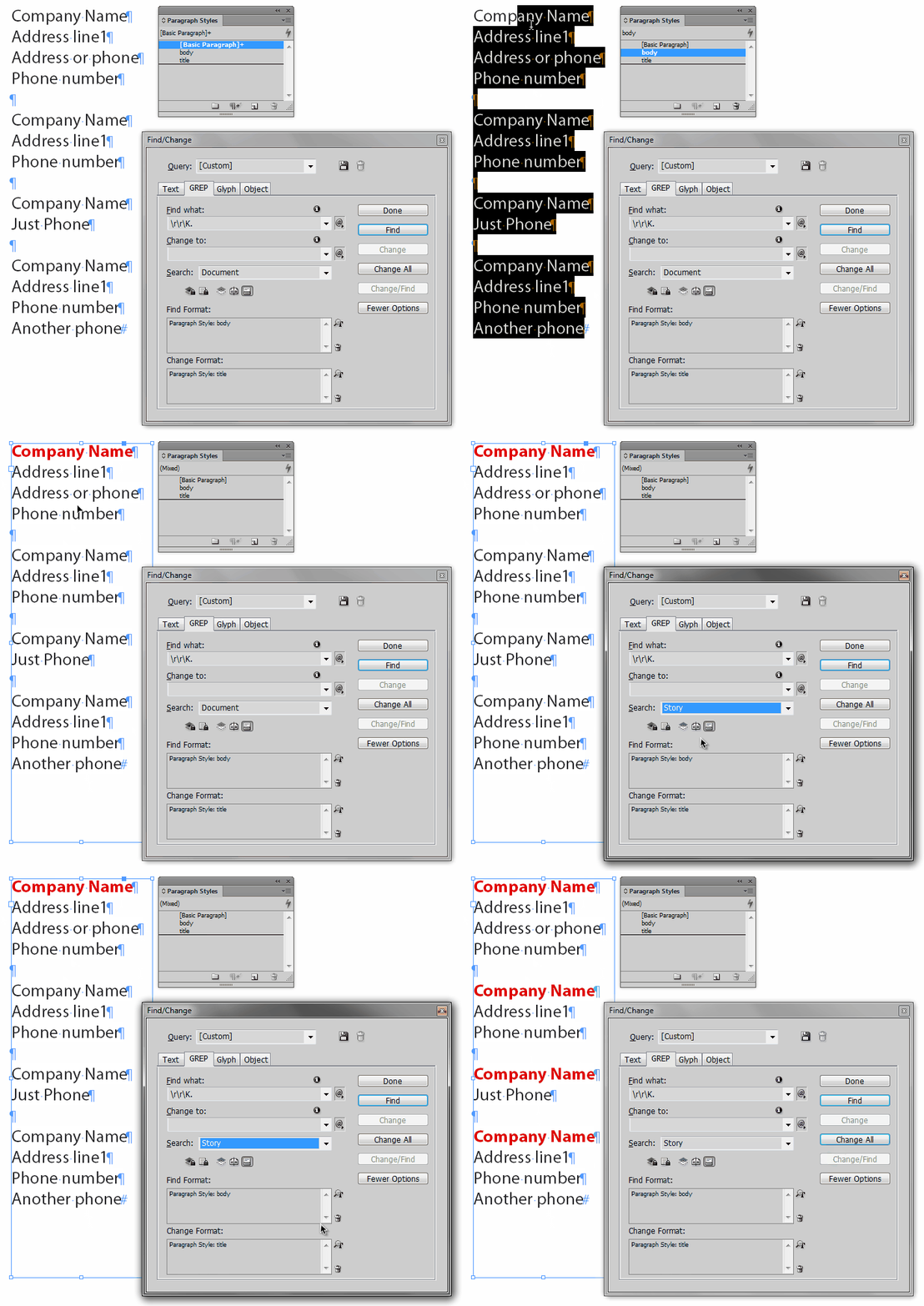
3. In F/C dialog, use this GREP: \r\r\K.

In Change Format: select your Paragraph Style: title

4. Run query, and you're done.

Here's how:

After this you may want to run built-in query Remove Trailing Whitespace and apply space before your titles properly, in Paragraph style options.

1 reply

Legend
October 19, 2017

Next style will work if you set it up correctly.

Style: Company Name > Next Style = Rep Name

Style: Rep Name > Next Style = Address line1

Style: Address Line1 > Next Style = Address line2

Style: Address Line2 > Next Style = Phone number

Style: Phone number > Next Style = Company Name

terris93514379
Participant
October 19, 2017

Thank you! This does help a lot. I guess I wasn't taking it far enough. However, it assumes all addresses have 2 address lines. So when applied it, most of them worked great! But I do have some with just a name and number line and some with a 3rd address line or 2 phone numbers. Do I need to handle those manually or is there maybe an additional option or condition I can apply?

Thanks!

Barb Binder
Community Expert
Community Expert
October 19, 2017

You could use a soft return/line break at the end of the first line of a two line address. (Shift+Enter) That will treat a 2-line address as a single paragraph.

~Barb at Rocky Mountain Training