

M Prewitt at IIW
Known Participant
February 22, 2018
Answered

Arrow sizes wrong for lines at small point sizes

  • February 22, 2018
  • 2 replies
  • 1730 views

I'm using InDesign CC 13.0.1, on macOS 10.13.3. When I create lines and add arrows, the arrows on the smallest lines cannot be sized properly. See this example:
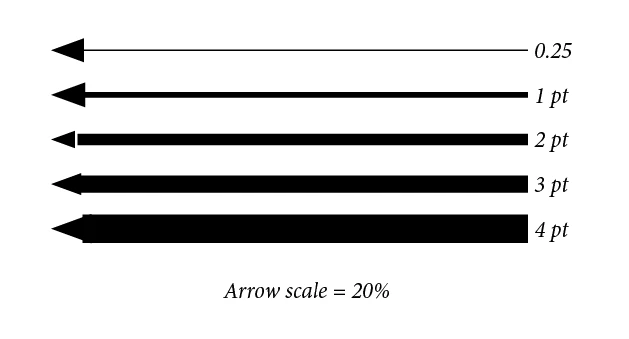
This is obviously enlarged. But at 1 point size and smaller, the arrows are actually larger than at greater point sizes, and cannot be reduced in size beyond the sizes shown. Thus, making a fine point arrow on a 1 point or smaller line seems impossible. An arrow at 20% size gets progressively smaller as the line weight is dropped from 4 points, to 3, to 2, but then gets bigger at 1 point and smaller.

There is also an anomaly where the arrow separates from the line at certain sizes (2 pt in this example), or is overtaken by the stroke (see 4 pt example). This is probably specific to the arrow scale, in this case 20%.

This is probably an edge case. It came to my attention when I had a situation where I had to create type at a specific point size (12 points), and then had to create fine lines no more than 12 points in length. It wasn't possible to make good-looking arrows for my lines, so I had to create them the hard way with shapes.

It would be helpful to know if anyone else can replicate this, just to be sure it is not a glitch with my install.

This topic has been closed for replies.
Correct answer Laubender

Hi,
unfortunately this whole mess is by design.
It's not your fault, it's not a bug!

What can be done?


1. Start with an arrow head that fits the ratio of size and stroke weight.
2. Then select the the graphic line or path and scale it with the percentage input fields of your Control panel or your Transformation panel so that the desired effective stroke weight will be achieved.

Important: Before scaling change your preferences for scaling to: Adjust Percentages

Preferences > General > Scaling

Regards,

Uwe

2 replies

M Prewitt at IIW
Known Participant
February 22, 2018

Thanks! Glad to find another thread that explores this issue in depth and explains it well. I tried a search before posting mine, but I guess my search query was too restrictive or used the wrong terms, since I found nothing.

LaubenderCommunity ExpertCorrect answer
Community Expert
February 22, 2018

Hi,
unfortunately this whole mess is by design.
It's not your fault, it's not a bug!

What can be done?


1. Start with an arrow head that fits the ratio of size and stroke weight.
2. Then select the the graphic line or path and scale it with the percentage input fields of your Control panel or your Transformation panel so that the desired effective stroke weight will be achieved.

Important: Before scaling change your preferences for scaling to: Adjust Percentages

Preferences > General > Scaling

Regards,

Uwe

Community Expert
February 22, 2018

For some details see into my post here:

Re: change arrowhead size?

Regards,
Uwe