
Inspiring
August 1, 2022
Question

Artboard Issue

  • August 1, 2022
  • 7 replies
  • 1693 views

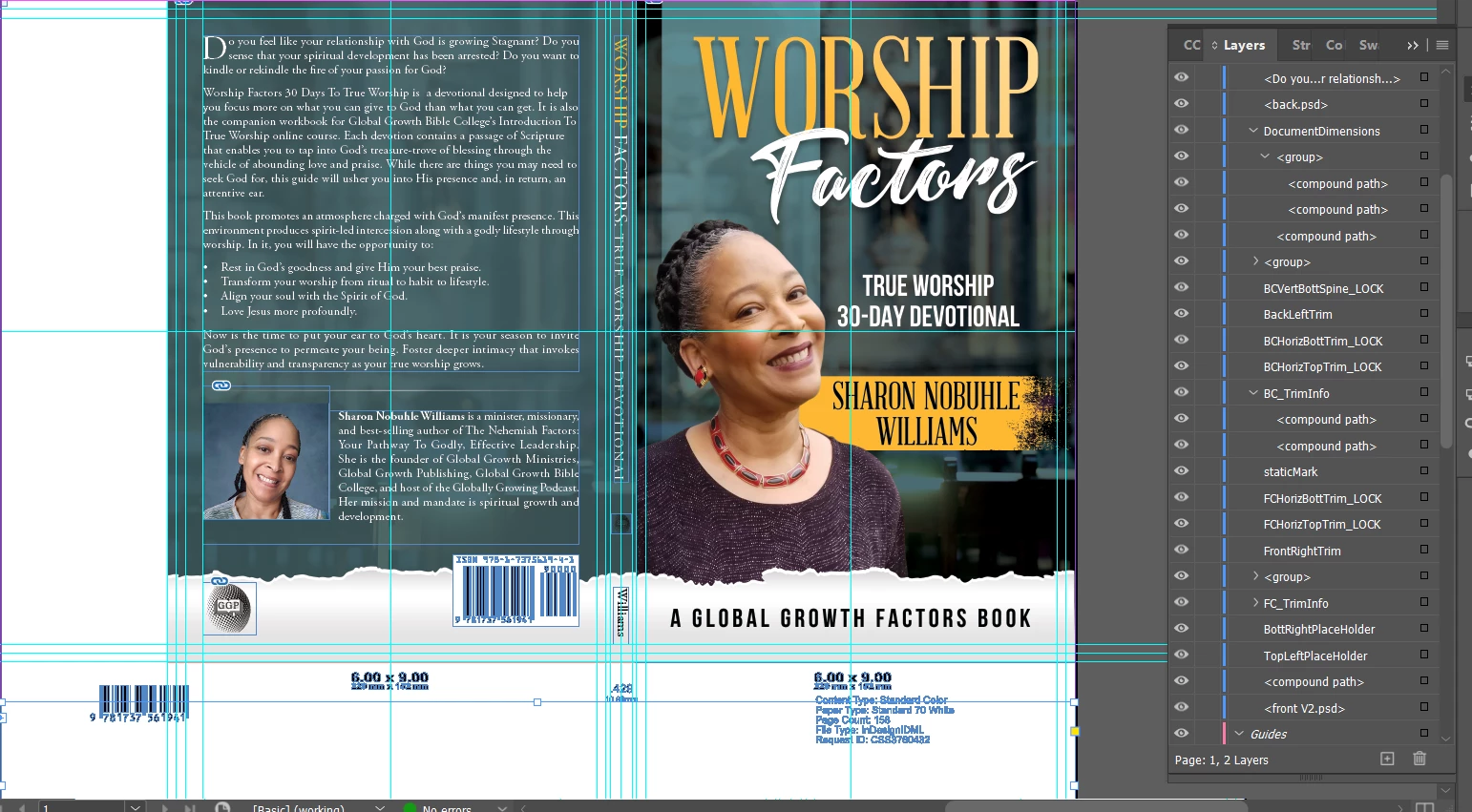
I've received my source files back from my designer, which contains a white section that I cannot remove. It doesn't appear to be a part of the artboard, and when I unlock all the layers, I still cannot highlight it to delete it. As you can see from the image, I've unlocked everything in the layers tab. I've also tried hiding things to no avail. 


This topic has been closed for replies.

7 replies

rob day
Community Expert
Community Expert
August 1, 2022

HI @Global Growth22472567e5o6 , I’m not sure why the Layers panel in your capture is not showing locked page items, but I downloaded your IDML and the items in the Guide layer are locked. @Barb Binder ’s Object > Unlock All of Spread should unlock everything.


Also, if I hide Layer 1, the non printing Guides layer has the printer’s page setup instructions. It looks to me like your designer just followed the instructions.


I’ve seen this kind of thing before from online printers, where either they don’t understand how InDesign‘s bleed and slug setup works, or they don’t trust their clients to understand the trim, bleed, and slug terms. If the job is going to the printer who provided the template, you probably want to leave it alone.


Dave Creamer of IDEAS
Community Expert
Community Expert
August 1, 2022

Most of this was discussed already. 

If you expand the Guides layer, you will see the menu-locked objects. If objects are locked through the Object menu and then the layer is locked--when the layer is unlocked, the original locked objects remain locked. 


I think the setup is to make bindery easier for the printer:

Trim off the large excess areas on left and bottom.

Bind the book.

Trim bleed from entire book.

David Creamer: Community Expert (ACI and ACE 1995-2023)
Barb Binder
Community Expert
Community Expert
August 1, 2022

It makes even more sense that he knows Photoshop well, and is working within that conceptual environment.


Here's a visual for you if you want to adapt the page size in InDesign. The supporting objects underneath will now be non-printing. Use Object > Unlock All of Spread if you want to move them. 


~Barb


~Barb at Rocky Mountain Training
Frans v.d. Geest
Community Expert
Community Expert
August 1, 2022

On a second look, I see a selected frame without fill over the white area. What I can not clearly see if it is a wide pasteboard with information on it, or paper filled frames on maybe a slug area. But indeed a standard slug seems less logical. Anyway, there is information on the page with a reason that should/could be put on a slug area instead. But I agree now that it looks more like a 'illustrator try solution'. The best thing to do is to share the file so we can take a look for you.


Inspiring
August 1, 2022

 Coo! Here's a link to the source file...

Uncompressed


Thanks!

Document Geek
Community Expert
Community Expert
August 1, 2022

You're going to use the Page Tool. Set your proxy point in the control bar to the top right, and plug in the values shown in the screenshot. I got those values by selecting the artwork and noting their width and height.

Barb Binder
Community Expert
Community Expert
August 1, 2022

I agree with @Document Geek. The white background is the paper, all margins are set to 0 and then the designer used ruler guides to set up the image area. My best guess is that the designer is used to working with Illustrator, and doesn't know InDesign at all but was asked to use it, so took an Illustrator-like approach. 


~Barb

~Barb at Rocky Mountain Training
Inspiring
August 1, 2022

 What's interesting is that he claims to use photoshop and InDesign. I've used him before, and I always get the source files when he's done.  This is my first time encountering this. I want to know how to address it on my own.

Document Geek
Community Expert
Community Expert
August 1, 2022

Slug shows up with a gray background, not white. I suspect that the dimensions of the final artwork (roughly 12.75 x 9) will not match your document size. I bet that the person who prepped this file set up the document size more like 14.75 x 11. So the bleed and slug are actually build int the page size of the document. 


Please post a screenshot of your Document Setup dialog box.

Inspiring
August 1, 2022


Frans v.d. Geest
Community Expert
Community Expert
August 1, 2022

They are in the slug area - with a reason probably! Why remove them?

John Mensinger
Community Expert
Community Expert
August 1, 2022

Can't really see the artboard edges in your screenshot, but I suspect the problem area is "slug".

Check File > Document Setup > Bleed and Slug.

Inspiring
August 1, 2022

No bleed or slugs.

Unfortunately, I'm rather new at this, so I'm really at a loss.