Participant
August 24, 2017
Answered

Auto Resize

  • August 24, 2017
  • 1 reply
  • 374 views

I was just passed a bunch of files for the complete bible. I need to reformat the whole thing and while it has many master pages, they are not linking to the pages. They currently have two text frames on the page to create two columns. I need to make it one larger text frame for each page with a larger margin. I changed the master page, but it is not updating. It is 2,000 pages long so I am hoping there is a way to do this without having to do it manually.

This topic has been closed for replies.
Correct answer Bill Silbert

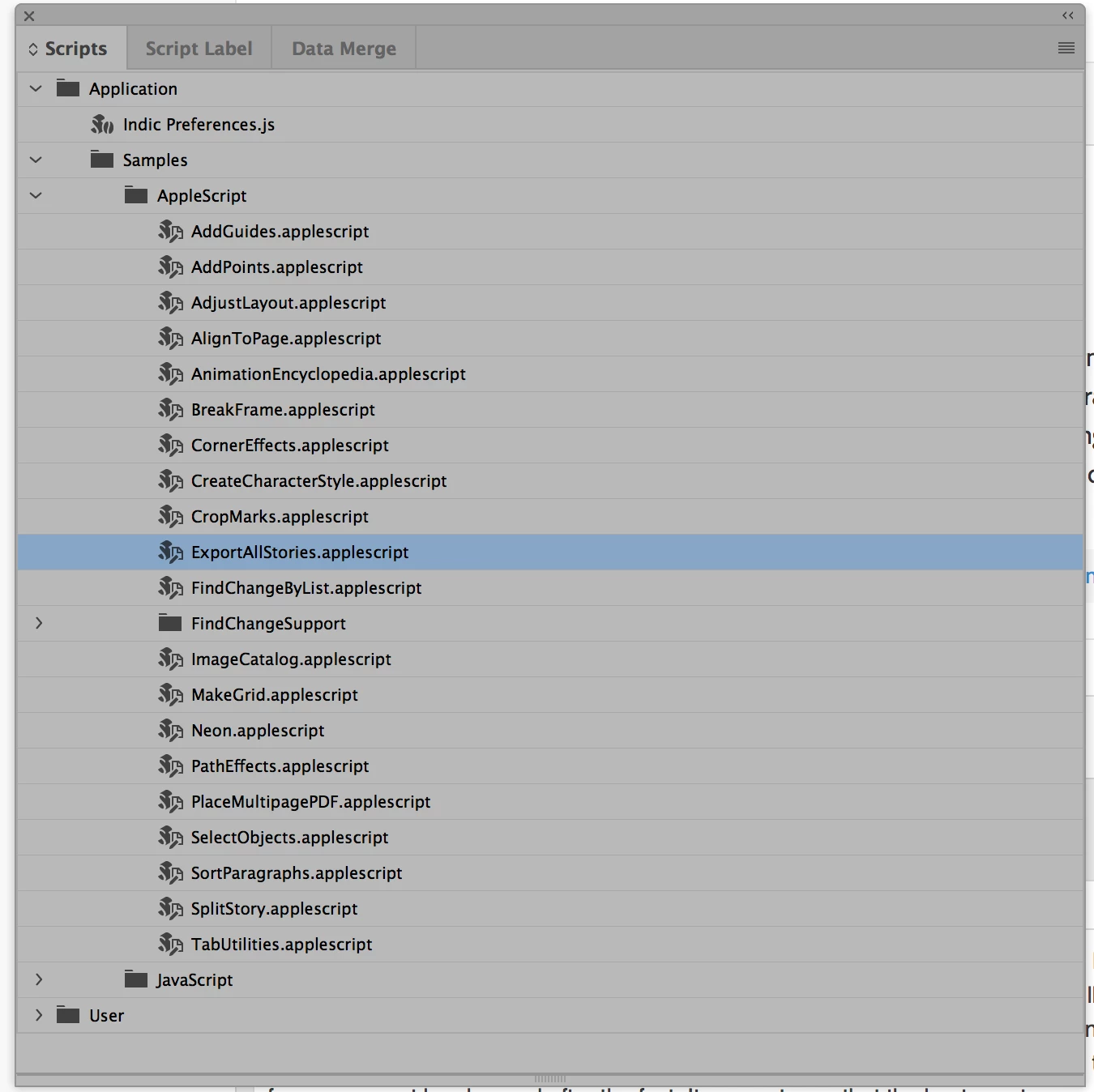
Unfortunately, once a text frame's link to a Master Page has been broken it will no longer be able to be controlled by subsequent changes to the Master page. Text frames that have been created through a Master page will lose their link to text as soon as new text is flowed into the frames as they appear on the Document Pages. If the geometry and placing of the frames is undisturbed they can still be moved or have their dimensions changed through the Master page regardless of whether the text is no longer linked. However, existing unlinked frames can not be changed after the fact. It seems to me that the best way to proceed may be to create a new document with the Master Pages set up as they are now needed and containing a Primary Text Frame that can be created by checking that option in the New Document dialog window. Then making sure that Smart Text reflow is set to add pages to End of Story you can flow the text into the text frame on the first page that the Master with the Primary text frame has been applied and it will create as many pages as needed to accommodate all of the text. I'm hoping here that you have one long text file that you can copy and paste or place here. If you don't then you may need to use a script that comes with InDesign called "Export All Stories" to create a text file from your original document that can be flowed in by placing it into the first Master Page. The script can be found through the Windows Menu>Utilities>Scripts...See screen shot below:
After you create a text file or if you actually already have one (most likely from MS Word) then you can import it by inserting your cursor into the first page Primary Text Frame and using the Place Command (Command-D for Mac and Control-D for PC). When the Place window comes up click on  "Show Import Options" and you will be able to decide whether you want to import the text with its previous formatting or as just raw text.

1 reply

Bill Silbert
Community Expert
Bill SilbertCommunity ExpertCorrect answer
Community Expert
August 24, 2017

Unfortunately, once a text frame's link to a Master Page has been broken it will no longer be able to be controlled by subsequent changes to the Master page. Text frames that have been created through a Master page will lose their link to text as soon as new text is flowed into the frames as they appear on the Document Pages. If the geometry and placing of the frames is undisturbed they can still be moved or have their dimensions changed through the Master page regardless of whether the text is no longer linked. However, existing unlinked frames can not be changed after the fact. It seems to me that the best way to proceed may be to create a new document with the Master Pages set up as they are now needed and containing a Primary Text Frame that can be created by checking that option in the New Document dialog window. Then making sure that Smart Text reflow is set to add pages to End of Story you can flow the text into the text frame on the first page that the Master with the Primary text frame has been applied and it will create as many pages as needed to accommodate all of the text. I'm hoping here that you have one long text file that you can copy and paste or place here. If you don't then you may need to use a script that comes with InDesign called "Export All Stories" to create a text file from your original document that can be flowed in by placing it into the first Master Page. The script can be found through the Windows Menu>Utilities>Scripts...See screen shot below:

After you create a text file or if you actually already have one (most likely from MS Word) then you can import it by inserting your cursor into the first page Primary Text Frame and using the Place Command (Command-D for Mac and Control-D for PC). When the Place window comes up click on  "Show Import Options" and you will be able to decide whether you want to import the text with its previous formatting or as just raw text.

beaheartAuthor
Participant
August 24, 2017

You are a lifesaver, Bill. Going to check these things out now!

Bill Silbert
Community Expert
Community Expert
August 24, 2017

Happy to help.