
kw73737686
Participant
March 24, 2023
Answered

Autoflow Paragraph Alignment Not Changing (Set to Away From Spine, Stuck on Left Aligned)

  • March 24, 2023
  • 1 reply
  • 138 views

Using InDesign 18.2.1 on Macbook Pro 2021 Ventura 13.2.1...


I'm working on creating a 365 day journal, with dates on each page formatted (Tuesday, April 25). In my master pages, I've created two text boxes at the top of the page - and set the paragraph alignment to "Align Away From Spine", linked them, and then on the doc, autoflow placed in my Excel spreadsheet of dates, which populated all 365 pages.


When I do, all the dates are appearing Left-Aligned only. The settings show that they are supposed to appear "Away from Spine" but no matter what I do they stay left aligned:
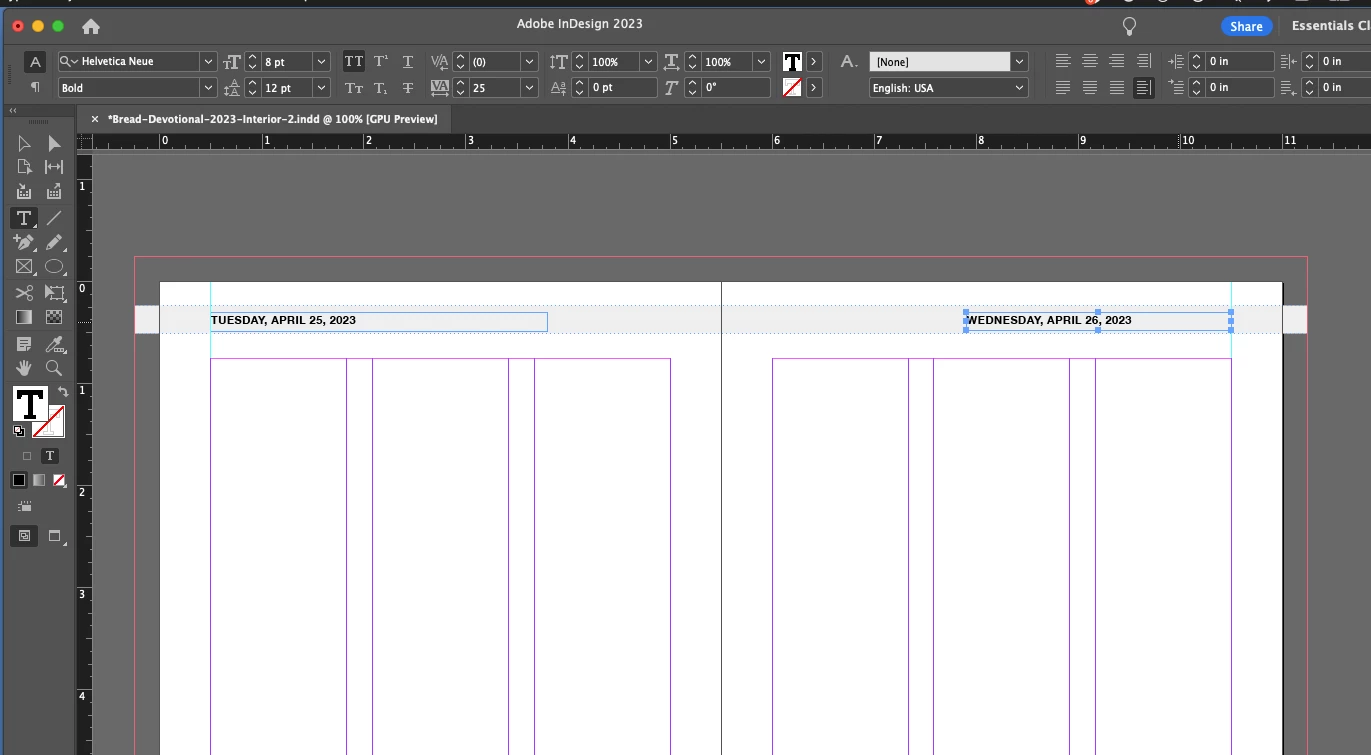
 

I've ensured that all overrides are cleared from the Paragraph Styles section, there is no nested styles either. I'm lost, please advise!

This topic has been closed for replies.
Correct answer Steve Werner

It sounds like you're approaching it correctly.


But there are a couple of troubleshooting things you might try:


(1) If you can, try placing a smaller selection of your pages in a different document. This would be a way of determining if there might be subtle corruption in the file itself. 


(2) If it works only in the current document, then you could get rid of corruption by saving as an IDML file. Choose File > Save As > InDesign CS4 or Later [IDML]. This creates an IDML file from the document. Try opening the IDML to see if the problem goes away.


(3) If it happens in both, you could try restoring your InDesign preferences and caches. Use the description here to do that:

https://www.rockymountaintraining.com/adobe-indesign-rebuilding-preferences-cache/


1 reply

Steve Werner
Community Expert
Steve WernerCommunity ExpertCorrect answer
Community Expert
March 24, 2023

It sounds like you're approaching it correctly.


But there are a couple of troubleshooting things you might try:


(1) If you can, try placing a smaller selection of your pages in a different document. This would be a way of determining if there might be subtle corruption in the file itself. 


(2) If it works only in the current document, then you could get rid of corruption by saving as an IDML file. Choose File > Save As > InDesign CS4 or Later [IDML]. This creates an IDML file from the document. Try opening the IDML to see if the problem goes away.


(3) If it happens in both, you could try restoring your InDesign preferences and caches. Use the description here to do that:

https://www.rockymountaintraining.com/adobe-indesign-rebuilding-preferences-cache/