Participant
May 8, 2024
Answered

Automatic line adaptation

  • May 8, 2024
  • 3 replies
  • 434 views

Hello,

I can't create a style with a line that automatically adapts to the width of the text (see example below).

I have to modify the indentation by hand, and therefore modify each line individually.


Could you give me an idea of how to do it?

Thanks ++++

This topic has been closed for replies.
Correct answer James Gifford—NitroPress

The simplest way to do this is to use a leader tab:

  • Set up a right tab at the right page margin.
  • In the leader character box, use an underscore (_).

 

That may not have the quality you want (line thickness, some separation of the underscores) but it's simple and automatic.


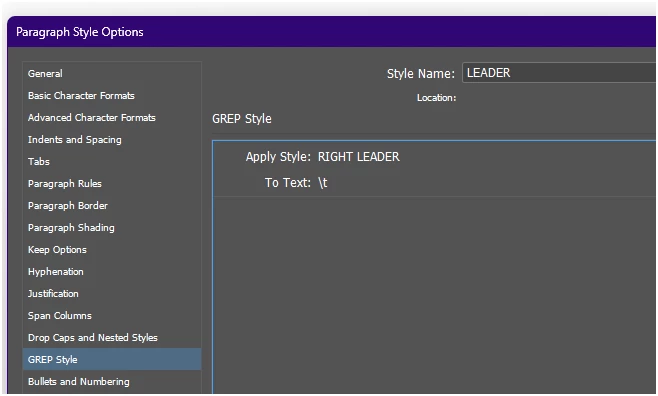
I think the only other way to do it is with a Character Style applied by a GREP style. Create a Character Style using Underline Options that give you the desired line weight, color, style, etc. Call it RIGHT LEADER.
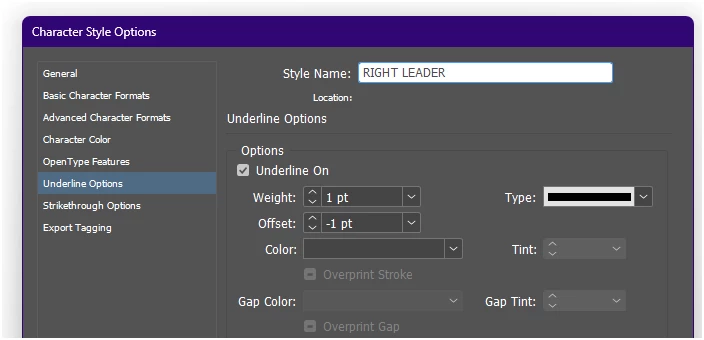
 

Apply this style to the portion of the line with the tab, either manually, or using a GREP auto style:

 

3 replies

rob day
Community Expert
Community Expert
May 8, 2024

Hi @simonj24422943 , There’s also a Right Indent Tab, which align’s itself to the right side of the text frame as you are showing in your capture—Type>Insert Special Character>Other>Right Indent Tab (or Shift+Tab). You can assign the tab character an Underline:


Participant
May 8, 2024

Thanks for your help !

James Gifford—NitroPress
Legend
May 8, 2024

The simplest way to do this is to use a leader tab:

  • Set up a right tab at the right page margin.
  • In the leader character box, use an underscore (_).


That may not have the quality you want (line thickness, some separation of the underscores) but it's simple and automatic.


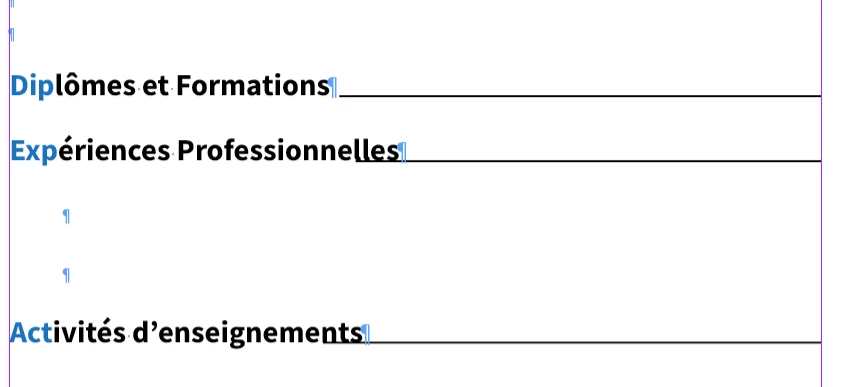
I think the only other way to do it is with a Character Style applied by a GREP style. Create a Character Style using Underline Options that give you the desired line weight, color, style, etc. Call it RIGHT LEADER.


Apply this style to the portion of the line with the tab, either manually, or using a GREP auto style:
 

Steve Werner
Community Expert
Community Expert
May 8, 2024

You want to set a tab in the Tabs panel and use the Leader field to place an underline character.


This video may help you if you're unfamiliar with that technique:


https://www.youtube.com/watch?v=VqFtNz7a3yM