Participant
February 3, 2021
Question

Automatically switching to an alternate glyph

  • February 3, 2021
  • 1 reply
  • 963 views

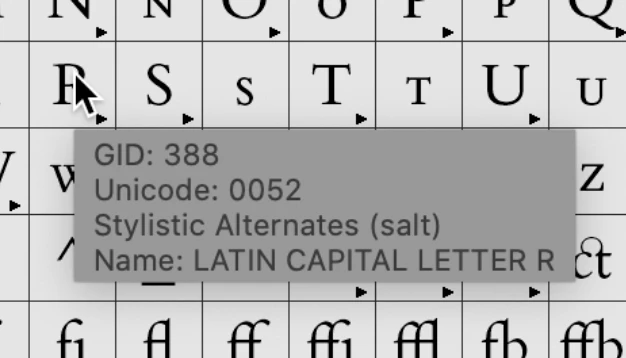
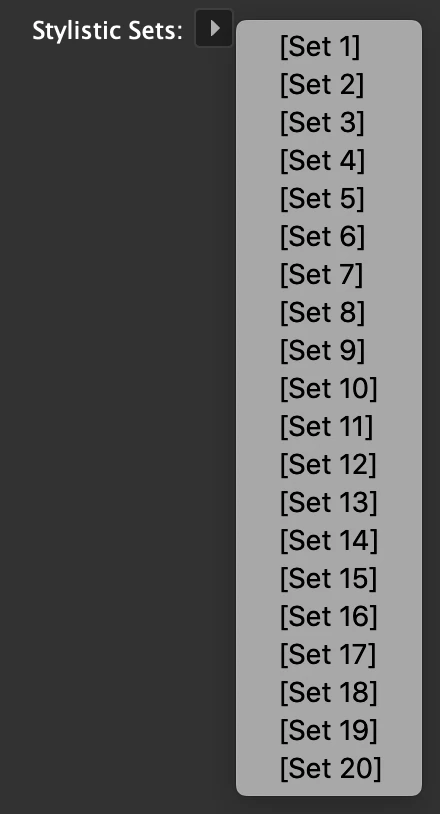
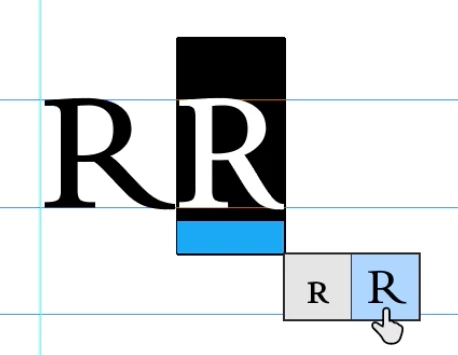
I'm using a font with a capital "R" that I want to replace everywhere with its "Stylistic alternate (salt)", which is much more suitable than the default glyph. The font doesn't seem to contain any stylistic sets that I can enable, nor does this alternate glyph seem to be enabled by changing any of the OpenType options, such as swashes or contextual alternatives. I can't seem to generate a character style that will do this. I also haven't had any success using find and replace to make this change. The only way I currently have of changing this is using the hover-over contextual menu, and this isn't practical for every instance of this glyph in the text.


My question is, is there a way within InDesign for this change to occur automatically? I've searched other questions here and can't find an answer for this particular case. 


1 reply

Community Expert
June 15, 2022

Robbie5C90 said:

"I also haven't had any success using find and replace to make this change. "


Hi Robbie5C90,

I know this is an old thread, nevertheless there is a solution to your issue. With Find/Replace.

The two "R"s may share the same Unicode value, but they differ in their Glyph-ID number, the GID number.

You should be able to do a Glyph Find/Replace action.

Here a sample from my German InDesign:


Note that the GID numbers in your font sample are not the same as the ones in my screenshot.

Glyph IDs follow a different numbering scheme compared to Unicode code point values. They are just counted inside a given font style from 1 onward. Depending on the different number of glyphs used in a particular font the ID values can be different compared to a another font.


Regards,
Uwe Laubender
( Adobe Community Professional )

Participant
October 7, 2025

I'm having this same issue, but the problem is that I want to update an InDesign template file so that any books laid out using the template (with paragraph/character styles, etc.) in the future will have the short-tailed R swapped in by default (Bembo Book MT Pro, looks like Robbie5C90 was using the same font). Does anyone have any ideas, beyond the Find/Change? I'm looking for a way to "set it and forget it" rather than always have a Find/Change that needs to be performed after a book has been typeset.


I don't know why Monotype ships the long-tailed R as the default and doesn't even enable the short-tailed one in a stylistic set... seems like many people must have this issue.

BobLevine
Community Expert
Community Expert
October 7, 2025

This discussion is almost five years old. Please start a new discussion which will get a lot more attention.