Inspiring
November 2, 2023
Answered

Backwards Apostrophe displaying incorrectly after Data Merge

  • November 2, 2023
  • 1 reply
  • 1232 views

Hi,


I have an Excel file to Data Merge, and I've converted it into a CSV for InDesign.

In my Excel file, I have Names followed by a Class Year. For example, "'Mr. John Smith '82", but when InDesign reads the apostrophe, it's a Forwards one instead of a Backwards one.


I would change the apostrophe through Glyphs with a find and replace, however, I have more than a hundred rows in my CSV, and the rest of the normal apostrophes in the rest of the document would change.


Is there a faster way to replace/change these apostrophes?

This topic has been closed for replies.
Correct answer Colin Flashman

In your preferences, the checkbox asking about typographers quote will make a difference here.
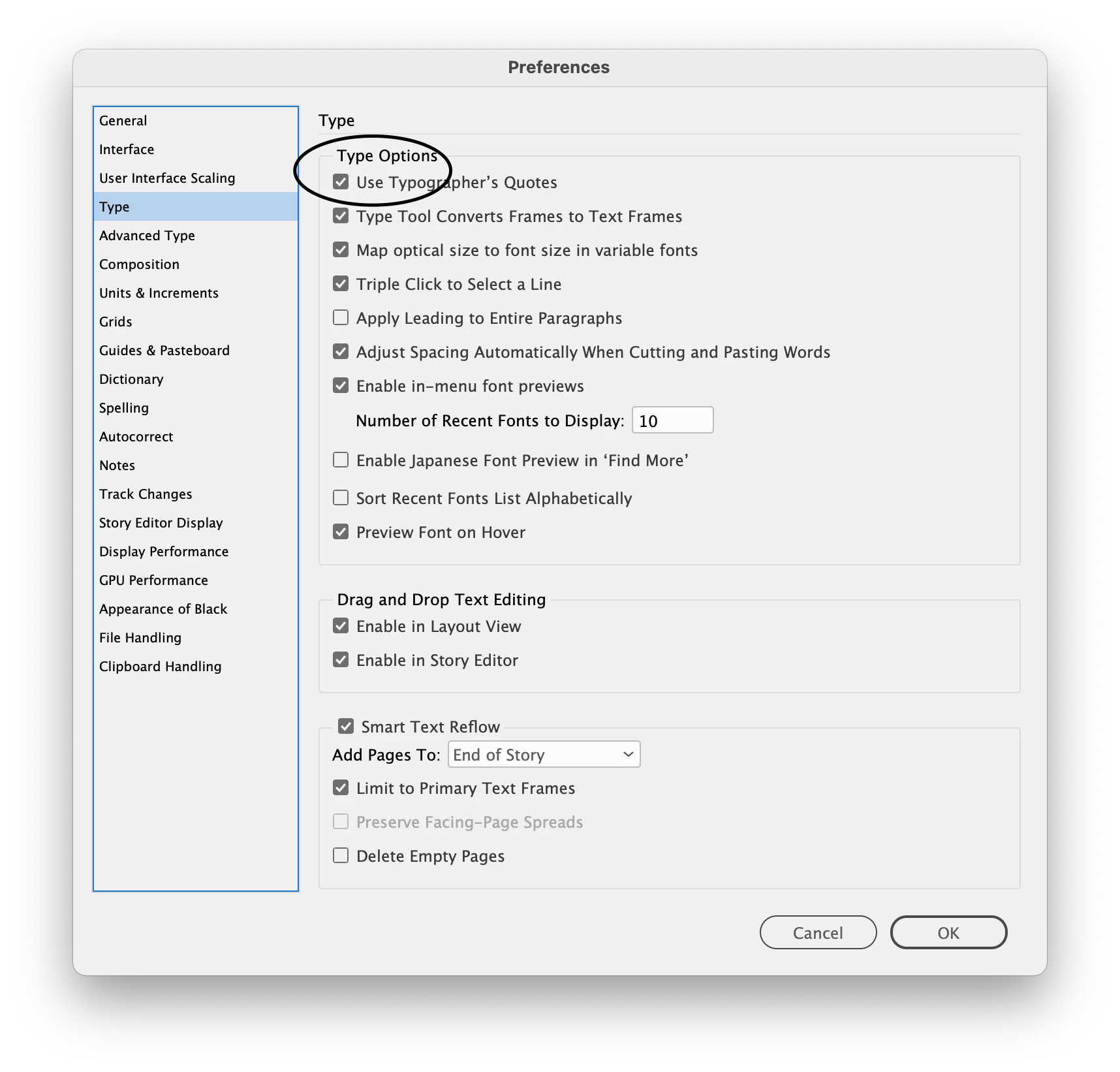
I've just replicated your situation. When checked on, the line comes through with a single left quote. If i turn the checkbox off and then toggle preview on and off, it goes to a straight quote.

That said, if you want typographers quotes elsewhere BUT in this instance you need a single right quote, you will need to actually copy that glyph into Excel. This can be done from your contextual menus when you have a blinking text cursor in a textframe.
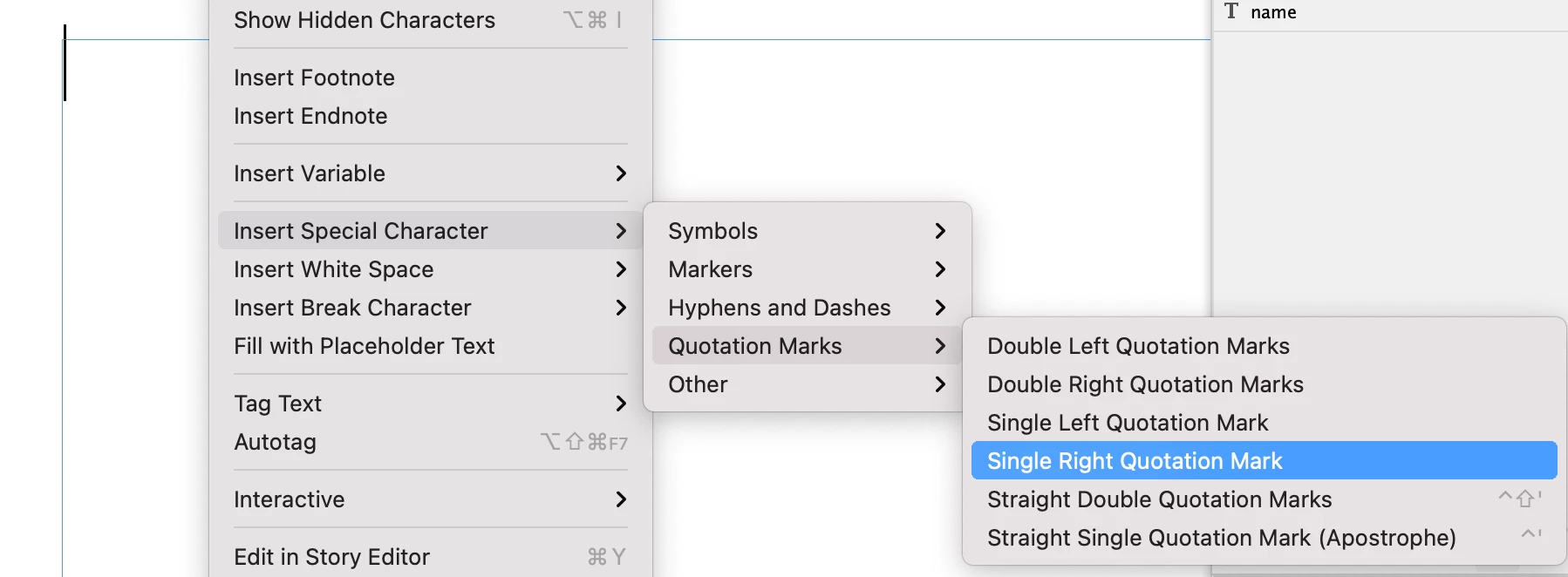
 From here with the new single right quotation mark inserted, copy the character and paste it into the appropriate place in Excel.

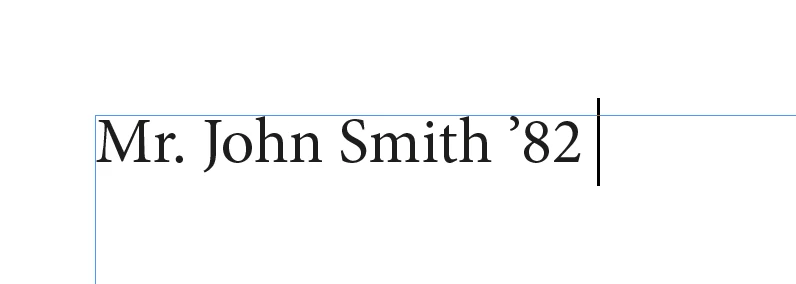
When a csv is now exported, selected as a data merge source (with the typographers quotes on in preferences) this is what I end up with:
 The other way to do this is have two fields - one with the person's name, the next with the year. In your data merge file in indesign, you would have a line of text that looks like this:


<<name>> ’<<year>>

This way InDesign can control the formatting of the quote from here without relying on Excel parsing the data to a text only format which is then parsed again via InDesign's data merge tool.

1 reply

Cassie_UPAuthor
Inspiring
November 2, 2023

Here's a picture in reference to what I'm asking help on:

Colin Flashman
Community Expert
Colin FlashmanCommunity ExpertCorrect answer
Community Expert
November 2, 2023

In your preferences, the checkbox asking about typographers quote will make a difference here.

I've just replicated your situation. When checked on, the line comes through with a single left quote. If i turn the checkbox off and then toggle preview on and off, it goes to a straight quote.

That said, if you want typographers quotes elsewhere BUT in this instance you need a single right quote, you will need to actually copy that glyph into Excel. This can be done from your contextual menus when you have a blinking text cursor in a textframe.

 From here with the new single right quotation mark inserted, copy the character and paste it into the appropriate place in Excel.

When a csv is now exported, selected as a data merge source (with the typographers quotes on in preferences) this is what I end up with:

 The other way to do this is have two fields - one with the person's name, the next with the year. In your data merge file in indesign, you would have a line of text that looks like this:


<<name>> ’<<year>>

This way InDesign can control the formatting of the quote from here without relying on Excel parsing the data to a text only format which is then parsed again via InDesign's data merge tool.

If the answer wasn't in my post, perhaps it might be on my blog at colecandoo!
Cassie_UPAuthor
Inspiring
November 2, 2023

Hi Colin,


Thank you for your response.


  • For the first option relating the typographer's quote, this option didn't work, for me at least.


  • For the second option, I am trying it out after I submit this project, and will respond again.


  • For the third option relating to having two fields in excel - this worked. I split the names from one column to two, and was able to merge correctly in InDesign.

(However, I had a few fields with multiple names & graduation years in them, and had to manually fix them.

I thought I could split them into 4 fields, <<name1>> '<<year1>> and <<name2>> '<<year2>>, "Mr. John Smith '82 and Mrs. Jane Smith '82." Unfortunately, I'd have to manually delete an extra single right quote for lines that do not have two names in the first field. Thankfully there were not that many double names. Is there a way to solve this issue? I will have many more documents in the future.)