Participant
April 20, 2020
Answered

Batch Edit in Indesign

  • April 20, 2020
  • 4 replies
  • 5561 views

I have roughly 200 datasheets that are styled up in InDesign. I have a VIP customer who'd like a copy of each one, with his logo instead of mine (and some colour changes). 


If this was a photoshop doc I could probably work something out with the Batch process function. Is there any way in indesign for me to: 


1. Open an INDD file
2. Replace the linked logo.ai with logo_customer.ai

3. Edit swatch colour value 

4. Export to PDF 

5. Save As [old_filename]_customer.indd


It feels like this kind of task must be possible but I can't for the life of me work out how to do it! 

This topic has been closed for replies.
Correct answer Kasyan Servetsky

Here I wrote a script for you to be used in the batch processor:

main();

function main() {
	var doc = app.activeDocument;

	// Relink to the customer logo located in the same folder
	var logo = doc.links.itemByName("logo.ai");
	if (logo.isValid) {
		var logoCustomerFilePath = File(logo.filePath).path + "/logo_customer.ai";
		var logoCustomerFile = new File(logoCustomerFilePath);
		if (logoCustomerFile.exists) {
			logo.relink(logoCustomerFile);
		}
	}
	
	// Edit a swatch
	var swatch = doc.swatches.itemByName("C=15 M=100 Y=100 K=0");
	if (swatch.isValid) {
		with (swatch) {
			colorValue = [30, 90, 90, 10];
		}
	}

	// Export to PDF to the same location as INDD
	var pdfFilePath = doc.fullName.absoluteURI.replace(/indd$/, "pdf");
	var pdfFile = new File(pdfFilePath);
	var pdfPreset = app.pdfExportPresets.itemByName("[Press Quality]");
	var pdfFileExported = doc.exportFile(ExportFormat.PDF_TYPE, pdfFile, false, pdfPreset);
	
	// Save as a copy
	var docFilePath = doc.filePath.absoluteURI;
	var newDocPath = docFilePath + "/" + doc.name.replace(/\.indd$/, "") + "_customer.indd";
	var newDoc = new File(newDocPath);
	doc.saveACopy(newDoc);
}

I don't know your specific requirements so adjust it to your needs. or use it as a starting point.
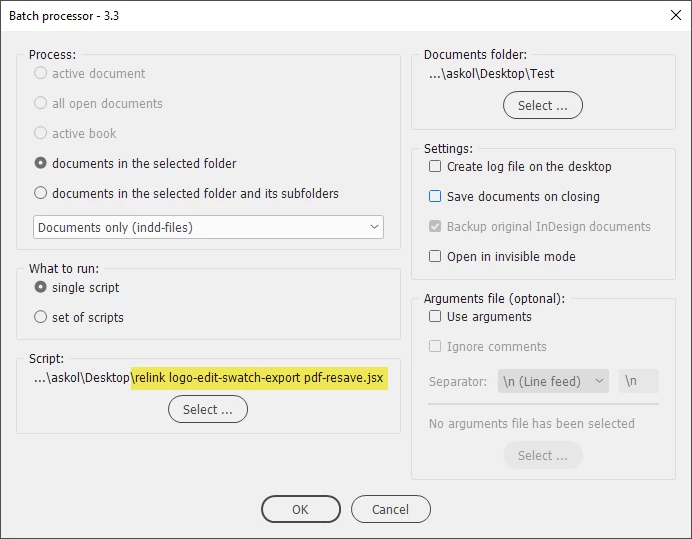
Hope it helps!

— Kas

4 replies

Kasyan Servetsky
Kasyan ServetskyCorrect answer
Legend
April 20, 2020

Here I wrote a script for you to be used in the batch processor:

main();

function main() {
	var doc = app.activeDocument;

	// Relink to the customer logo located in the same folder
	var logo = doc.links.itemByName("logo.ai");
	if (logo.isValid) {
		var logoCustomerFilePath = File(logo.filePath).path + "/logo_customer.ai";
		var logoCustomerFile = new File(logoCustomerFilePath);
		if (logoCustomerFile.exists) {
			logo.relink(logoCustomerFile);
		}
	}
	
	// Edit a swatch
	var swatch = doc.swatches.itemByName("C=15 M=100 Y=100 K=0");
	if (swatch.isValid) {
		with (swatch) {
			colorValue = [30, 90, 90, 10];
		}
	}

	// Export to PDF to the same location as INDD
	var pdfFilePath = doc.fullName.absoluteURI.replace(/indd$/, "pdf");
	var pdfFile = new File(pdfFilePath);
	var pdfPreset = app.pdfExportPresets.itemByName("[Press Quality]");
	var pdfFileExported = doc.exportFile(ExportFormat.PDF_TYPE, pdfFile, false, pdfPreset);
	
	// Save as a copy
	var docFilePath = doc.filePath.absoluteURI;
	var newDocPath = docFilePath + "/" + doc.name.replace(/\.indd$/, "") + "_customer.indd";
	var newDoc = new File(newDocPath);
	doc.saveACopy(newDoc);
}

I don't know your specific requirements so adjust it to your needs. or use it as a starting point.

Hope it helps!

— Kas

Participating Frequently
February 2, 2024

Hi, we use a Pantone swatch and a tint value - is there a way of using batch processor to change a tint?

From: Pantone 293U set as a colour swatch - then 25% tint applied. 

To: Pantone 293U with a 10% tint applied. 

We didn't use a tint swatch - bit of an oversight at the time. 

Kasyan Servetsky
Legend
February 3, 2024

Hi there!
Here I wrote a script for you.

— Kas

Luke Jennings3
Community Expert
Community Expert
April 20, 2020

You can change the color of a tint in a PDF using an Acrobat Preflight Fixup, which can be applied to all 200 PDFs at once. Make a copy of this Preflight and edit it, adding the color to change and the desired color. Add the new preflight to an action, using the Action Wizard and apply the Action to a folder containing the 200 PDFs. As for the new logo, edit it in Illustrator so it is the same size as the old logo (edit artboard), then rename the original logo to hide it from InDesign and select the new logo as the replacement. Not automated, but this should save some time.

Kasyan Servetsky
Legend
April 20, 2020

This can be done easily with my batch processor.

— Kas

sishamIAGD
Community Expert
Community Expert
April 20, 2020

Just had a look and does this article help..?

https://indesignsecrets.com/creating-batch-pdfs.php
