
Question
Before printing, use Photoshop to automatically modify the actual picture size in Indesign?
When the typesetting is designed, the picture may be used in a large size.
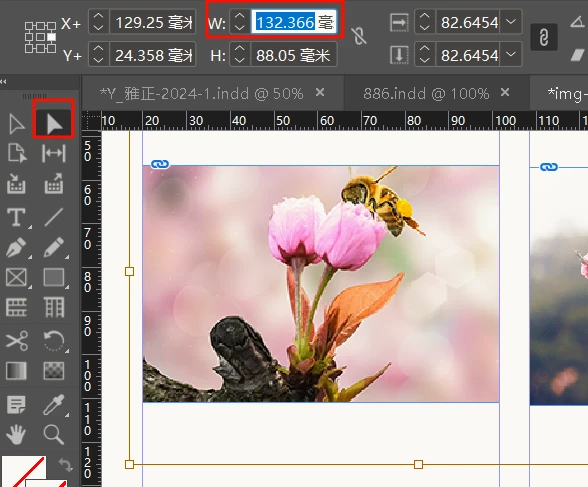
Before printing, we will change the map to the actual size, that is, the size displayed when selecting the tool directly.
Note: Here is a "direct selection tool" (white arrow) instead of "selecting tools" (black arrow).
For example, if the actual width is 132mm, it will be changed to 132+10mm. Of course, the length and width are equal.
Sometimes there are hundreds of pictures, which are troublesome to change. Find a script that can automatically change the size and automatically save.
It turned out that someone had helped write one, but I have not been able to work well, but now I can't open it.
Thank you very much~
//auto changesize and save
Main();
function Main() {
    try{var image = app.selection[0].images[0];}catch(e){return}
    var imagePath = image.itemLink.filePath;
    var myResolution=350;
    var hScale=image.horizontalScale*(myResolution/image.actualPpi[0]);
    var vScale=image.verticalScale*(myResolution/image.actualPpi[1]);
    CreateBridgeTalkMessage();
    function CreateBridgeTalkMessage() {
        var bt = new BridgeTalk();
        bt.target = "photoshop";
        bt.body = myResizeImage.toString() + "\rmyResizeImage('" + imagePath + "'," + hScale + "," + vScale +","+myResolution+ ");";
        bt.send();
    }
}
function myResizeImage(imagePath, hScale, vScale,myResolution) {
    for(var i=0;i<app.documents.length;i++)  if(app.documents[i].fullName.fsName==imagePath)return;  //if image opend
    app.bringToFront();
    app.preferences.rulerUnits = Units.MM;
    var myFile = new File(imagePath);
    var myDoc = app.open(myFile);
    myDoc.resizeImage(undefined,undefined, myResolution,ResampleMethod.NONE);
    var  w=myDoc.width.value * hScale*0.01;
    var h=myDoc.height.value * vScale*0.01;
    var k=w+12.00;
    var j=h*k/w;
    myDoc.resizeImage(k,j, myResolution,ResampleMethod.BICUBICSMOOTHER);
    myDoc.save();
    myDoc.close();
    }
The following is semi -automatic
//Semi -automatic, you need to manually confirm storage
Main();
function Main() {
    try{var image = app.selection[0].images[0];}catch(e){return}
    var imagePath = image.itemLink.filePath;
    var myResolution=350;
    var hScale=image.horizontalScale*(myResolution/image.actualPpi[0]);
    var vScale=image.verticalScale*(myResolution/image.actualPpi[1]);
    CreateBridgeTalkMessage();
    function CreateBridgeTalkMessage() {
        var bt = new BridgeTalk();
        bt.target = "photoshop";
        bt.body = myResizeImage.toString() + "\rmyResizeImage('" + imagePath + "'," + hScale + "," + vScale +","+myResolution+ ");";
        bt.send();
    }
}
function myResizeImage(imagePath, hScale, vScale,myResolution) {
    for(var i=0;i<app.documents.length;i++)  if(app.documents.fullName.fsName==imagePath)return;  //if image opend
    app.bringToFront();
    app.preferences.rulerUnits = Units.MM;
    var myFile = new File(imagePath);
    var myDoc = app.open(myFile);
    myDoc.resizeImage(undefined,undefined, myResolution,ResampleMethod.NONE);
    var  w=myDoc.width.value * hScale*0.01;
    var h=myDoc.height.value * vScale*0.01;
    var k=w+12.00;
    var j=h*k/w;
    myDoc.resizeImage(k,j, myResolution,ResampleMethod.BICUBICSMOOTHER);
}
 AdChoices