
best way to build an Anno Layer ... Anchored Objects ... Script?
I have been researching this problem for a while and have decided a script might be what I need...
I have a 100% completed textbook. The next step will be to add an Anno (i.e. "annotation" or "Teacher's) layer on top of the student text, to create the version of the book that will be sent to teachers. This layer needs to be able to be easily turned on/off so we can keep one Master file for both the SE (Student Edtion) and TE (Teacher Edition).
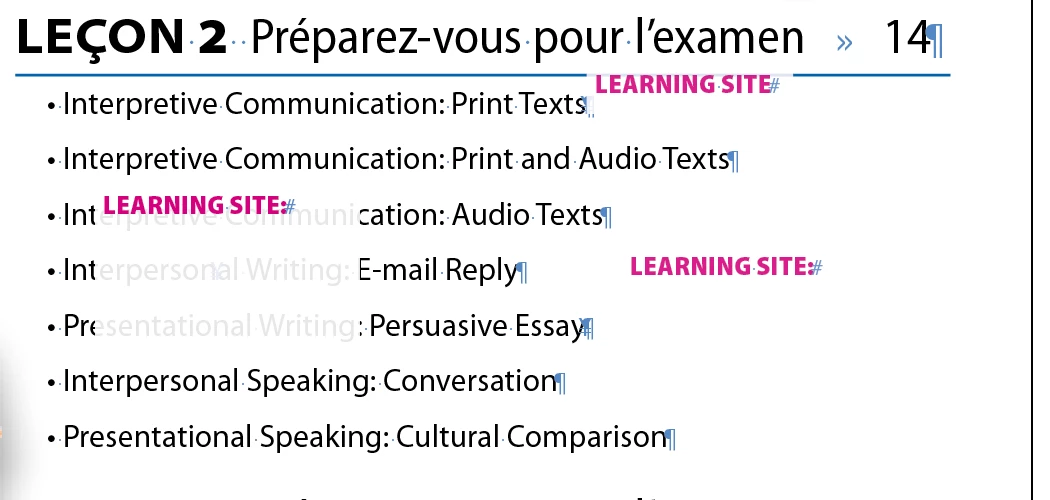
The Anno text is 100% Magenta inside a 90% white fill box with a light drop shadow. The simplest way would be to just put a separate Anno layer on top of everything. BUT.... in the future when edits are made which change line length, the Anno layer will need to be manually altered to match the text edit. We are trying to avoid that.
It would be great if I could place the Annos as Anchored Objects within the text and then move the Anchored Objects to their own layer...but I can't do that. I know the individual objects can have their visibility turned on/off in the Layers palette, but it become burdensome to turn on/off numerous individual objects one at a time on many different spreads. (This is a 500-page book).
Is there a way to create these Anchored Objects – numerous Anno objects across many spreads -- and somehow link them together so that they can be turned on/off all at once, or tagged in some way that would make it easy to turn them on/off?
Other suggestions?
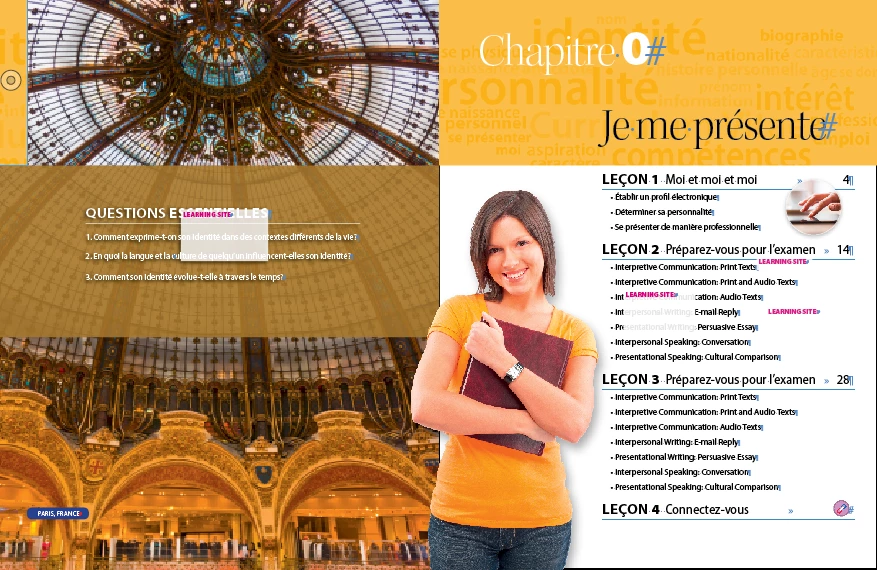
The Anno boxes can go anywhere on the page, even over existing text.
 AdChoices