Known Participant
July 3, 2018
Question

Best way to create a manual in InDesign and place pdfs

  • July 3, 2018
  • 3 replies
  • 8017 views

Hello. I am working on a MacBook Pro and using InDesign CC 2018. I have a few questions about how to create a manual more efficiently.

What is the best way to set up the InDesign file say if you have 300 pages?

Would I use a Book file?

I would export a .pdf, but would want the .pdf to have sections (I think they are bookmarks) in the actual .pdf in the navigation bar. I looked at my Bookmarks panel and for some reason there were some there (I don't know how they got there), but they did not export when I checked Bookmarks when exporting my .pdf. How do I get them into the navigation panel in Acrobat?

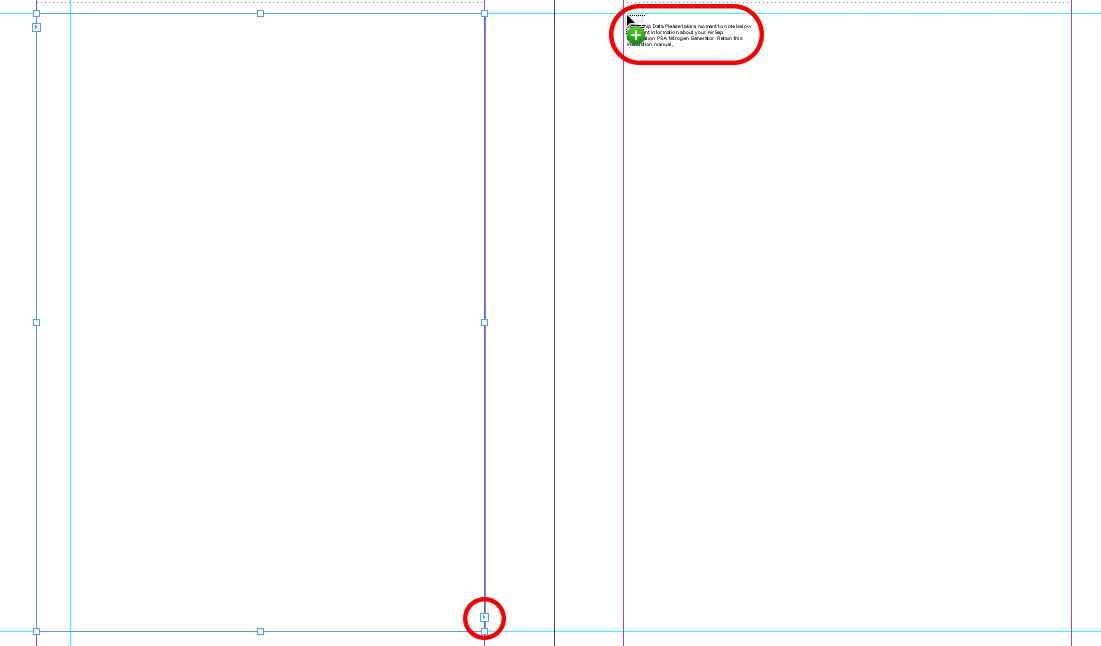
At the end of the written manual, several .pdfs must be inserted that have multiple pages. They must be placed onto the pages because they need a footer with page number. This is something I need to research because I was creating new pages and clicking on the last page with content at the port (blue arrow) (to thread everything together to the next page) and I would put a picture frame inside of the threaded text boxes and insert the pdfs there. (I am sure this is wrong and not the most efficient way, but I had a deadline I had to meet and didn't have time to look into it unfortunately ).

If a .pdf was three pages, I exported those pages separately as for example, Spec-Sheet 1.pdf, Spec-Sheet 2.pdf, and Spec-Sheet 3.pdf. Then I would place those into my InDesign file. Looking for advice on a more effective way..

Please let me know if you need more information.
This topic has been closed for replies.

3 replies

timvh
Participating Frequently
July 4, 2018

Hi, if you need to place pdf's with multiple pages it might be worth to check this helpfull free script called MultiPageImporter2.5JJB.  You can find it here > https://github.com/mike-edel/ID-MultiPageImporter/releases

I use every week a couple of times, it's a real timesaver.

Known Participant
July 26, 2018

this seems to be coming in handy so far, thanks again! Looks like I am not able to undo, but that is okay.

I am referencing https://indesignsecrets.com/add-undo-to-your-script.php but am confused as to what I change for the words in red.

if (parseFloat(app.version) < 6)

doReplace();

else

app.doScript(doReplace, ScriptLanguage.JAVASCRIPT, undefined, UndoModes.ENTIRE_SCRIPT, "Expand State Abbreviations");

Legend
July 3, 2018

Bookmarks come from your styles. You need to use styles consistently, and that's probably the most important guidance for a 300 page file. If you are ever changing a font or style directly, that's a red alert. You may need to generate a TOC to get the bookmarks automatically: Adobe InDesign: Adding Bookmarks for Adobe Acrobat - Rocky Mountain Training

Known Participant
July 3, 2018

Test: Thank you! I did generate a TOC and it has worked great. I am learning a lot and I appreciate your comments and I'll check out the training!

Willi Adelberger
Community Expert
Community Expert
July 3, 2018

If you need a book file or not depends on the size and number of stories. If you have chapter like stories I would recommend.

When you place PDFs in a PDF use only PDF/X-4 as this is the best standard to use in InDesign, from those PDFs you can create and Print PDF standard from InDesign.

I think it is really the fastest way to export the PDFs as single pages instead as whole multipage document. I would create a master in our document with a placeholder frame in a layer below the page number. The placeholder should have an Object Style. In that style define the fitting parameter. So you can add as many pages based on that master in your document and from Adobe Bridge you can drag and drop on those pages the single PDFs. This would not work with a multipage document.

Derek Cross
Community Expert
Community Expert
July 3, 2018

Are you producing a PDF for a print document or for an interactive PDF for viewing onscreen?

Known Participant
July 3, 2018

Derek, it is for interactive use on screen