Participating Frequently
August 15, 2023
Answered

Best way to create a number of text boxes next to each other without overlapping strokes?

  • August 15, 2023
  • 5 replies
  • 949 views

I want to create a pattern with squares. Inside each square is a character. The stroke of the square is 1 pt, the squares are 12,7 x 12,7 mm.

So, I created a text frame with the correct credentials. It looks like this:

 

After that I copied it, pasted in placed and then moved it 12.7 mm – 1pt/2.

 

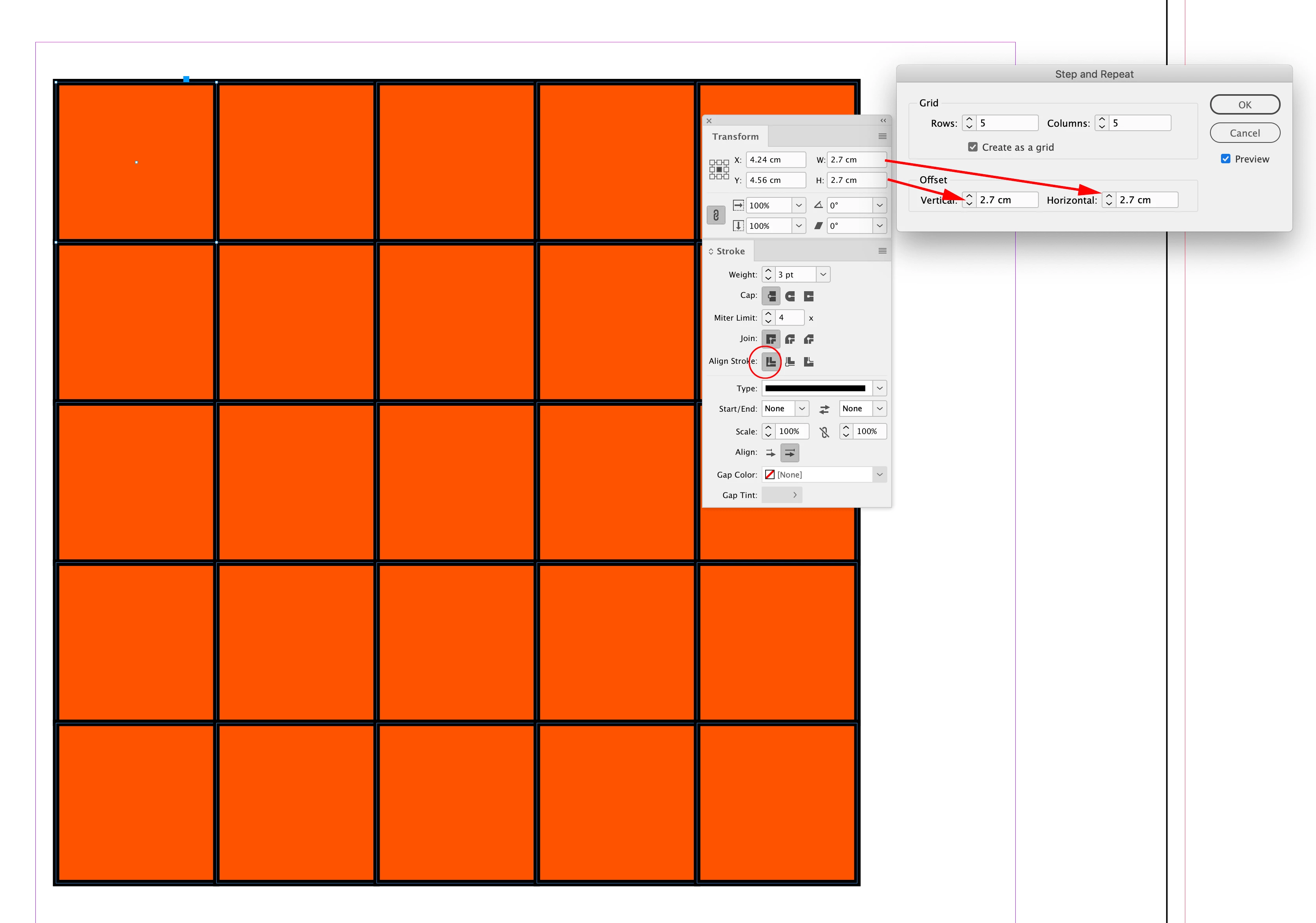
And then I used the Edit > Step and repeat… function to create more.



HOWEVER…

There must be a simpler/better way than this? Isn't it possible to have "Snap to objects" or something in ID*? (*Meaning, if I pressed Opt+Shift and then dragged the newly created object it would snap in place.)

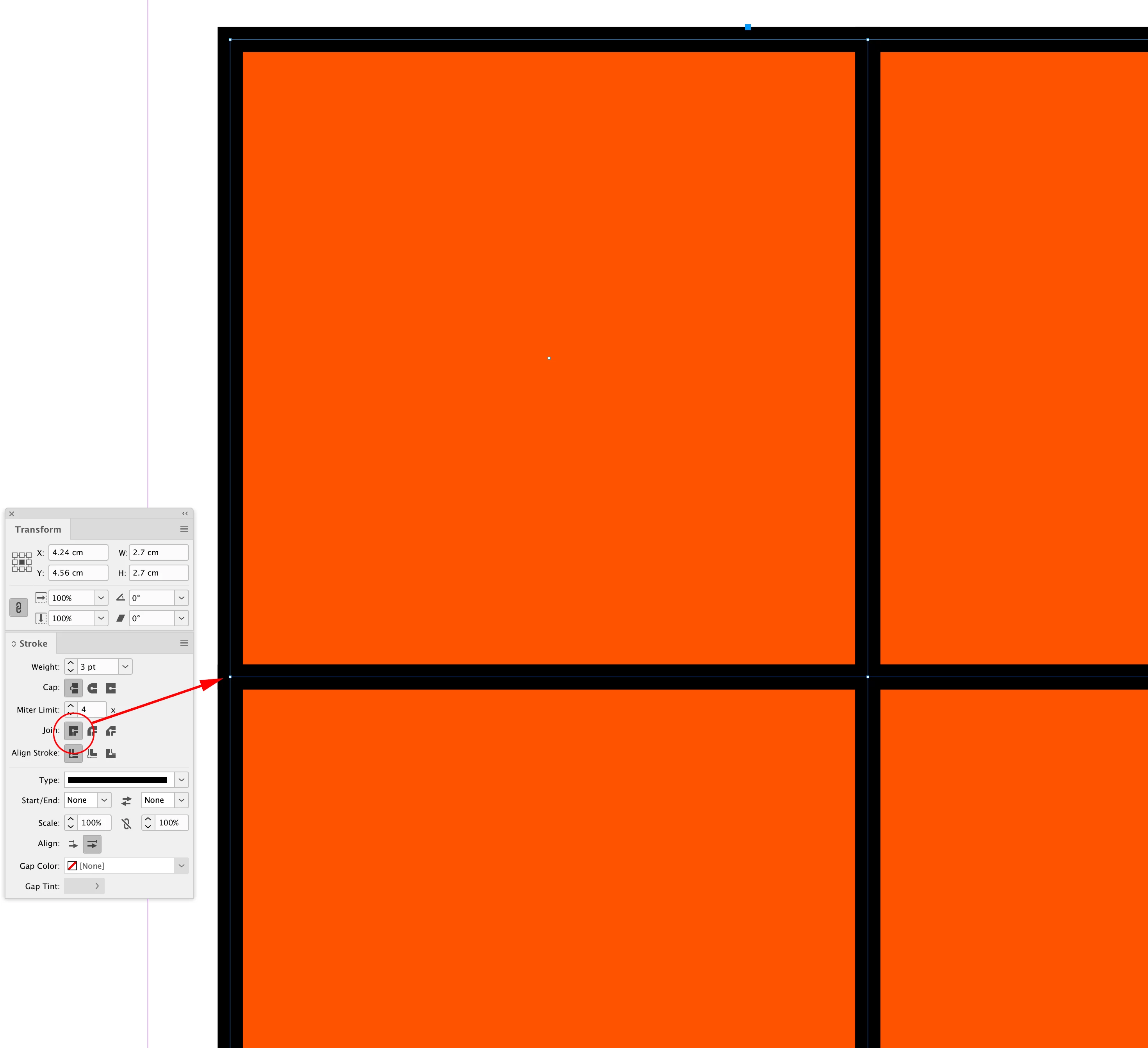
I also tried to alter the Stroke settings, to no avail. All I got was lines next to each other, not overlapping. Which in reality creates a thicker line between the numbers, and making all squares rectangles (not by much, but still).
 

Now I have solved this by using halfpoints and so forth, but it took a lot of struggle and banging the head against my desk, before I realized I couldn't do it any other way to be sure I hade the correct measurements.


Any easier way to do this?
This topic has been closed for replies.
Correct answer rob day


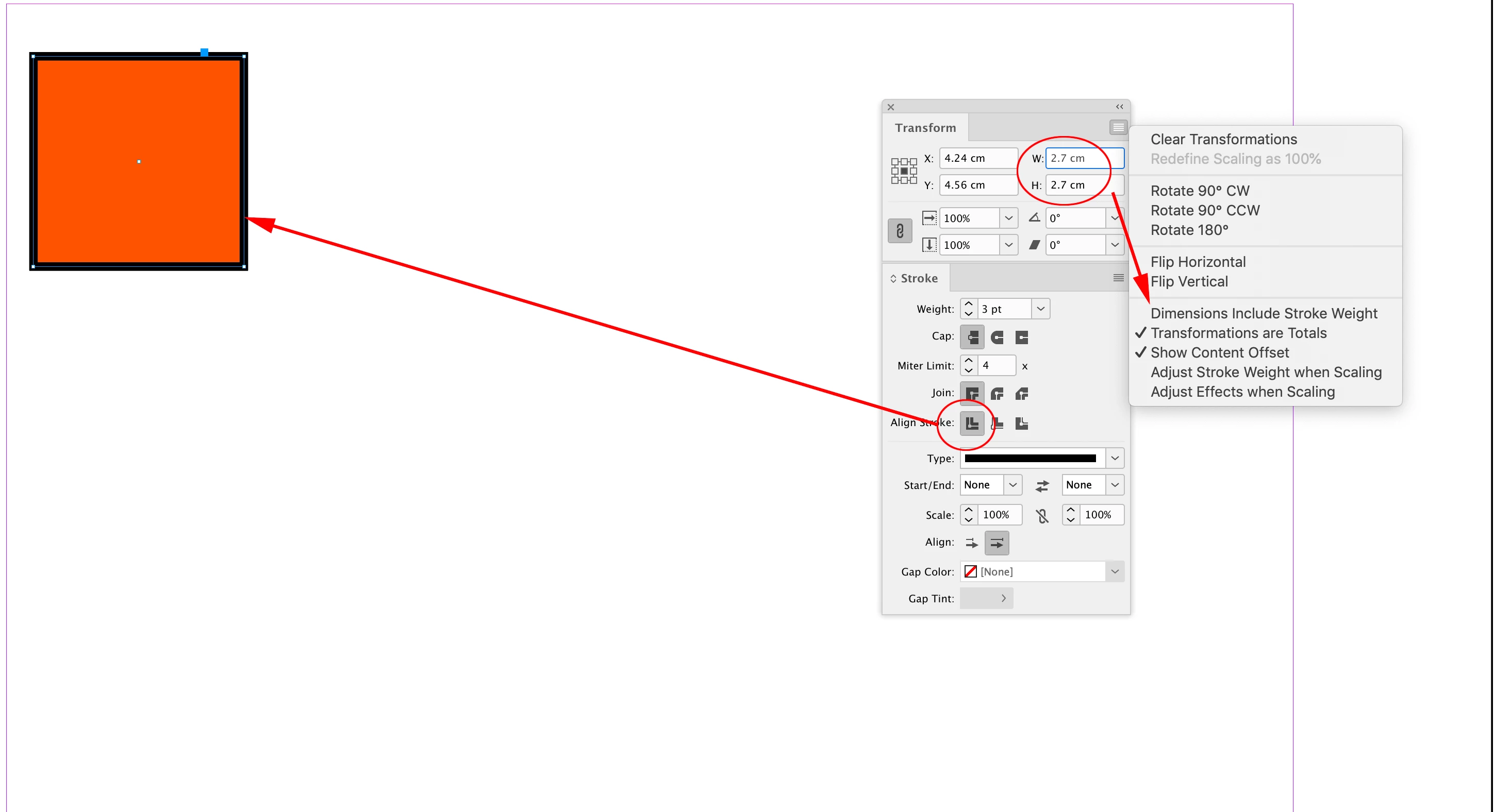
Hi @Andreas Carlsson , Set the Width and Height of the frame to the desired dimension with Dimensions Include Stroke Weight unchecked, and the Stroke Alignment Centered. Then:


5 replies

Willi Adelberger
Community Expert
Community Expert
August 17, 2023

What I do in such cases:

  1.  Create an Object Style with 0pt stroke.
  2. Draw all rectangles edge to edge. I can use the alignment panel to do it exactly.
  3. After all I change in the Object Style the stroke to its final size and set the stroke alignment to middst,
rob day
Community Expert
rob dayCommunity ExpertCorrect answer
Community Expert
August 15, 2023


Hi @Andreas Carlsson , Set the Width and Height of the frame to the desired dimension with Dimensions Include Stroke Weight unchecked, and the Stroke Alignment Centered. Then:


Participating Frequently
August 16, 2023

Aaah! Exactly what I was looking for. Thanks!

jmlevy
Community Expert
Community Expert
August 15, 2023

You could use a table with a single row.

Robert at ID-Tasker
Legend
August 15, 2023

Yeah, but with TextFrames and the trick when dragging - they become linked as a Story and you can much easier to "populate" with numbers - just apply ParaStyle with Numbering ON. 


Robert at ID-Tasker
Legend
August 15, 2023
  1.  Create ObjectStyle - WITHOUT stroke, 
  2.  Apply to your 1st TextFrame, 
  3.  Duplicate however you want - without the stroke present - you can Step&Repeat by the original Width / Height - or use the trick with arrows when dragging, 
  4.  Edit ObjectStyle and set Stroke and Align Centered. 


Participating Frequently
August 15, 2023

That is actually a great way to solve it. Must try this next time! Thanks!

Known Participant
August 15, 2023

Have you Tried Step and Repeat?

With an object you wish to copy selected, go to Edit ---> Step and Repeat.

- To duplicate the object only in one specific direction, enter the offset amount you want and how many times you want it to repeat.

- If you select the "Create as a grid" option, it will ask you to pick how many columns/rows you want and let you select how the offset.


This will not solve needing to enter the numbers, but it can give you a pattern of these squares quickly.

This page might help:

https://helpx.adobe.com/indesign/using/grouping-locking-duplicating-objects.html

Participating Frequently
August 15, 2023

Thanks for the input. As I mentioned I did the Step and Repeat. However, I had to deduct for half a point, to get the strokes *on* each other.

If you just do a step and repeat with 12.7 mm you get thicker lines between the squares.