hoverspork
Participant
June 5, 2019
Answered

Blurry Text Box After Export

  • June 5, 2019
  • 2 replies
  • 8100 views

Hello,

Someone made me a business card in Photoshop.  Now I want to export it into InDesign so I can export with marks and bleeds for the printer.

For some reason after I export as .png or .jpg from Photoshop it has a haze in the background of what I assume is the text box. It's even worse after I export the .jpg or .png from InDesign as .pdf. The haze also shows up when printed. How do I stop this?

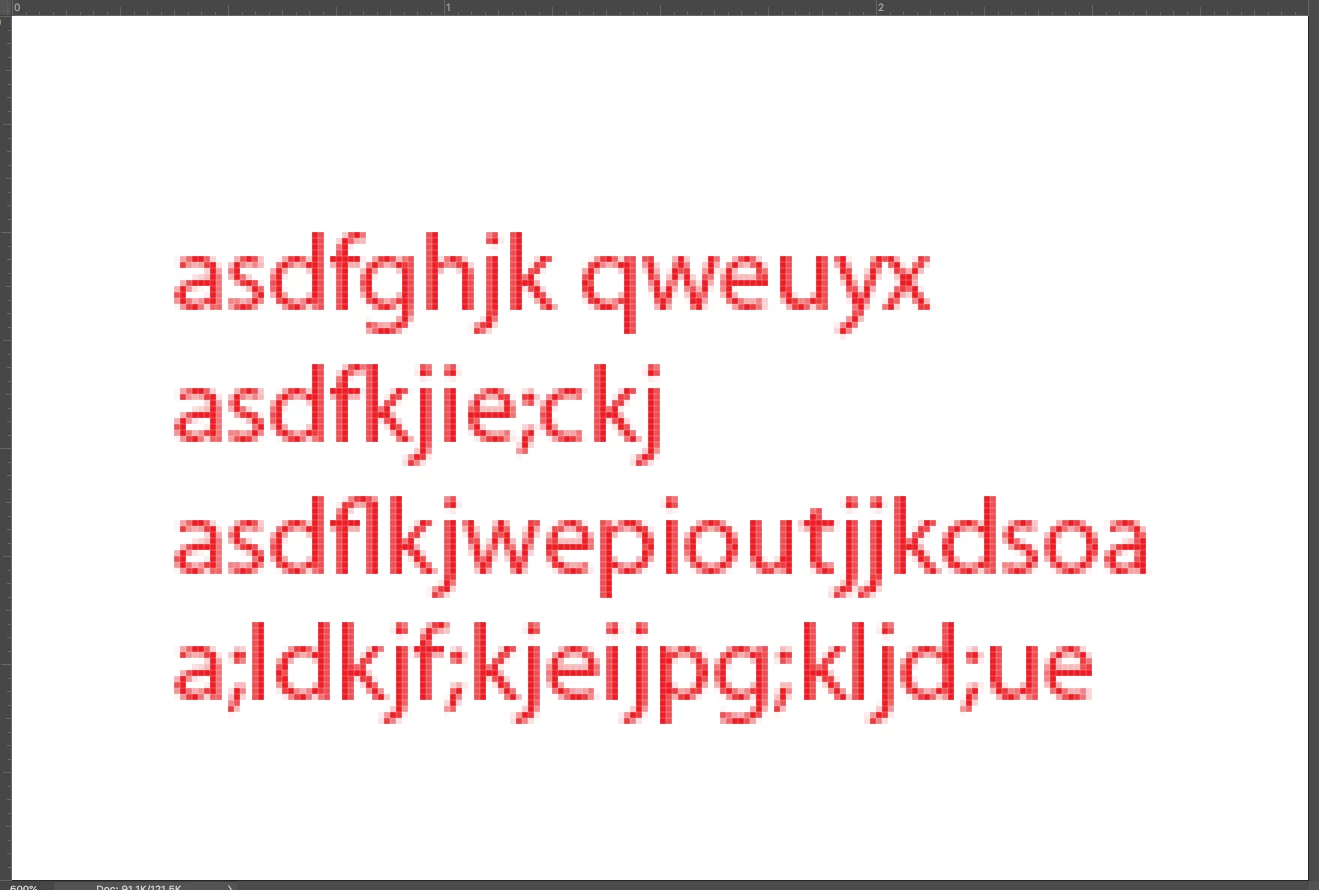
I'm attaching enlarged screenshots to show the blur around the text and image.  I understand the text lines aren't crisp because it's oversized.  My concern is the background of the text.  It looks "dirty".

First image is the PDF I exported from InDesign.  The second image is the JPG I exported from Photoshop.

Thanks in Advance!

    Correct answer Migintosh

    Maybe you could contact the designer and ask if they saved the Photoshop file as a PDF, and if so, could you have that instead. Here's what a 3x2 .psd with 18pt type looks like at 72ppi:

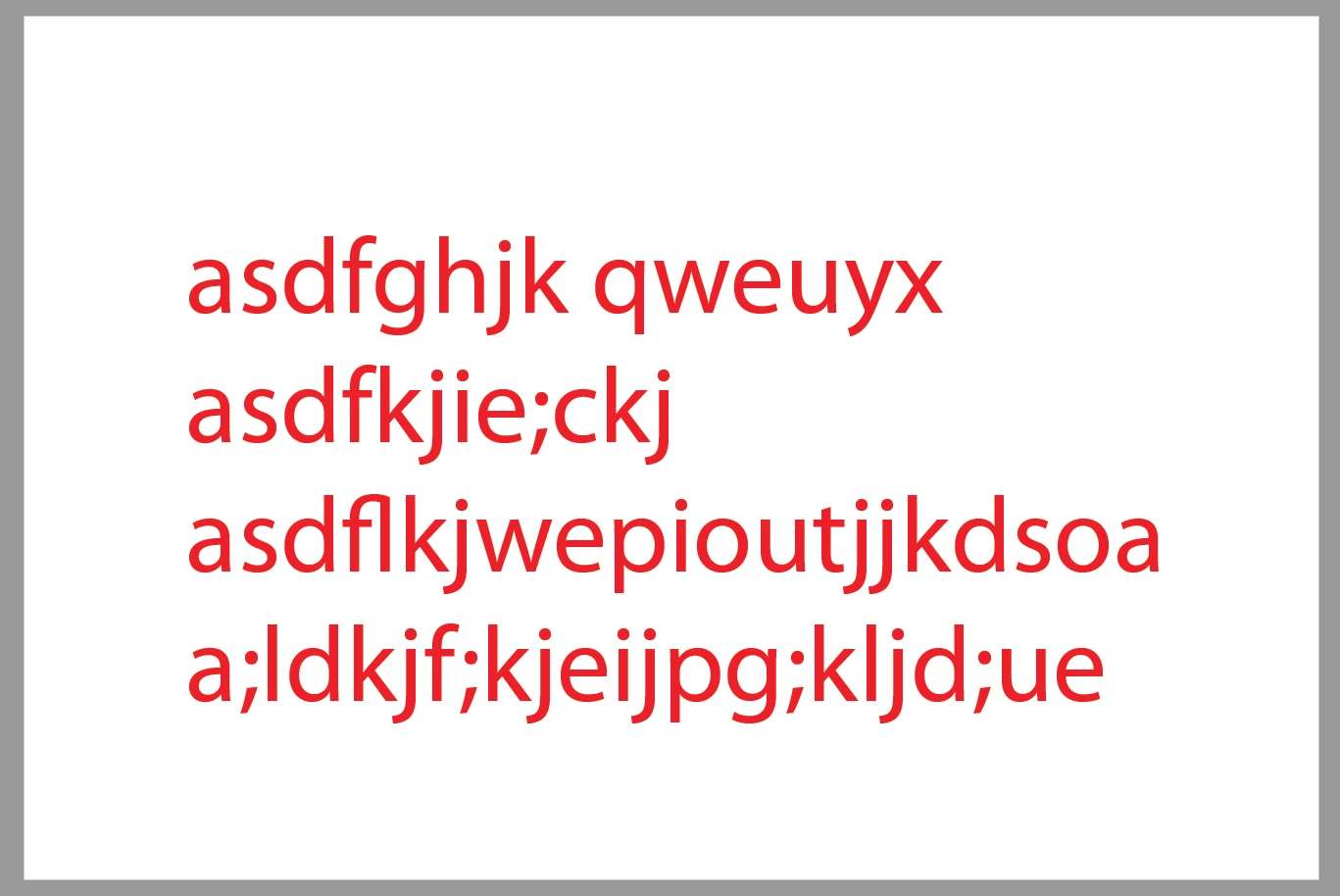
    …and here's the same document saved as .pdf:

    The second is sharp because the type is still vector data. The type of work I do doesn't require me to add type in the Photoshop stage, so there may be something someone will recommend. What most people would do is import the Photoshop image into InDesign, and add the type there. InDesign has better control over type than Photoshop, but Photoshop may be all you need for something as simple as a business card, but not if the type is rendered into pixels.

    EDIT: Actually, now that I think of it, if you have a .psd document that hasn't been flattened, the type should still be live. If you have Photoshop, try opening and saving as PDF.

    2 replies

    bentonandoff
    Participant
    January 9, 2022

    I know I'm late, but I went to "image" and clicked on "image size." I then set my width,  height, and resolution tabs to "pixels" instead of "inches" or whatever yours might be set to. And then where it says "Fit to:" I choose "1366 x 768 px 72 ppi." After I did that, where it says "resolution:" I typed in 300 (pixels/inch). Then I exported it as a PNG because I needed it to have a transparent background. Boom. It worked. Jesus Christ...I hope this helps.

    Participant
    June 17, 2022

    LIFE SAVER THANK YOU

    Legend
    June 5, 2019

    Photoshop is not the tool for making business cards on it's own. Photoshop is for editing pixel-based images, and unless the Photoshop document was saved as a PDF, all of the type you generate in Photoshop will be converted to pixels, and unless the pixel count is very high, you will get fuzzy type. What format was the business card in when you got it?

    hoverspork
    Participant
    June 5, 2019

    Hi there,

    Thanks for the response.  It was originally given to me as a .psd file.  Not my preference to be sure.  I won't be using this provider in the future.

    MigintoshCorrect answer
    Legend
    June 5, 2019

    Maybe you could contact the designer and ask if they saved the Photoshop file as a PDF, and if so, could you have that instead. Here's what a 3x2 .psd with 18pt type looks like at 72ppi:

    …and here's the same document saved as .pdf:

    The second is sharp because the type is still vector data. The type of work I do doesn't require me to add type in the Photoshop stage, so there may be something someone will recommend. What most people would do is import the Photoshop image into InDesign, and add the type there. InDesign has better control over type than Photoshop, but Photoshop may be all you need for something as simple as a business card, but not if the type is rendered into pixels.

    EDIT: Actually, now that I think of it, if you have a .psd document that hasn't been flattened, the type should still be live. If you have Photoshop, try opening and saving as PDF.