Rob Day - You were very close. The difficulty was understanding the imposition InDesign automatically creates when doing a BOOKLET PRINT. My signatures for the book were 4 sheets of paper which results in 16 printed pages (double sided, 2 pages per side). I printed each signature separately (although probably not required, I just wanted to make sure each one came out ok before discovering a mistake after all the pages printed). I was trying to monkey around printing odd vs. even pages on the Print Booklet dialog using the "Pages" and then "Range" field and the commas, etc. But this is NOT where you set that for the printing! This was causing my confusion. Note: I selected "2-up saddle stitch" which determines my imposition, and "Print blank printer spreads" is also selected:
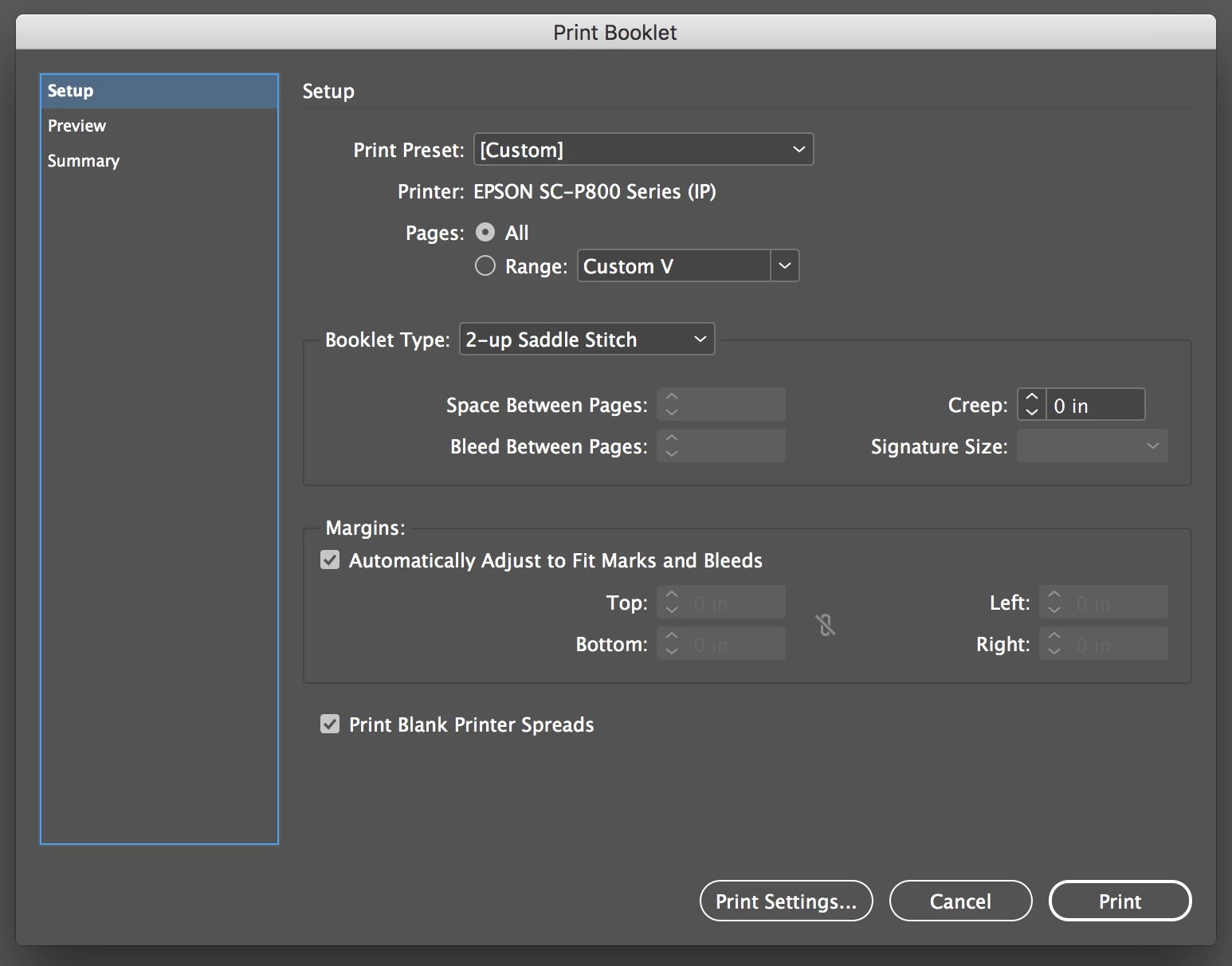
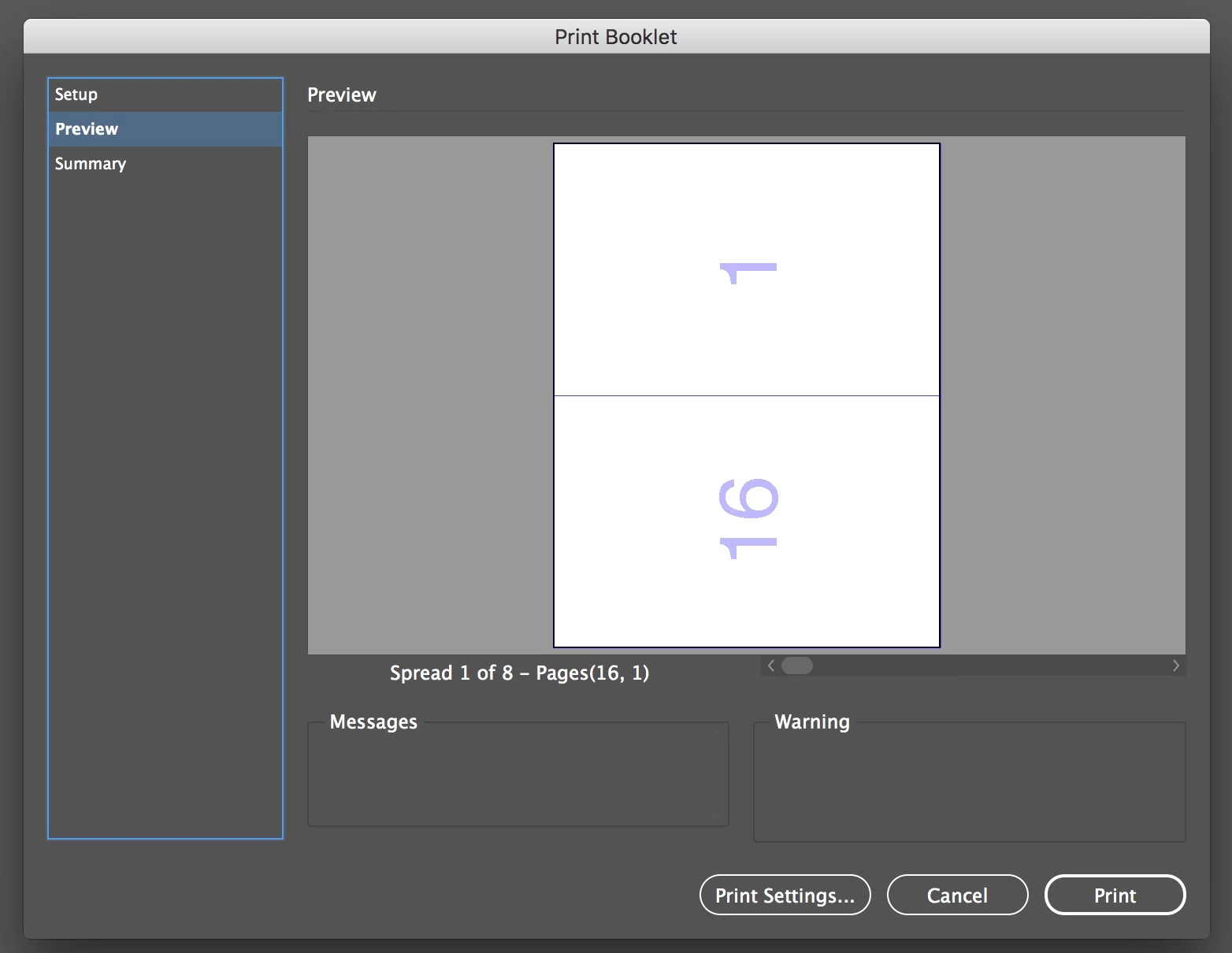
I could see the imposition created by InDesign by selecting "Preview" and scrolling through the spreads. Each spread has 2 pages on each side.
I then selected "Print Settings" to bring up the Print dialog box. I made sure I had "Print Blank Pages" selected: 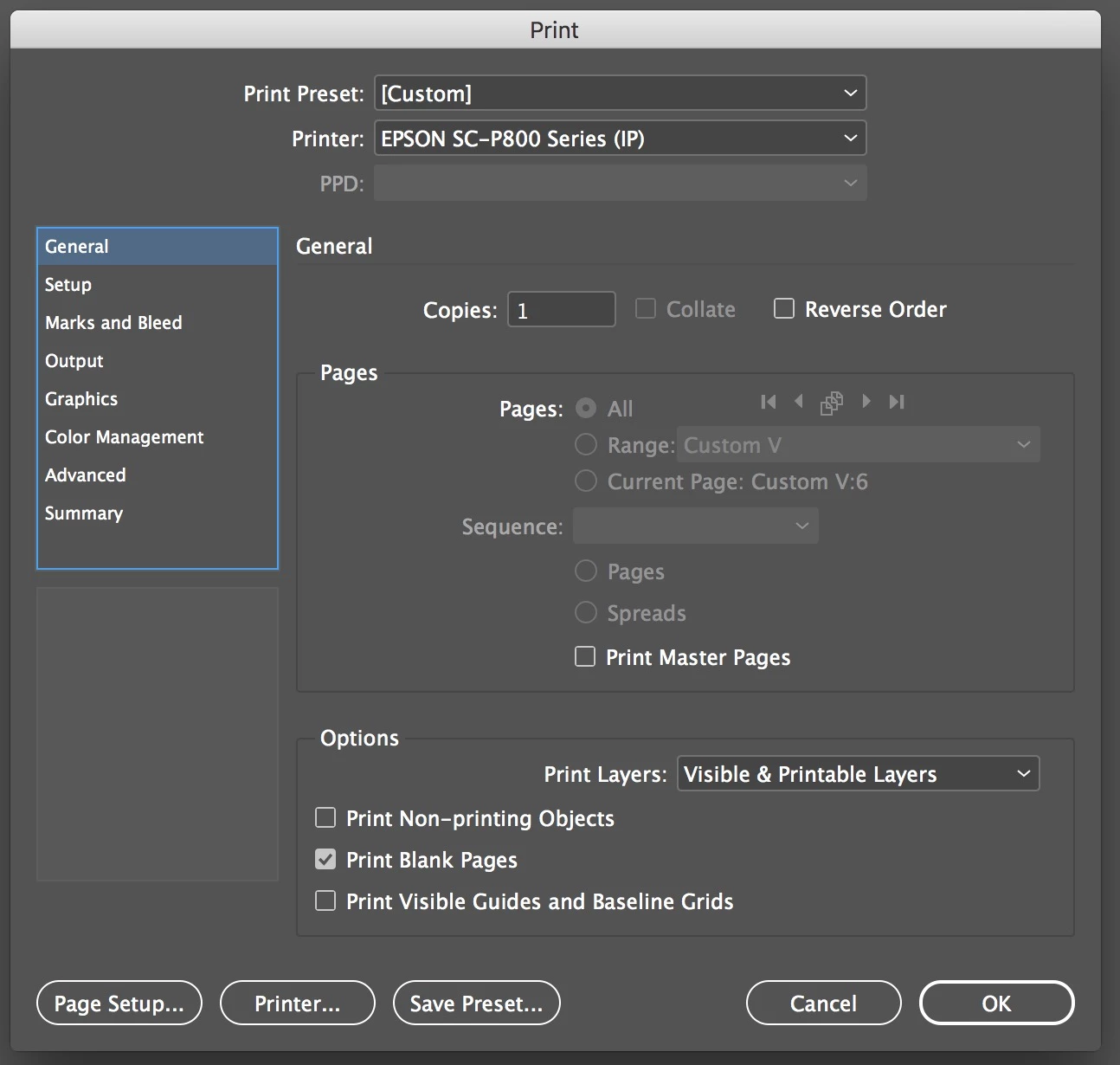
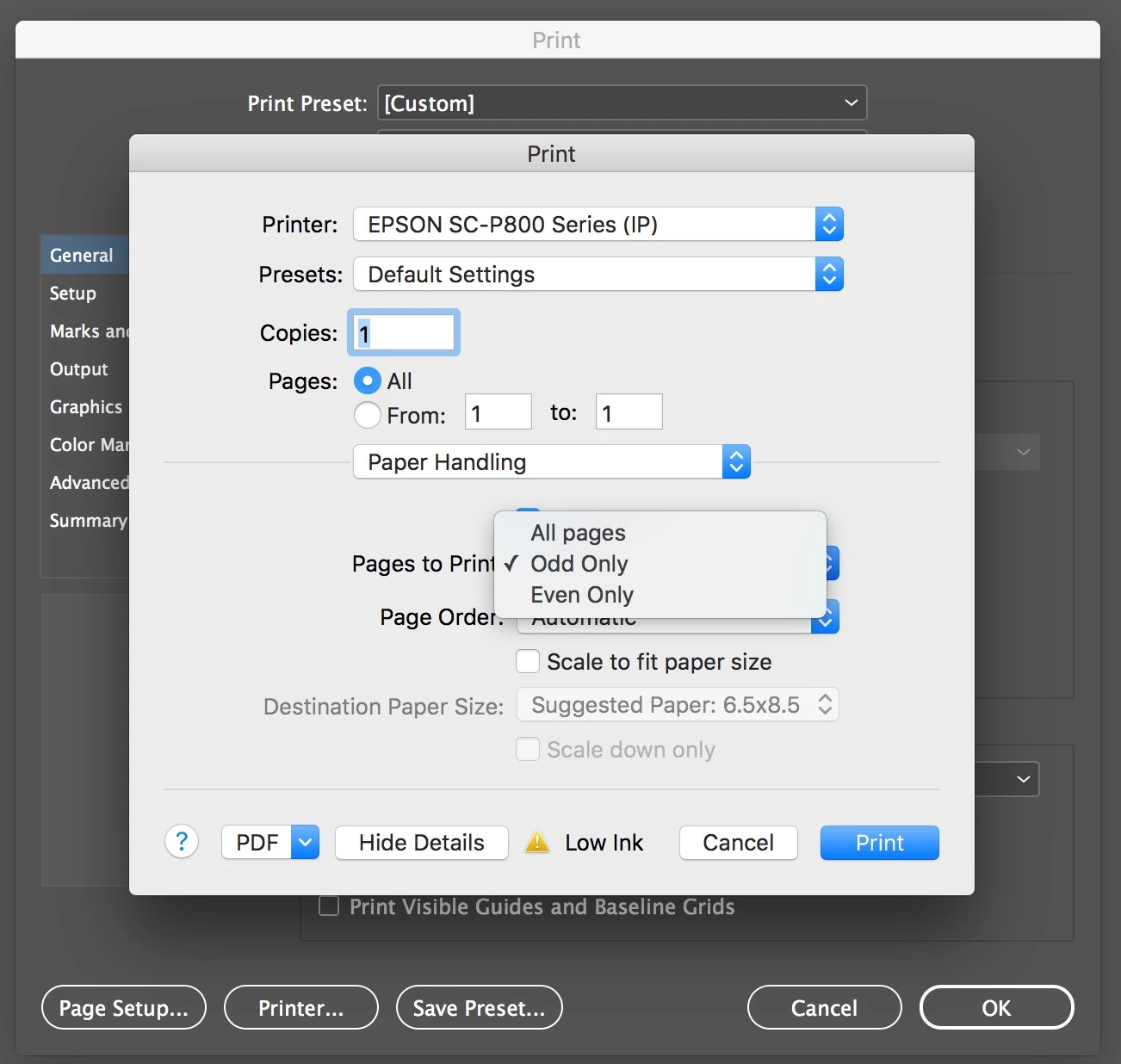
From that dialog I select "Printer" and go to "Paper Handling" section. THIS IS WHERE I select even vs. odd printing! Because my Epson SureColor P800 printer did NOT do an automatic duplex during printing, I had to manually duplex the signature myself by printing all the odd pages first in the signature, and then manually flipping those pages over back into the printer to then print all the even pages on their backs. I selected "Odd Only" from the "Pages to Print" drop down list. After manually flipping the pages, I repeat the process and select "Even Only".
Thanks everybody for guiding me to the correct answer.

 AdChoices