Participating Frequently
February 9, 2022
Answered

Bounding box preference

  • February 9, 2022
  • 4 replies
  • 1015 views

Is there a way to make the bounding box show the edge of the object and not the outer edge any border to the object?

Correct answer Barb Binder

You can change the system defaults in InDesign with no files open. Doing so will set your preference for all future files. 


For example:
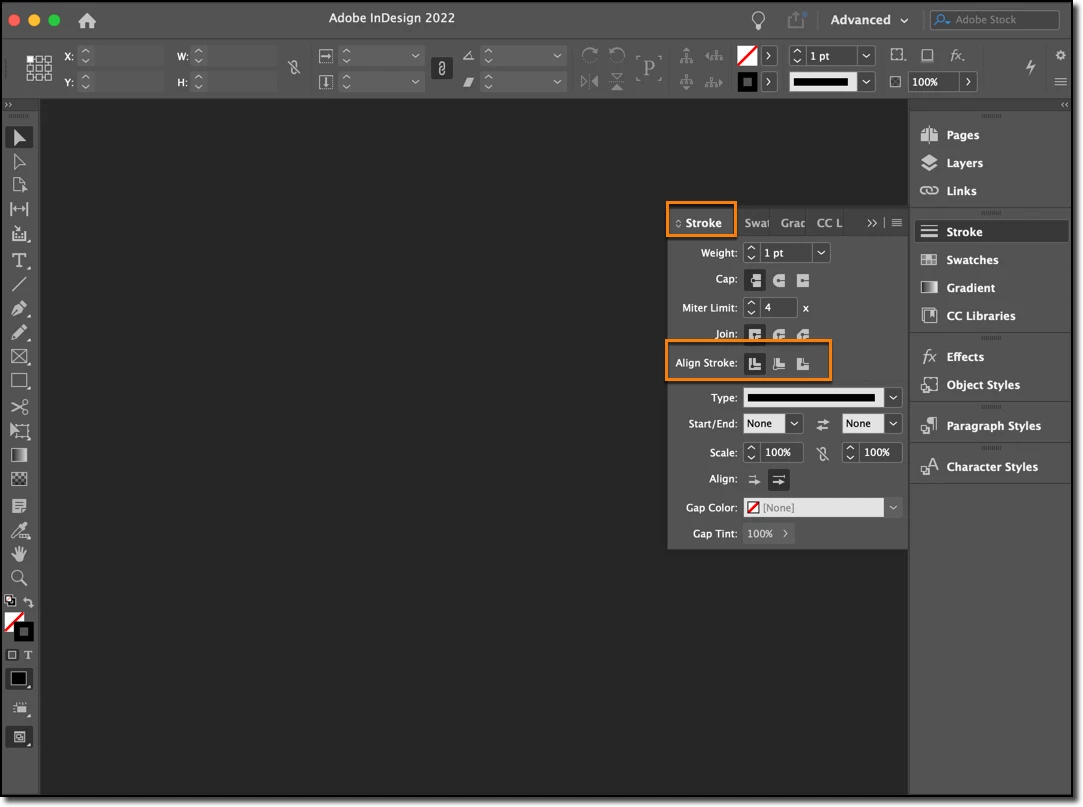


Setting the stroke alignment, above, produces the stroke aligned to center for all new objects in all new files. Remember that changing the system defaults in InDesign only changes future files and does not go back and change existing files.


~Barb

Edit: Perhaps this really isn't helpful, because the bounding box handles are still on the outside. 😞

4 replies

Barb Binder
Community Expert
Barb BinderCommunity ExpertCorrect answer
Community Expert
February 9, 2022

You can change the system defaults in InDesign with no files open. Doing so will set your preference for all future files. 


For example:


Setting the stroke alignment, above, produces the stroke aligned to center for all new objects in all new files. Remember that changing the system defaults in InDesign only changes future files and does not go back and change existing files.


~Barb

Edit: Perhaps this really isn't helpful, because the bounding box handles are still on the outside. 😞

~Barb at Rocky Mountain Training
JenJudAuthor
Participating Frequently
February 9, 2022

Thanks, I appreciate the help.

rob day
Community Expert
Community Expert
February 9, 2022

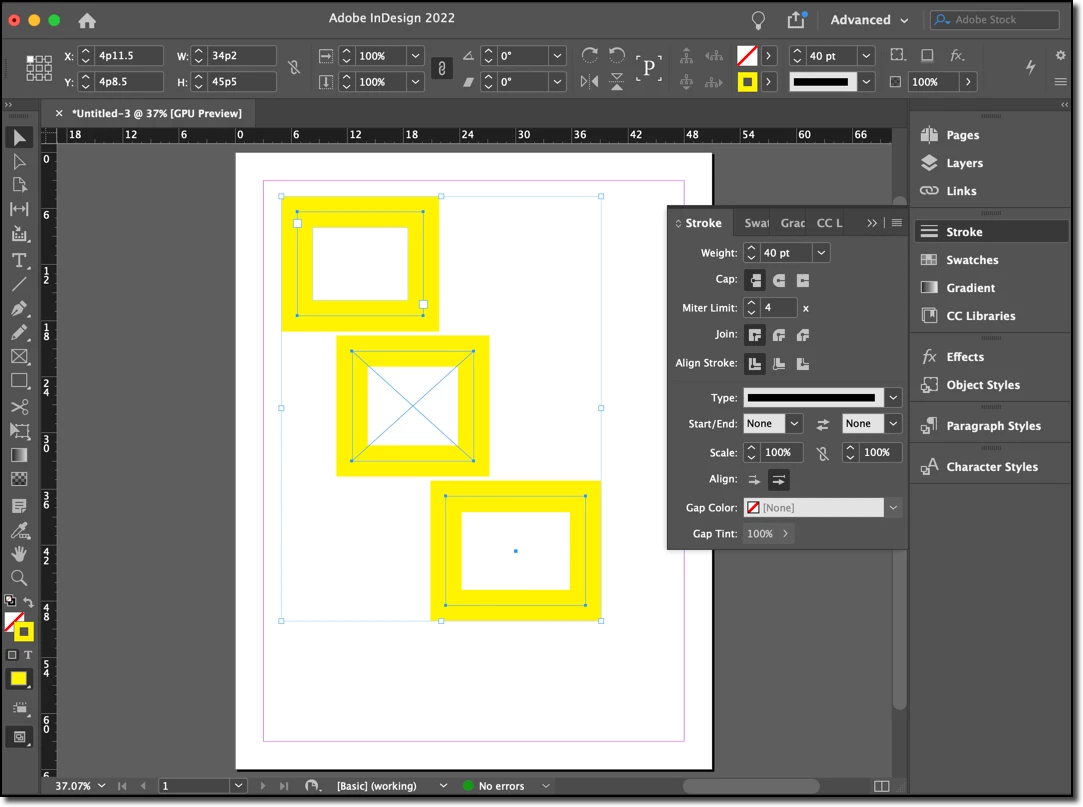
Hi @JenJud, does this help? Here I’ve selected the rectangle with the Direct Selection tool with the stroke set to Align Stroke Outside. Dimensions Include Stroke Weight is unchecked, so the Transform panel shows the dimension of the inside green fill:


With it checked the Transform panel shows the dimension of the frame including the stroke.


JenJudAuthor
Participating Frequently
February 9, 2022

Thank you, I really appreciate the time you put into those suggestions. I am familiar with these, and do know how to get to the same end on each app, but was hoping there was a preference I was missing to be able to have the behavior be the same on both, mainly to streamline production time.

Community Expert
February 9, 2022

Hi JenJud,

showing the "bounding box" of the path of the object? No.

Workaround: Change the alignment of the stroke to "Inner Alignment".


If you want the "bounding box" parallel to your rulers even if the object is rotated:

Group the object with a smaller object positioned inside the area of the larger object.


Showing width and height of the path of the object? Yes.

Look into the Transform panel's options.


If you want to align objects with their paths use the Direct Selection tool.


Regards,
Uwe Laubender

( ACP )

Scott Falkner
Community Expert
Community Expert
February 9, 2022

I'm not sure I understand the question. Can you show a screenshot of what you usually see and a mock-up of what you want to see?

JenJudAuthor
Participating Frequently
February 9, 2022

It's the difference between how the default bounding box works in Illustrator and InDesign. I prefer Illustrator's default, but mainly as I'm working in both apps every day, I want them to operate similarly for the sake the precision in my artwork AND my sanity.