Inspiring
May 4, 2017
Answered

Break document into sections, with section numbering

  • May 4, 2017
  • 2 replies
  • 20488 views

There's gotta be a simple way to do this, but I sure can't find it online.

I have a lengthy document (about 350 pages), which I need to split into sections (about 50 of them). I need the section number to appear on the first page of each section. It's a book, and each chapter should be a section. The first page of each chapter has a master page applied to it, which has the word "Chapter" in a text box. I want the section number (i.e., chapter number) to appear immediately after the word "Chapter," formatted in the font and size of that word.

FWIW, I originally had this as fifty separate documents, assembled into a book. In that form, I was able to have the chapters numbered appropriately, and the numbers updated as needed. I found, though, that now that everything is "in place," it's easier for me to work with the document as a single document, so I painstakingly moved all of the pages of the 50 documents into a single document.

Having done that, the first page of each "chapter" lost their consecutive numbers. I.e., they all say "Chapter 1."

Isn't there a way to mark, at the beginning of each chapter, a section break? And then, at the desired place in that page, have the section number print?

Your help would be most appreciated!

Many thanks.

Ken
    This topic has been closed for replies.
    Correct answer amaarora

    Hi,

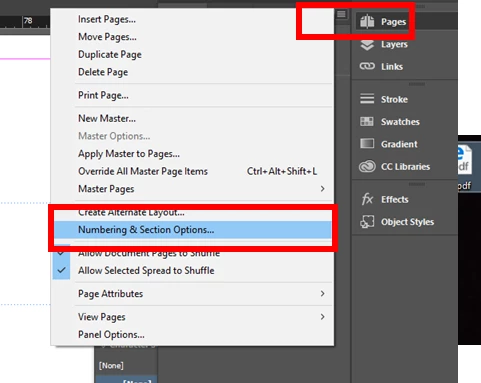
    First, select or Goto the page you want to start a new chapter from. open the the pages panel menu select the below option.

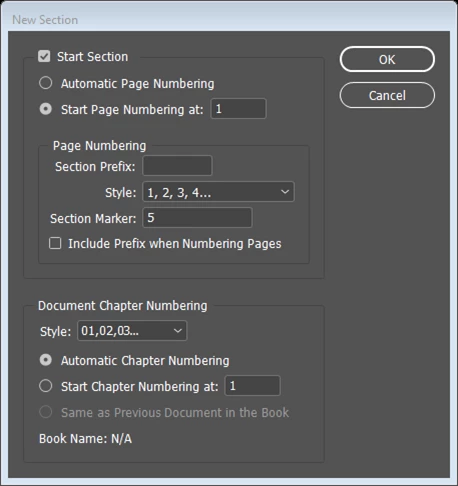
    Once the dialog opens, enable the "Start new section" and set start numbering to 1(since you want each chapter to have numbering from 1?).You can also define other properties there.

    Once you do so, all pages in this new chapter section, will start from 1. You need to repeat this process and create sections for each of your 50 chapters!

    To also have a chapter number, everytime you create a new section also increment its Section marker value. ie, Your 5th section should look like...

    The last step is to have some special variables in your master page that allow the chapter number and page number to be updated in all your document pages.

    To have the chapter number, place the cursor in the text frame present in your master page and right click->Special characters->Markers->Section Marker

    To have page number, right click ->Special character->Marker->Current page number.

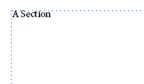
    you should get some thing like this in your master page:

    Wherein the A is for page number and Section stands for section marker value which you have set.

    Do this in the master page text frame that is applied to the first page of each chapter,and it should automatically update in all pages!

    You can read more about sections and numbering here Learn how to number pages, chapters, and sections in InDesign

    -Aman

    2 replies

    Gardenshed
    Participant
    July 20, 2020

    Same problem, only I want to Section retrospectively, staring at the oldest page (100) and dividing into 25 sections/chapters, each numbering 1-4. (page 97 [1] page 98/99 spread pages [2]/[3]. page 100 [4].

    amaarora
    Community Manager
    amaaroraCommunity ManagerCorrect answer
    Community Manager
    May 4, 2017

    Hi,

    First, select or Goto the page you want to start a new chapter from. open the the pages panel menu select the below option.

    Once the dialog opens, enable the "Start new section" and set start numbering to 1(since you want each chapter to have numbering from 1?).You can also define other properties there.

    Once you do so, all pages in this new chapter section, will start from 1. You need to repeat this process and create sections for each of your 50 chapters!

    To also have a chapter number, everytime you create a new section also increment its Section marker value. ie, Your 5th section should look like...

    The last step is to have some special variables in your master page that allow the chapter number and page number to be updated in all your document pages.

    To have the chapter number, place the cursor in the text frame present in your master page and right click->Special characters->Markers->Section Marker

    To have page number, right click ->Special character->Marker->Current page number.

    you should get some thing like this in your master page:

    Wherein the A is for page number and Section stands for section marker value which you have set.

    Do this in the master page text frame that is applied to the first page of each chapter,and it should automatically update in all pages!

    You can read more about sections and numbering here Learn how to number pages, chapters, and sections in InDesign

    -Aman

    Inspiring
    May 4, 2017

    OK. Before I try these steps, a question: I need the page numbers to continue sequentially, from chapter to chapter. In other words, if Ch. 1 ends on page 10, Ch. 2 must start with page 11. (Not with each chapter starting on page 1, as in your example.) Will this be accomplished by ticking the "Automatic Page Numbering box instead of "Start page numbering at 1"?

    Many thanks. I'll give it a try.

    Ken

    amaarora
    Community Manager
    Community Manager
    May 5, 2017

    Hi,

    Yes exactly. You then need to tick "Automatic Page Numbering box instead of "Start page numbering at 1".

    Do let us know if you are able to accomplish what you have in mind.

    -Aman