
Participant
May 14, 2020 7:47 PM UTC
Answered

Can I have multiple h1 paragraph styles but with different attributes?

I am setting up my first "accessible" document in InDesign; I understand that before I can start Export Tagging, I must first assign a hierarchy (h1, h2, body text, etc) in Paragraph Styles. However, my document contains headings which vary somewhat depending on context: one will contain paragraph spacing after a previous paragraph, some are part of a numbered list, and so on.


How do I assign them all as h1 for assistive technology without InDesign making them all the same (either all with a numbered list when I don't want it, or with different spacing assigned to it)?


I feel I'm missing a very basic bit of information, yet I can't seem to locate it anywhere in the Support Community. Thank you for any assistance you can provide!
Jeffrey_SmithCorrect answer
Community Expert
May 14, 2020 8:34 PM UTC

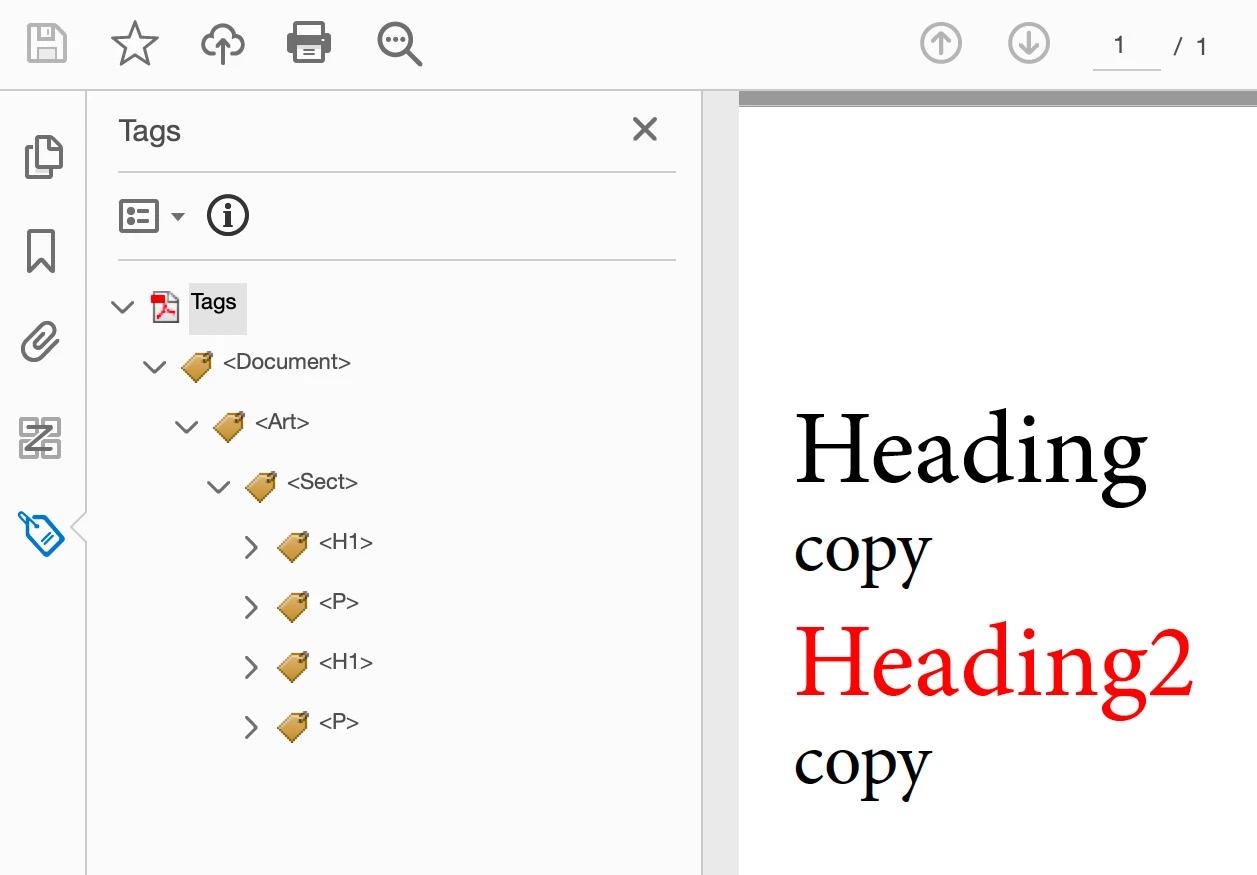
And the result in Acrobat

13 replies

Bevi Chagnon - PubCom.com
Legend
May 14, 2020 11:17 PM UTC

Yes, Frans, PDF 2.0 does have the <Title> tag.


But PDF is not PDF/UA.


PDF 2.0 is the master "umbrella" PDF standard for all kinds of PDFs, including PDF/A (archival), PDF/E (engineering), PDF/X (print & graphic arts), PDF/UA (universal accessibility) and more subsets.  These subsets define how to use PDF for different purposes and uses.


Our future PDF/UA -2 subset standard will most likely define how to use the new <Title> tag, but that's not a given until the new standard is released and approved by the ISO.


Until it does, PDF/UA-1 is still the version that is in force today; therefore using the <Title> tag is not compliant with the current standard, and it won't do anyone any good because AT (assistive technologies) haven't been developed to recognize and process the <Title> tag, or anything else with PDF/UA-2.


Don't jump the gun on standards. If it's not in the current standard, don't use it. See https://www.iso.org/standard/64599.html about the ISO's statement re: review, "This standard was last reviewed and confirmed in 2020. Therefore this version remains current."


Translate
|&nbsp;&nbsp;&nbsp;&nbsp;Bevi Chagnon &nbsp;&nbsp;|&nbsp;&nbsp;Designer, Trainer, &amp; Technologist for Accessible Documents ||&nbsp;&nbsp;&nbsp;&nbsp;PubCom |&nbsp;&nbsp;&nbsp;&nbsp;Classes &amp; Books for Accessible InDesign, PDFs &amp; MS Office |
Frans v.d. Geest
Community Expert
Community Expert
May 15, 2020 12:37 AM UTC

Yes Bevi, I know all that.

Translate
Bevi Chagnon - PubCom.com
Legend
May 15, 2020 3:03 AM UTC

Yep, I know you know that, Frans!

Was written for the original poster and others who read this thread who might not understand accessibility tags as well as you do.


<Heart> to Frans!


Translate
|&nbsp;&nbsp;&nbsp;&nbsp;Bevi Chagnon &nbsp;&nbsp;|&nbsp;&nbsp;Designer, Trainer, &amp; Technologist for Accessible Documents ||&nbsp;&nbsp;&nbsp;&nbsp;PubCom |&nbsp;&nbsp;&nbsp;&nbsp;Classes &amp; Books for Accessible InDesign, PDFs &amp; MS Office |
Bevi Chagnon - PubCom.com
Legend
May 14, 2020 9:11 PM UTC

As @Jeffrey_Smith shows, you can have different formatting styles mapped to the same tag in the PDF.


For example, in my classes I show students that they might have a "regular" <H2> for subheads in the main story, but also might want the heading for a sidebar to have an <H2> in the PDF as well. They make 2 different formatting styles in InDesign, but map both of them to  <H2>.


I'm more concerned about how you're drawing your conclusions:

  1. Headings in accessible documents denote the logical hierarchy of the document. Sometimes that jives with the visual appearance of the headings (example, bigger bolder with more white space is a higher level heading; smaller less bold with less white space is a lower level heading). But sometimes it doesn't. Nothing in the PDF/UA-1 standard says that heading levels must jive with their visual appearance.
  2. Why are you designing the document with mutliple <H1> tags? The general interpretation of the PDF/UA-1 standard indicates that <H1> is the top-most level of heading...in other words, the Title of the document itself (or in large publications, the title of a major section, like a chapter of a book. Quoting the standard: "— If any heading tags are used, H1 shall be the first."


I'll be the first to admit that the PDF/UA-1 standard doesn't give clear enough direction on how to use heading tags or deal with the document's title. After all, there isn't a <Title> tag in the standard, so we can't use it in our PDFs. That leaves us with using <H1> for the title, which coordinates with traditional, pre-digital publishing standards (says this former hot-metal typesetter).


At this time  -- as PDF/UA-1 is the current standard  -- we recommend reserving <H1> for the document's title, and subsequent descending headings as <H2> through <H6> in a logical order. And PDF/UA-1 does not allow the skipping of heading levels: can't go from <H1> to <H3>, for example.


Remember, this is all interpretation of a murky part of the standard, so YMMV (your mileage may vary). All of us experts come up with our unique interpretations.


In a future version of the standard, PDF/UA-2, there might be some clarifications on titles and headings, but that version of the standard is in development and won't be available for a few more years.


—Bevi

(Delegate to the ISO committee for PDF/UA standards)


Translate
|&nbsp;&nbsp;&nbsp;&nbsp;Bevi Chagnon &nbsp;&nbsp;|&nbsp;&nbsp;Designer, Trainer, &amp; Technologist for Accessible Documents ||&nbsp;&nbsp;&nbsp;&nbsp;PubCom |&nbsp;&nbsp;&nbsp;&nbsp;Classes &amp; Books for Accessible InDesign, PDFs &amp; MS Office |
Frans v.d. Geest
Community Expert
Community Expert
May 14, 2020 10:00 PM UTC

As I understand it, PDF 2.0 will have the 'Title' attribute.

That said, I do use a few variations in style that share the H3 tag. But anyway, make sure you always have a logical structure: so H1, H2, H3 etc. Do not 'skip', so going from H1 to H3 without having a H2 in between is not allowed. You can 'repeat' however, like H1, H2, H2, H3 etc. and then 'restart' with H1.

Note that some readers (VIP Reader, HTML rendering in a reader etc.) use the H tags to render text differently to make the structure more clear to readers.

Translate
Community Expert
May 14, 2020 8:29 PM UTC

From the paragraph styles panel, select each style and export tagging, and map to H1

Translate
Jeffrey_SmithCommunity ExpertCorrect answer
Community Expert
May 14, 2020 8:34 PM UTC

And the result in Acrobat

Translate