Inspiring
April 30, 2020
Answered

Can Indesign detects texts styles in even/odd pages?

  • April 30, 2020
  • 1 reply
  • 1978 views

Need to apply styles depending of the odd/even page. The idea is to avoid reapply styles  if layout changes.


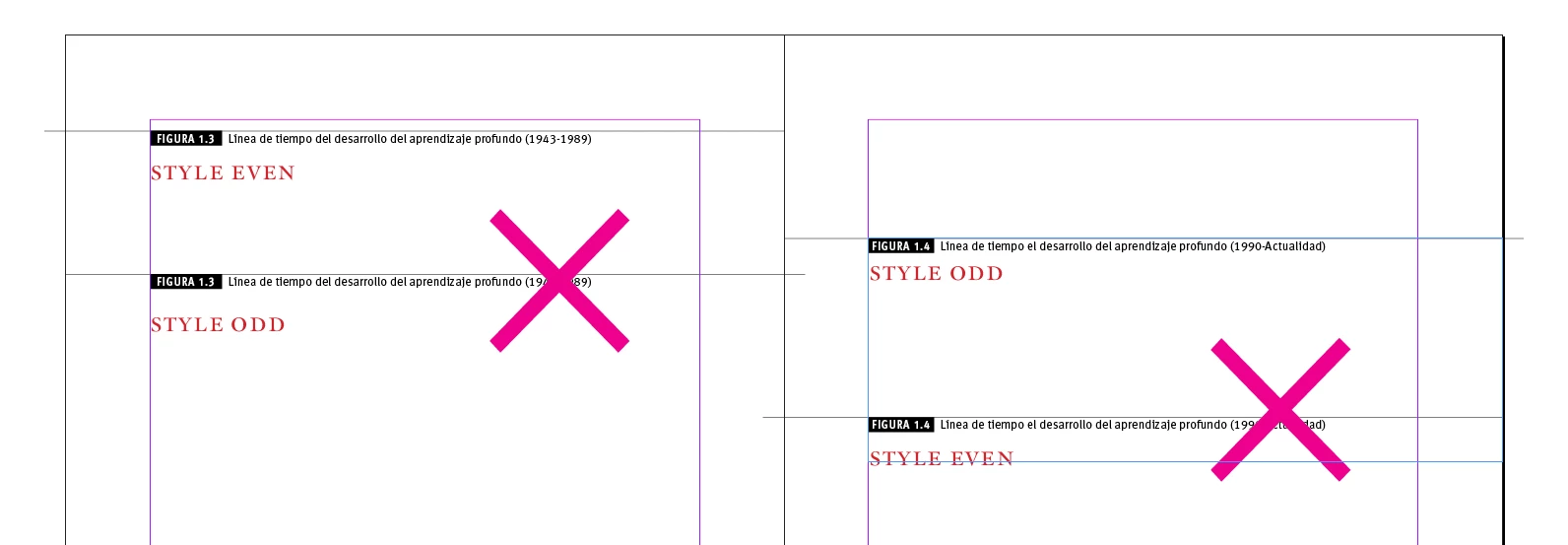
This is the situation, where a bad styled caption (after moving a figure, for example) does not bleed and penetrates the page in the spine and lacks the bleeding protocol.


Thanks


This topic has been closed for replies.
Correct answer FRIdNGE

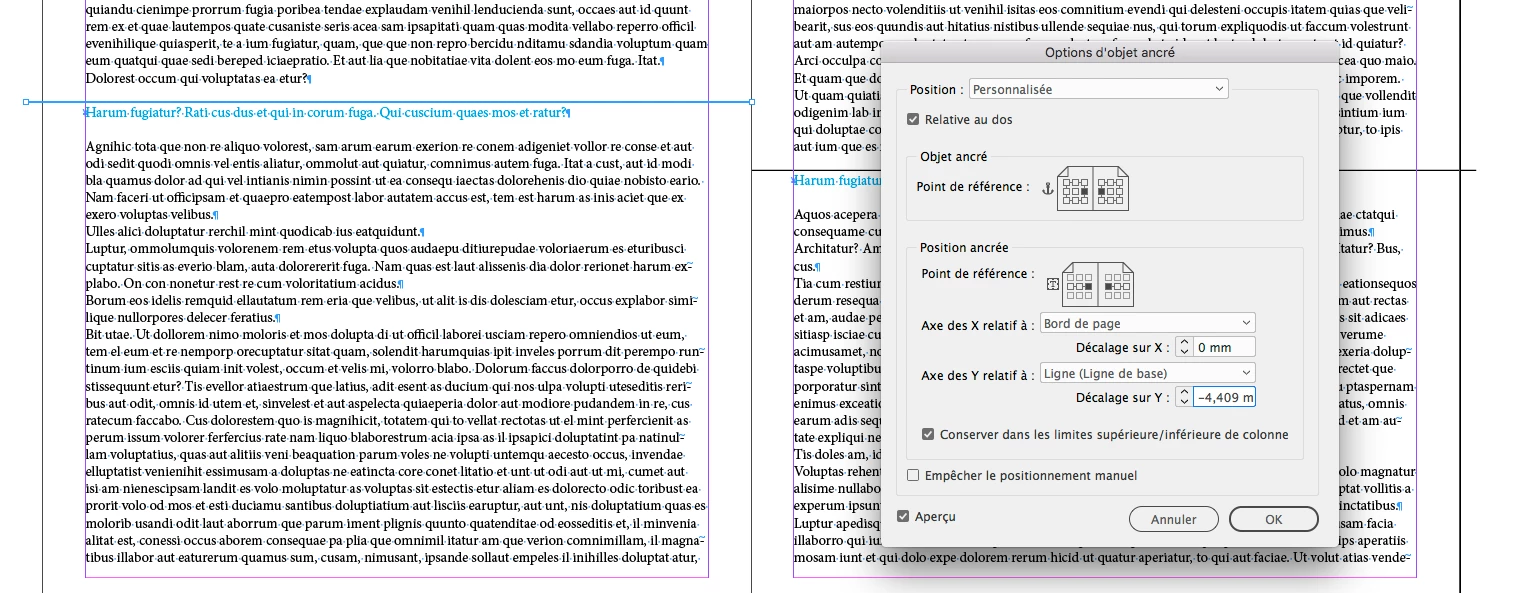
The most simplistic [but relevant] way to play it = anchor an "horizontal line" [page width + 5mm] with these settings [you could associate an "object style" to it if you are clever!]:


… Then, after having selected/copied the first item (template created), play a simplistic Grep Find/Replace as:

Find: ^[^~a] + "blue" para style  Replace by: ~c$0


That's all!


(^/)  The Jedi


… Of course, you could avoid to use anchoring, using a script that calculates your para rules left/right-indent according odd/even pages! [ not really complicated to be written; in fact written 4 years ago for a client!  =D ] Just 1 click!


(^/)  The Jedi

1 reply

Community Expert
May 4, 2020

Hi aps,

there could be cases where you can do something about this.

It depends on the concrete styles. From your screenshot I cannot see a visual difference between the even and the odd style.

So, generally spoken, no, there is no way.


But there could be designs where a difference can be enforced. This has to do with two features of InDesign:

[1] There is paragraph formatting away or towards the spine.

[2] Anchored objects can be done away or towards the spine.


Regards,
Uwe Laubender

( ACP )

Inspiring
May 11, 2020


There is a little difference that determines a correct bleeding or will impede that the line crosses the spine in a wrong way.


If Indesign detects the odd/even page should be able to apply the correct style (left indent: –20 /–25; right indent: –25 / –20)  

FRIdNGE
May 11, 2020

The most simplistic [but relevant] way to play it = anchor an "horizontal line" [page width + 5mm] with these settings [you could associate an "object style" to it if you are clever!]:


… Then, after having selected/copied the first item (template created), play a simplistic Grep Find/Replace as:

Find: ^[^~a] + "blue" para style  Replace by: ~c$0


That's all!


(^/)  The Jedi