Sometimes even incremental (quarterly roll-up) updates can scramble Windows File Explorer. This may help:
1) Open your File Explorer. Navigate your way to your InDesign.exe file (it should be stored in Program Files>Adobe>InDesign CC 2020>InDesign.exe — if it's not, this may be your first issue). Place your cursor on the file and make sure that it shows File version: 15.1.xx, with the xx accounting for additional build numbers. Knowing this InDesign.exe file is the latest version, and exactly where it's located, is vitally important to the steps below.
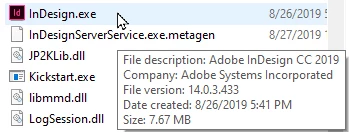
(Please excuse my screen cap showing InDesign CC 2019; I use that version on both my Windows and Mac production systems)
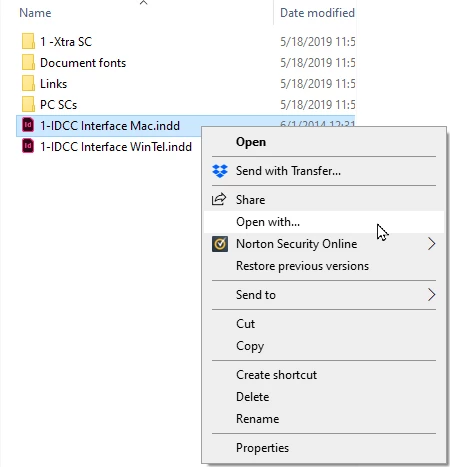
2) Open File Explorer. Navigate your way to one of your .indd files. Right-click on that file and select the Open with... command on the flyaway menu, as shown below.
2) In the dialog box, You should see what application may be used to open .indd files. It may or may not be InDesign CC 2020. Even if it does say that, don't accept it for your answer. Click on the More Apps link in blue, then scroll your way all the way to the bottom of the list and click on the Look for another app to open .indd files link. I'm sorry the screen cap doesn't show that link, my fingers weren't fast enough for me to scroll my way down there for my screen cap software.
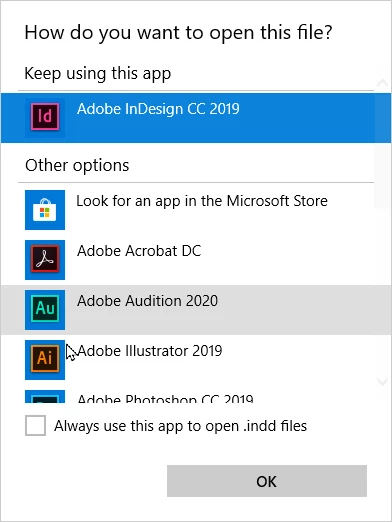
4) Navigate your way to where you found your Indesign.exe (v15.1.xx) file, and double-click it to make the selection. Select the Always use this app to open .indd files check box, then click the OK button. Then see if InDesign opens your file.
If it does work for you, your job isn't done yet. You'll also need to repeat the process for InDesign Template (.indt), Book (.indb) and Library (.indl) files.
Hopefully this will get you past your issue.
Good luck,
Randy

 AdChoices