
Known Participant
June 19, 2025
Answered

Can't select photo to move it

  • June 19, 2025
  • 1 reply
  • 396 views

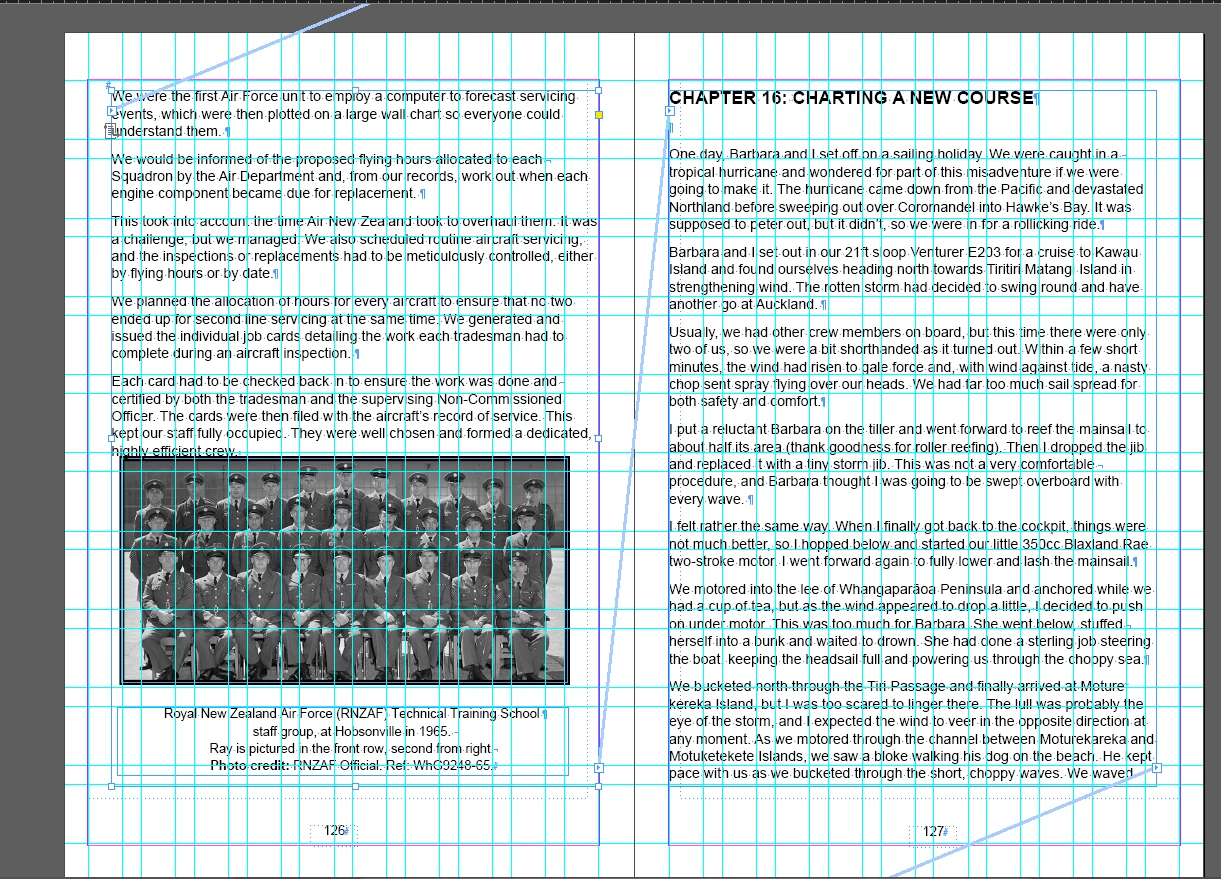
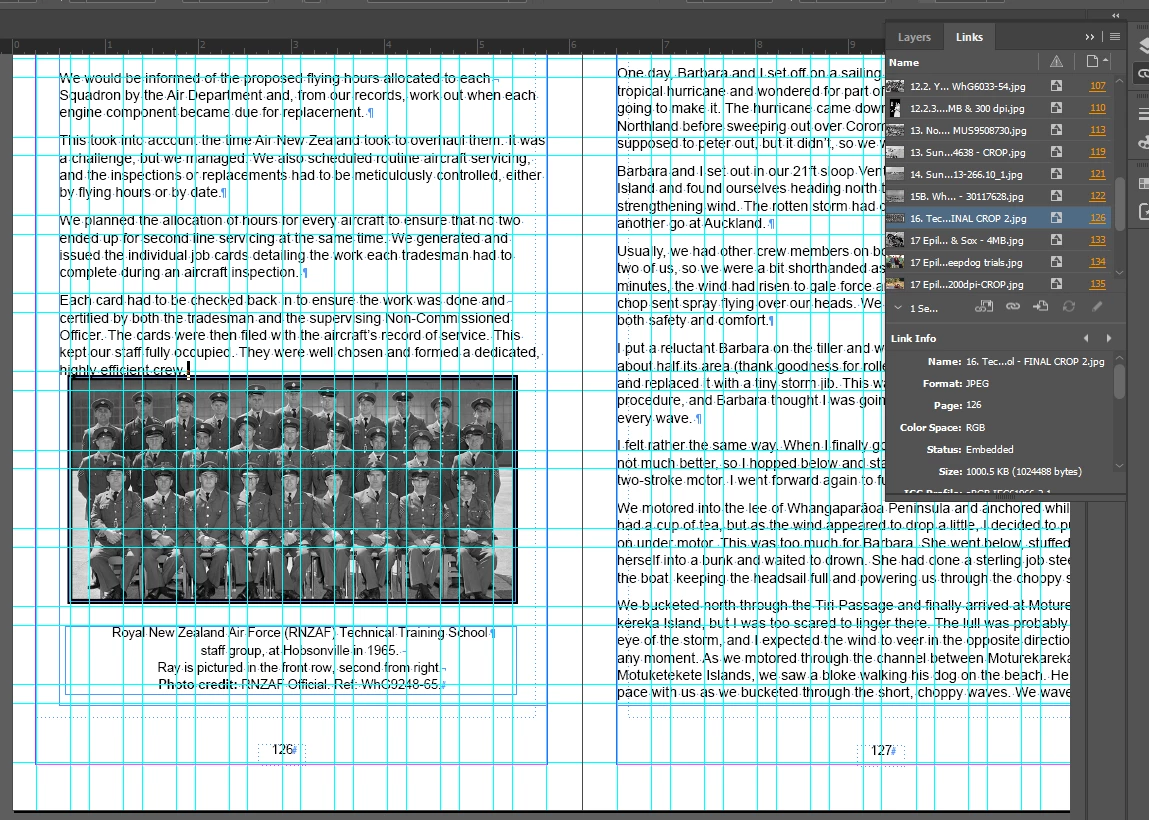
Hi please can you help with the second to last action before I approve the proof of my uploaded Amazon KDP book. I want to move the photo you can see on p126 below to p128 but for the first time of me using InDesign I can’t select the photo and/or caption to move it. It isn’t anchored. The layer isn’t locked. I have tried the direct selection tool and the black selection tool but all I can select is the whole text frame. I closed and restarted Indesign. If I click the photo’s page number in the links panel, it allows me to delete the photo itself but not the caption or the frame surrounding it, (ie. the frame I created using stroke). I can’t ungroup the photo and caption. As mentioned, I can’t release anchor as there isn’t one. It isn’t on as master page. I’ve tried other google solutions but nothing works. I’m sure it’s a simple fix. Please first see the screenshot below showing the threads then a links panel screenshot.


Layer screenshot


Correct answer Eugene Tyson

You can see it's under everything - it's the last thing in the layer.

Grab it and move it to the top - or select the square to the right to grab it, it should turn blue when selected like the other. 


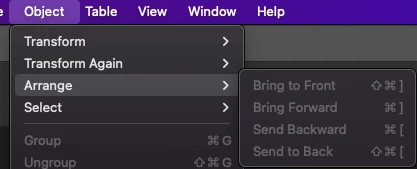
Either way you need to Bring to Front - it's in the Object Menu

Or move the Text to the Back


You should really Anchor your Images within the text too - so it flows with the text. 

1 reply

Community Expert
June 19, 2025

You haven't given a layer screenshot  you've given a Links screenshot. 


It must be either locked/anchored or behind the text frame (the text frame is above the image)

ali_4619Author
Known Participant
June 19, 2025

Thanks - here's the layers panel. I see it says < group >

is that the problem?


Eugene TysonCommunity ExpertCorrect answer
Community Expert
June 19, 2025

You can see it's under everything - it's the last thing in the layer.

Grab it and move it to the top - or select the square to the right to grab it, it should turn blue when selected like the other. 


Either way you need to Bring to Front - it's in the Object Menu

Or move the Text to the Back


You should really Anchor your Images within the text too - so it flows with the text.