Participant
August 19, 2021
Answered

Can't tint image even when converted to grayscale

  • August 19, 2021
  • 3 replies
  • 3016 views

I have an indesign book file with jpg illustrations done in procreate I want to print and I need to tint them rich black. I tried converting them in Photoshop to grayscale but even then, when the images are selected, the swatches window gets greyed out and I can't apply the rich black swatch. The images have a heavy amount of black in them so unless I can apply rich black to them, they will come out grey (as I was told by the printing company).  
This topic has been closed for replies.
Correct answer rob day

when the images are selected, the swatches window gets greyed out and I can't apply the rich black swatch.


Check your Links panel. For the Swatches to be grayed out the Color Space would be RGB or CMYK, and not Grayscale


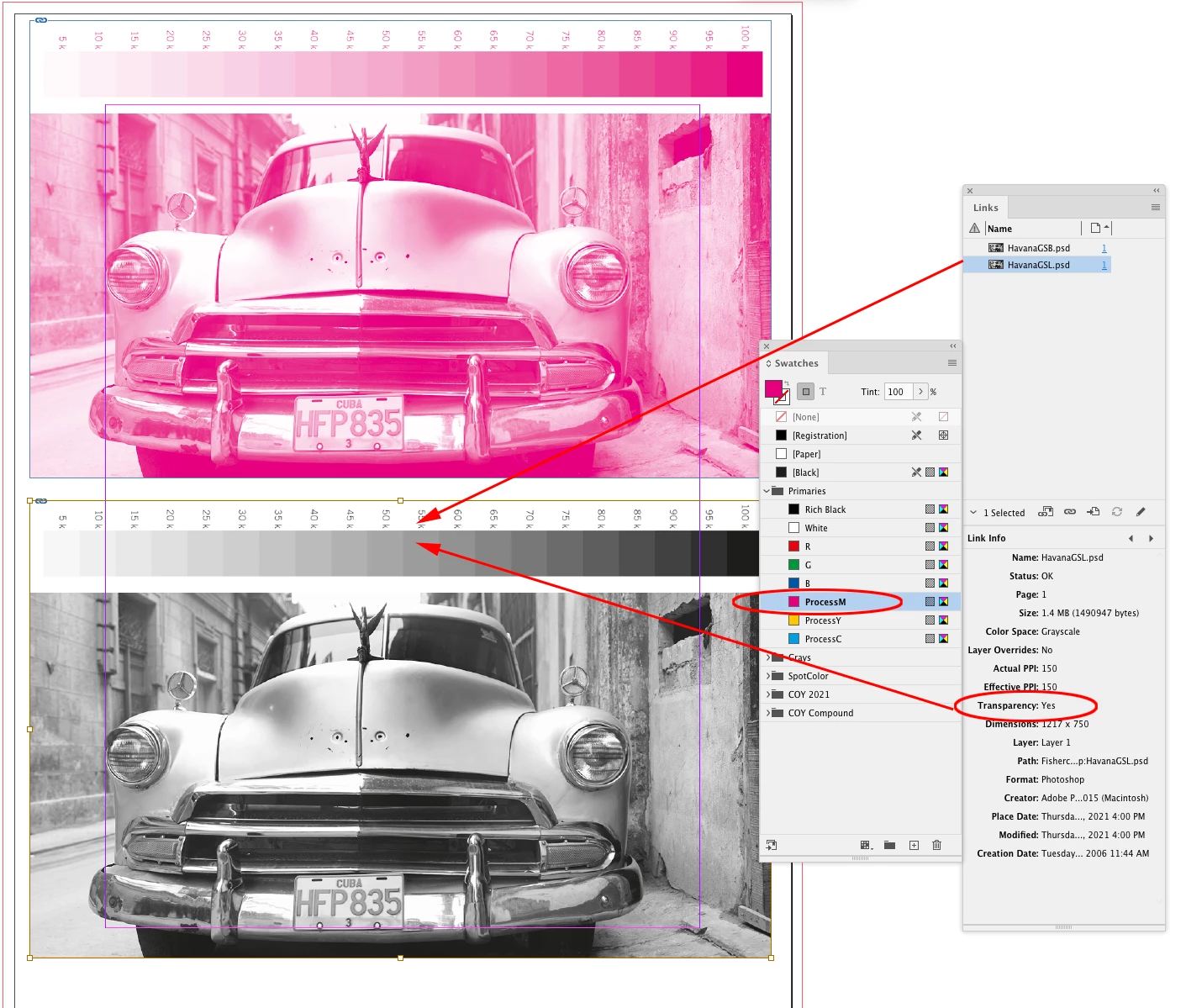
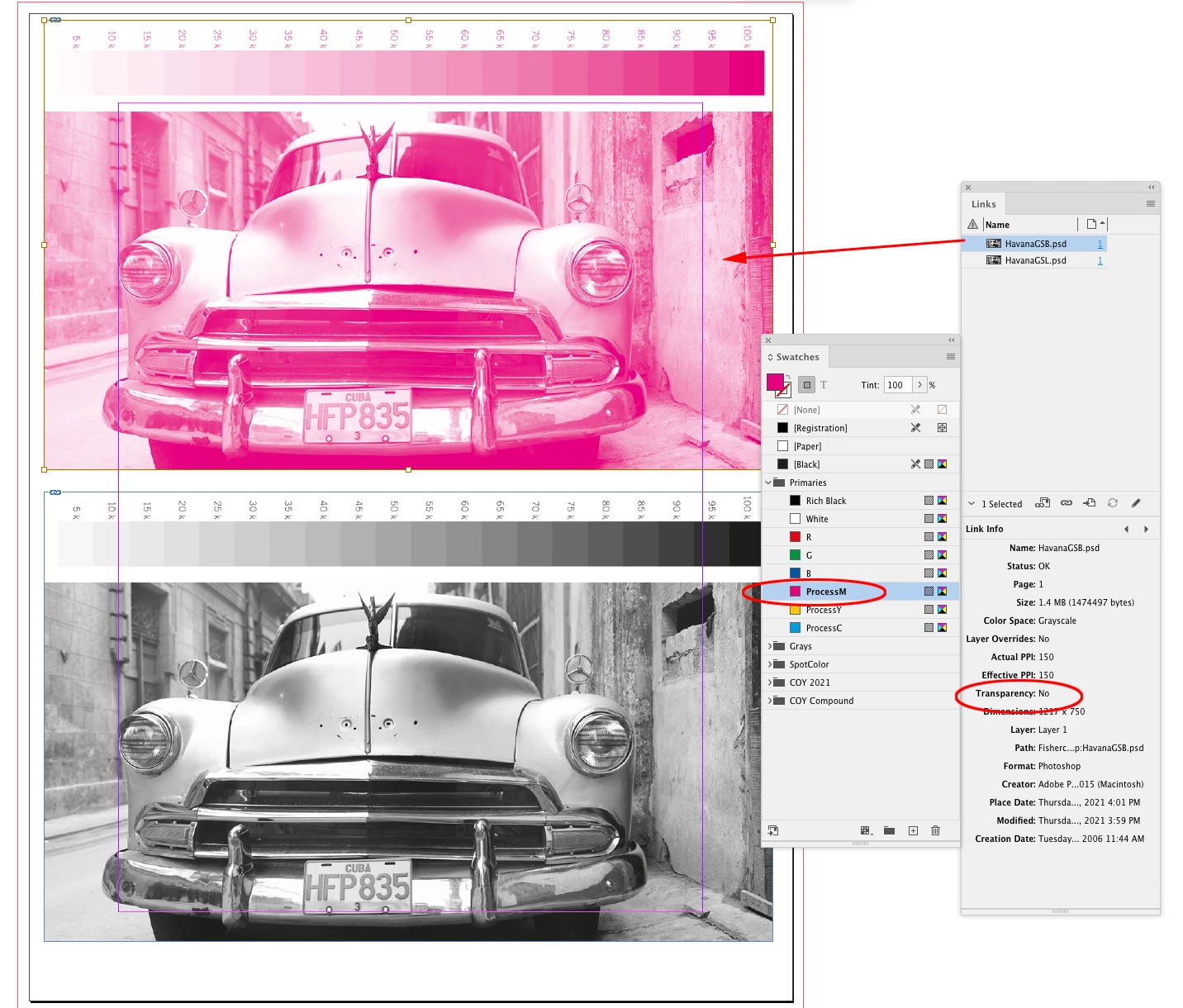
If the link Color Space is Grayscale, your Swatches panel should not be grayed out when you select the image—if there’s transparency in the image the selected swatch simply won’t be applied. Here the top PSD’s bottom layer is a Background layer in Photoshop, so its Transparency is listed as No in the Links panel and can be colored even though it has multiple layers. The bottom PSD’s bottom layer is not a Background layer so Transparency is listed as Yes. 


3 replies

rob day
Community Expert
rob dayCommunity ExpertCorrect answer
Community Expert
August 19, 2021

when the images are selected, the swatches window gets greyed out and I can't apply the rich black swatch.


Check your Links panel. For the Swatches to be grayed out the Color Space would be RGB or CMYK, and not Grayscale


If the link Color Space is Grayscale, your Swatches panel should not be grayed out when you select the image—if there’s transparency in the image the selected swatch simply won’t be applied. Here the top PSD’s bottom layer is a Background layer in Photoshop, so its Transparency is listed as No in the Links panel and can be colored even though it has multiple layers. The bottom PSD’s bottom layer is not a Background layer so Transparency is listed as Yes. 


Participant
February 7, 2023

So I did all that right. But neither .png, .tiff or psd greyscale files seem to not work sometimes. When they sometimes without any change do work. I can apply the color that replaces the black in the transparent greyscale images in InDesign. But the color does not visually apply. Does this mean the printer will still get the right information? When the application of the tint in InDesign works the transparent background of the imported image becomes white. Is that wanted?

Participant
February 7, 2023

Sorry checked again. Wit .tiffs the tinting in InDesign works fine but it replaces transparency with white. With .png and .psd the tint seems to apply but does not show visually. The transparent background stays transparent with those two.

Community Expert
August 19, 2021

What is the file type of the images after you converted them to grayscale?

Try JPEG if you did something else. Or TIFF without any transparency.


Regards,
Uwe Laubender

( ACP )

jmlevy
Community Expert
Community Expert
August 19, 2021

You must select the image itself to be able to apply a color to the image. And your imported file must be flattened (no layers). Did you check this?