Actually, there are a couple of ways to do it.
1. You can do it directly with InDesign by creating a hyperlink that leads directly to either a page or a specific text anchor in your document. Select the Window>Interactive>Hyperlinks menu command to open the Hyperlinks panel. Then select what you want to make a hyperlink in your document. You can do that by highlighting text, of course, but you can also do it by selecting a graphic element, like a button or, as shown below, a placed graphic.
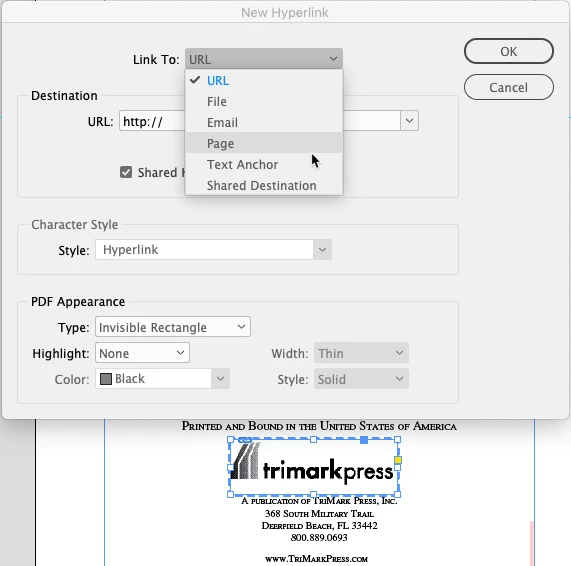
2. But since you're using a PDF and working in Acrobat, there's a better way, Using links to go exactly where you want to be in the resulting PDF document:
A. Click on your Edit PDF tools
B. Click on the downward-pointing triangle just to the right of the Link button, And select the Add or Edit option
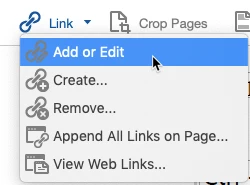
C. Your cursor will turn into crosshairs. Drag a box over your button. Don't worry about getting it perfect — you can edit it later
D. In the Create Link dialog box, set the Link Type: options box to Invisible Rectangle and the Highlight Style: one to Invert
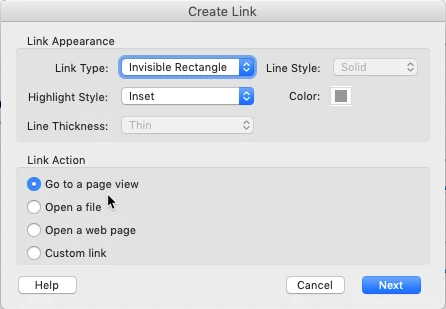
E. Under Link Action, select the Go to a page view radio button, then click the Next button
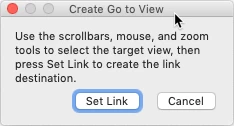
F. This opens the Create Go to View dialog box. Navigate your way to exactly what you want to see after the button is clicked
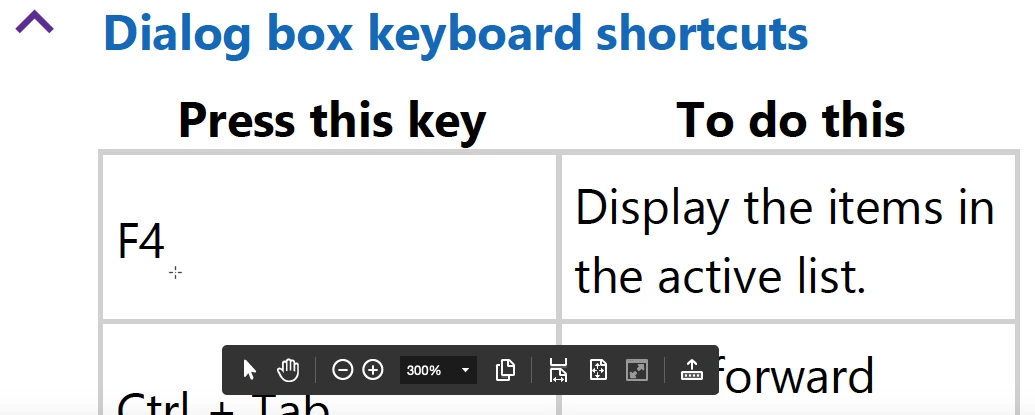
In the example above, I went to another page and zoomed up to 300% to fill the screen with the top of the chart
G. Click the Set Link button. You've now created your link.
H. Close the Edit PDF tools, and navigate your way back to the button. See how it works, and if needed, edit as necessary
I recommend the second option, because it gives you greater control than you'll get with InDesign. Give it a try, and let us know how this works for you.
Hope this helps,
Randy
 AdChoices