I need to basically tag some text, to associate it with a particular issue. I want to change its color, and that’s all. I can find no method to mark text in a searchable way without overriding all of its characteristics.
We don’t use character styles anywhere in our documents, so this would be a safe way to do so. But how do you clear any characteristic from a character style that you don’t want to set?
Correct answer Conrad_C
In InDesign, all style types (paragraph, character, object, table…) are designed so that they change only what you ask them to change. In the style definition, any format options you don’t touch won’t change. So it already works the way you want, by default.
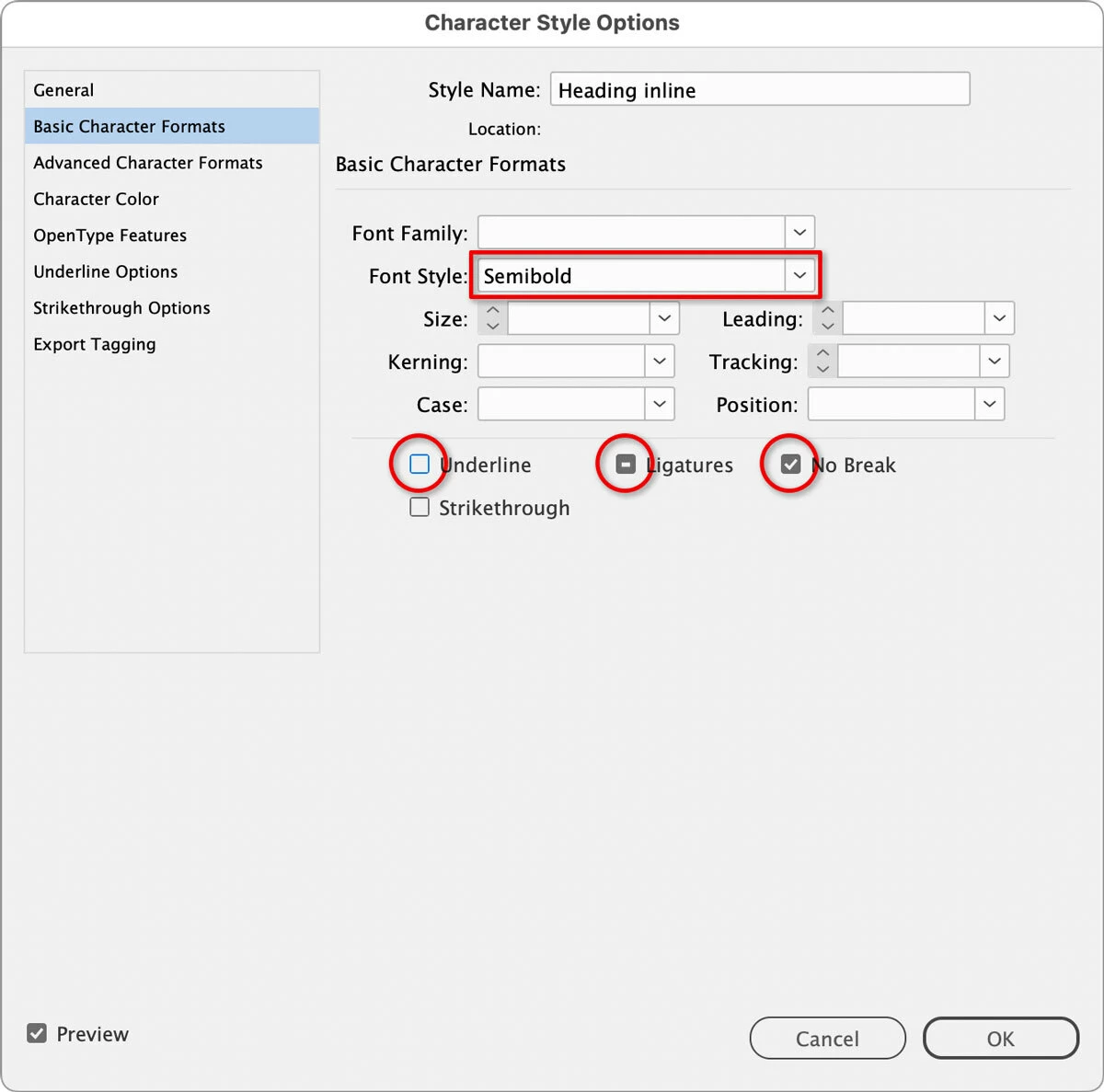
The picture below shows what to look for. Notice that in the first group of Basic Character Formats, everything is blank except Font Style, which is Semibold. That’s because I selected only Semibold, which means when I apply this character style, the only thing that changes is that Font Style becomes Semibold. Because Font Family, Size, etc. are blank, applying this character style won’t change those values, they stay as is.
Also, it’s very important to understand that the check boxes in the second options group have three states, because this also affects how they change selected text. A check box in a style definition can be empty (disabled), checked (enabled), or with a line in it.
If empty, then applying this character style will definitely disable that option.
If checked, applying this style will definitely enable that option.
If it has a line through it, applying this style will not change the existing state of that option. If it’s enabled it stays enabled, if it’s disabled it stays disabled.
You can see in the picture that when this character style is applied, Underline and Strikethrough will definitely be turned off, the text’s current Ligatures setting won’t be changed, and No Break will definitely be turned on. If you want to cycle through those three options for a check box, click it until it’s set the way you want.
I’m just looking a way to tag text with an identifier. Using character styles accomplishes this, with the added benefit of being able to change the text’s appearance to demarcate the text that’s associated with the identifier.
For example, if I get a ticket from a bug-tracking system (Jira, for example), I can create a style called “Issue-3457” and apply it to a bunch of text that I change in connection with that particular report.
Character styles would be the way to go. Just apply one setting that you can remove or show as mentioned. I’ve used the underline to create a highlighter style in the past.
You could also use conditional text to mark the content.
David Creamer: Community Expert (ACI and ACE 1995-2023)
As others have mentioned, InDesign does not apply all settings by default and only what is selected by the user. The only time I’ve seen character styles in InDesign with all settings selected are in converted QuarkXPress documents or from a former Quark user who doesn’t know better.
Create a new character style with ONLY the color change. Use Find/Change to search for the old char. style and replace with the new style. Then delete the old char. style and select remove formatting.
David Creamer: Community Expert (ACI and ACE 1995-2023)
If it would help to have a text highlighting style that works like a highlight marker instead of coloring the text itself, you might be interested in these articles that show how to set up InDesign styles that do that.
In InDesign, all style types (paragraph, character, object, table…) are designed so that they change only what you ask them to change. In the style definition, any format options you don’t touch won’t change. So it already works the way you want, by default.
The picture below shows what to look for. Notice that in the first group of Basic Character Formats, everything is blank except Font Style, which is Semibold. That’s because I selected only Semibold, which means when I apply this character style, the only thing that changes is that Font Style becomes Semibold. Because Font Family, Size, etc. are blank, applying this character style won’t change those values, they stay as is.
Also, it’s very important to understand that the check boxes in the second options group have three states, because this also affects how they change selected text. A check box in a style definition can be empty (disabled), checked (enabled), or with a line in it.
If empty, then applying this character style will definitely disable that option.
If checked, applying this style will definitely enable that option.
If it has a line through it, applying this style will not change the existing state of that option. If it’s enabled it stays enabled, if it’s disabled it stays disabled.
You can see in the picture that when this character style is applied, Underline and Strikethrough will definitely be turned off, the text’s current Ligatures setting won’t be changed, and No Break will definitely be turned on. If you want to cycle through those three options for a check box, click it until it’s set the way you want.
Thanks. For some reason, the first character style I defined from a selection did not behave this way. I even went in to edit the style and was unable to clear any characteristics that I didn’t want to set.

 AdChoices