dinad63454193
Participating Frequently
February 8, 2019
Answered

Cannot get background shapes to export

  • February 8, 2019
  • 6 replies
  • 3859 views

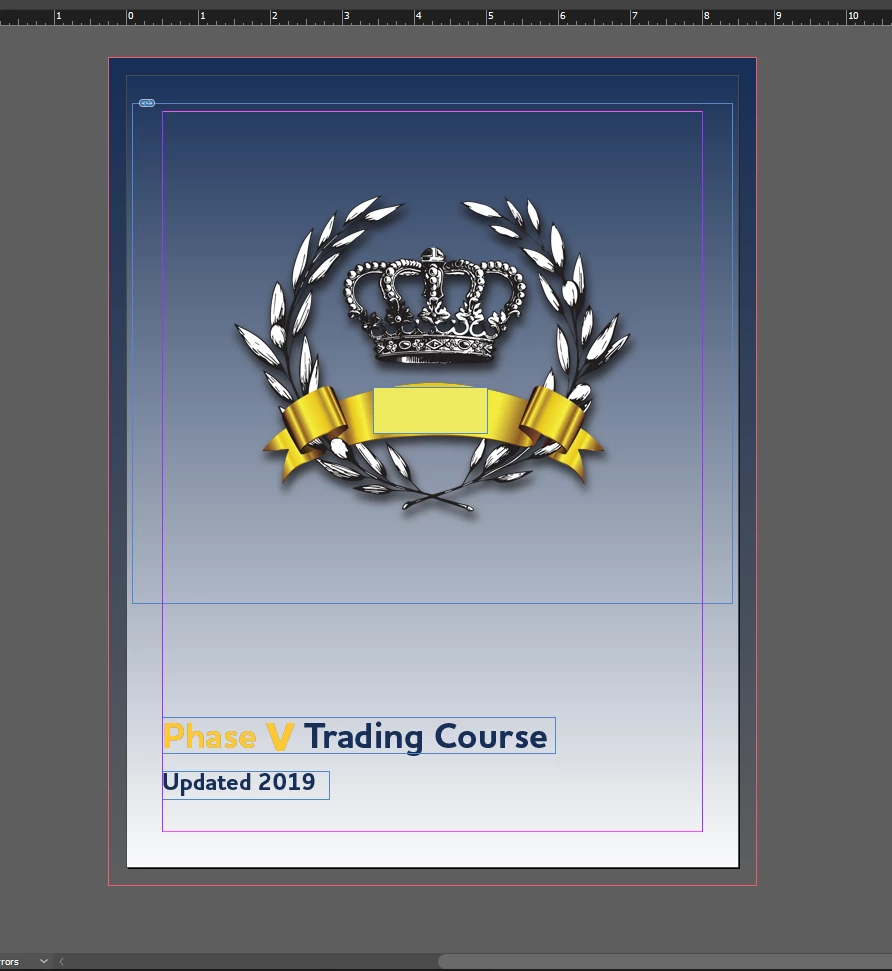
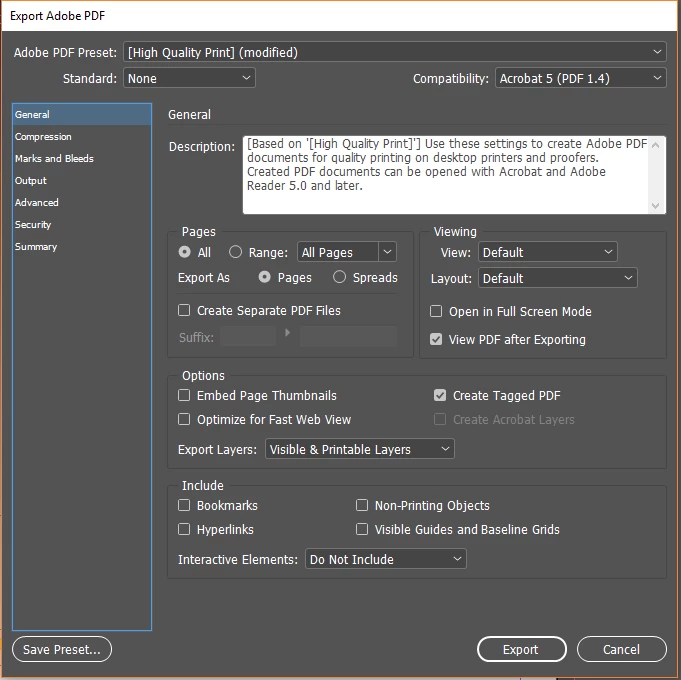
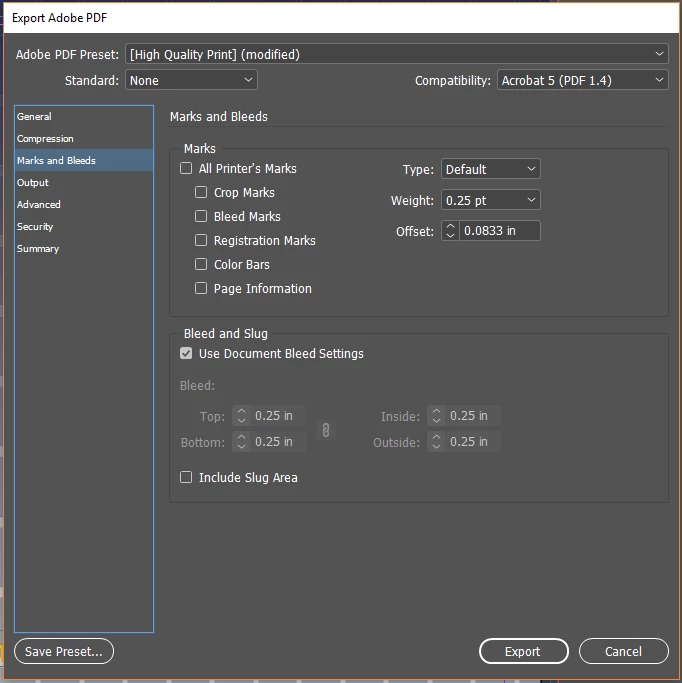
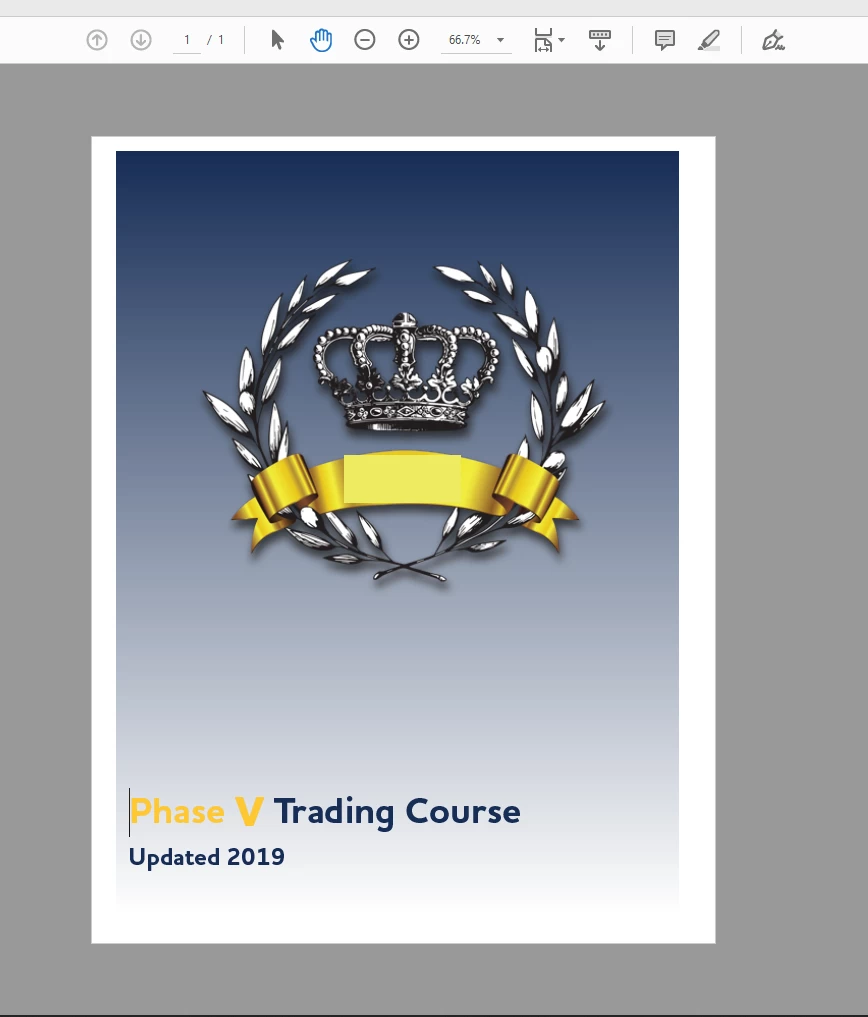
This has been a chronic question for years now and there isn't an easy answer that I've been able to find or use. Why aren't my background layers exporting? Below are screenshots of the doc in InDesign, the document and export settings plus two separate outputs to show that when the shape is within the margins it renders, but once it reaches the edge of the document, or bleeds, it doesn't export.

I am able to get smaller objects that only bleed at one corner or a smaller section of the document to export properly so it is only when using a background layer. Either as a gradient or solid fill.
This topic has been closed for replies.
Correct answer Eugene Tyson

I did see the initial probelm and exporting as smallest file size it exported correctly.

I switched to High Quality and it exported incorrectly.

The fact that you started a new document and it still happens, might something quirky with your default swatches.

Reset your Preferences.

  1. (Windows) Start InDesign, and then press Shift+Ctrl+Alt. Click Yes when asked if you want to delete preference files.
  2. (Mac OS) While pressing Shift+Option+Command+Control, start InDesign. Click Yes when asked if you want to delete preference files.

If that's not working then a clean install

Use the Creative Cloud Cleaner Tool to solve installation problems

6 replies

dinad63454193
Participating Frequently
February 8, 2019

And I'm having the same problems with solid as well as gradient backgrounds.

slednh
Participant
August 10, 2022

SOLVED Had the same issue, found this elsewhere: Check your Acrobat preferences: Edit > Preferences, then click on accessibility and make sure "Replace Document colors" is NOT checked.

maxwithdax
Community Expert
Community Expert
February 8, 2019

Interestingly enough, I downloaded and opened the indd file and was able to export a pdf with the background with no problem from your exact file. Can you tell us what version of InDesign you are using? 14.0.1 is the version I am on.

Also, I see that you are using the gradient feather tool. What happens if you just change it to a solid color, or if you change it to a normal gradient fading from your blue to white?

-Dax

dinad63454193
Participating Frequently
February 8, 2019

I'm in 14.0.1 as well. I even uninstalled and reinstalled so I'm working with a recently installed version.

Community Expert
February 8, 2019

That's odd.

Feel like sharing the file?

dinad63454193
Participating Frequently
February 8, 2019
Community Expert
February 8, 2019

Ok - when I first opened the file I got the same result.

I checked the swatches - and there's swatches in a folder - the royal blue colour - that did not show up any colour in the dialog box at all.

I deleted this swathc and replaced it with the swatch already there in the main panel of swatches.

And it all works now.

Seems to be some sort of file corruption (not uncommon and nothing to worry about)

You should use File>Export and choose IDML - open that and it opens as untitled.

And then save that as a new file.

Try the export now.

Failing that try the swatches steps above.

Community Expert
February 8, 2019

When you go to View>overprint preview in InDesign does the background disappear?

dinad63454193
Participating Frequently
February 8, 2019

No, the background is still there.

Community Expert
February 8, 2019

InDesign has a few ways to supress printing/export of images/layers

Check Window>Outpu>Attributes and ensure Nonprinting is not selected

or more likely - Window>Layers - then click the 3 lines in the top right of the panel - (above the blue score on the image on the right)

Layer Options> and ensure Print Layer is not turned off (there should be a tick mark)

dinad63454193
Participating Frequently
February 8, 2019

I just checked and nonprinting is not selected in Output but Print layer is selected in the layer panel, so that's not why the background isn't exporting.

maxwithdax
Community Expert
Community Expert
February 8, 2019

When you say background layer, what exactly are you referring to. Can you please show screenshots of your layers panel.

-Dax

Legend
February 8, 2019

Can you provide a screenshot of the Advanced-tab please?

And just my 2 ct: Is that yellow box your final solution to to cover the text/something?

dinad63454193
Participating Frequently
February 8, 2019

The yellow box is just a quick cover up. This was for a potential client who went a different way, and I just didn't want their name in screenshots. Since they're immaterial to the question, I just put a box over their name. But here's the advanced tab.