



m1b
Community Expert
Community Expert
February 23, 2025
Question

Case where Adobe Paragraph Composer interferes with spans and table

  • February 23, 2025
  • 2 replies
  • 549 views

Hi all, I'm planning to post a bug report on uservoice, but I was hoping I could get a few people to test my demo document and see if they see the same bug.


To test:

1. open my attached .indd

2. place your insertion point cursor in the paragraph colored magenta.

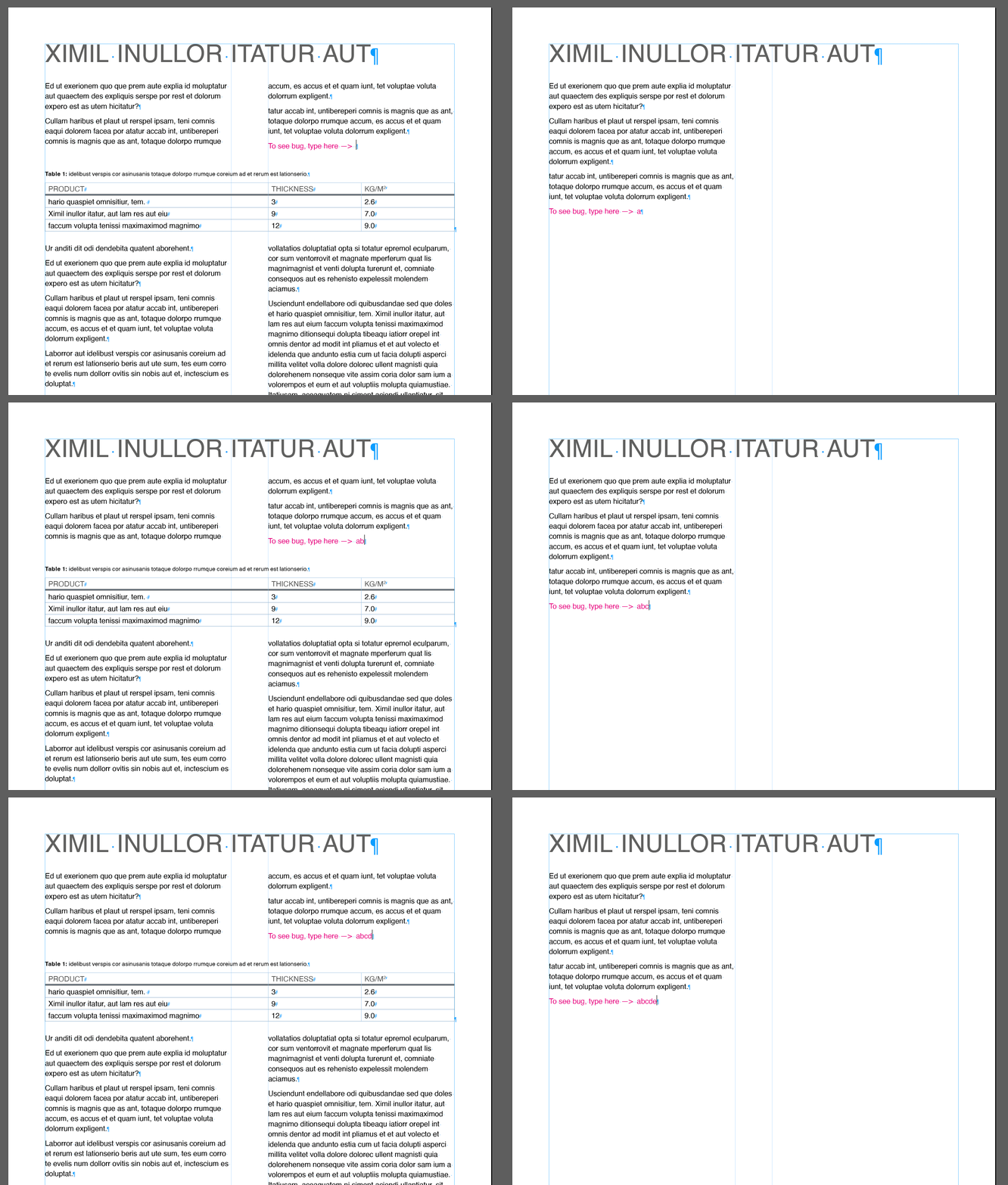
3. type a character (what happens? for me the spanning breaks dramatically—see graphic below)

4. type another character (what happens? for me it goes back to normal

5. keep typing (for me it jumps back and forth)


I have noticed that if I change the magenta paragraph from using Adobe Paragraph Composer to Adobe Single-line Composer, the problem goes away. But it took me a while to troubleshoot it, so it would be nice to fix it.


Anyway, if you have time, please let me know your results, and which version of Indesign and OS you are running. I will link to this post in the bug report so Adobe can read your results too. Thanks.

- Mark
 

2 replies

Mike Witherell
Community Expert
Community Expert
March 4, 2025

I'm not sure I'm understanding the matter, but I noticed that Body in your example document is a paragraph style defined as Paragraph Composer; yet, overridden to Single-Line Composer. When I type a single additional character, the whole rest of the text disappears, as if a bug. 

But when would I validly do that? Override Paragraph Composer with Single Line Composer? I wouldn't do so, normally, would I?


But if I edit the paragraph style Body to use Single-Line Composer, it functions correctly. 

If I again set it to Paragraph Composer, it has the disappearing problem.

But if I set Keep Options to 2+2, the problem goes away again, for either Single-Line or Paragraph.


Interestingly, I notice the Heading and the Table Caption are set to Span; but the table styles are not set to span.

(For the sake of my testing, I began with the Reset to Base button on Body Paragraph Style, and setup just a few essential attributes.)


Another test: I opened your sample document, selected the textframe, and copynpasted it into a new fresh document. When I tried backspacing the text in the same line you specified, all the rest of the text went into overset. But if I backspaced a second time, third time, fourth time, etc., the rest of the page went overset and did not come back from overset. That outcome was different from the off-with-one-backspace, on-again-with-the-second-backspace.


Not sure if my observations help the discussion!

Mike Witherell
m1b
Community Expert
m1bCommunity ExpertAuthor
Community Expert
February 23, 2025

I have reported the bug. Please vote on it, if you can.

- Mark

m1b
Community Expert
m1bCommunity ExpertAuthor
Community Expert
March 4, 2025

I was hoping at least one person could confirm that it isn't just on my system! 🙂


If anyone had a chance could you please open my demo document and see if you get the same result I got, shown in the gif above? Only 5 steps to test!


@Peter Kahrel @rob day @Marc Autret @Eugene Tyson  @Mike Witherell 

Community Expert
March 4, 2025

Hey hey - didn't even see this post!


Another peculiarity is that with Balance Columns turned on - the Paragraph Composer works fine. No need to switch to Single Line Composer. 


I suspect it's trying to adjust the paragraphs while you're typing - but the single line composer doesn't adjust the paragraphs as you type. 


And if you Balance Columns it is somehow working it out for best fit or something. 


I made some notes years ago about how the Composer works - maybe it makes more sense to you than it does to me - I think I got it from InDesign Secrets many many many years ago -or it could have been the InDesign Bible or Adobe CS InDesign by David Blatner


quote


Adobe Single-Line Composer.
In the past, programs like QuarkXPress and PageMaker have used single-line composition methods to flow text. This method marched line by line through a paragraph and sets each line as well as possible using the applied hyphenation and justification settings. The effect of modifying the spacing of one line on the lines above and below is not considered in single-line composition.


If adjusting the space within a line causes poor spacing on the next line, tough luck. When you use Adobe Single-Line Composer, the following rules apply:


  • Adjusting word spacing is preferred over hyphenation.
  • Hyphenation is preferred over glyph spacing.
  • If spacing must be adjusted, removing space is preferred over adding space.


Adobe Paragraph Composer
InDesigns Adobe Paragraph Composer (called the Multi-Line Composer in previous versions) is selected by default. It takes a broader approach to composition by looking at the entire paragraph at once. If a poorly spaced line can be fixed by adjusting the spacing of a previous line, the Paragraph Composer reflows the previous line. The Paragraph Composer is governed by the following principles:


  • The evenness of letter spacing and word spacing is the highest priority. The desirability of possible breakpoints is determined by how much they cause word and letter spacing to vary from the Desired settings.
  • Uneven spacing is preferred to hyphenation. A breakpoint that does not require hyphenation is preferred over one that does.
  • All possible breakpoints are ranked, and good breakpoints are preferred over bad ones.


The paragraph composer is more sophisticated than the single-line option, offering generally better overall spacing because it sacrifices optimal spacing a bit on one line to prevent really bad spacing on another, something the single-line method does not do.


However, there is one frustration in dealing with the paragraph composer: When you try to edit text or play with tracking to get rid of an orphan or widow, the paragraph composer keeps adjusting the text across several lines, often counteracting your nips and tucks. The single-line composer doesn't do that.