
jacobmouritsen
Participating Frequently
June 28, 2017
Answered

Change header in template

  • June 28, 2017
  • 3 replies
  • 69049 views

Hello!

I've downloaded this template: Minimalist Magazine Layout - billede | Adobe Stock and am really glad for the design. But on the top of the head of almost every page, there stands 'Magazine' which I'd like to substitute with something else. BUT - I can't change it. I can't edit it. And I even can't delete it. I've been through my master-page, and there is nothing there. So is there anyone, that might be able to help me?

Best regards

Jacob
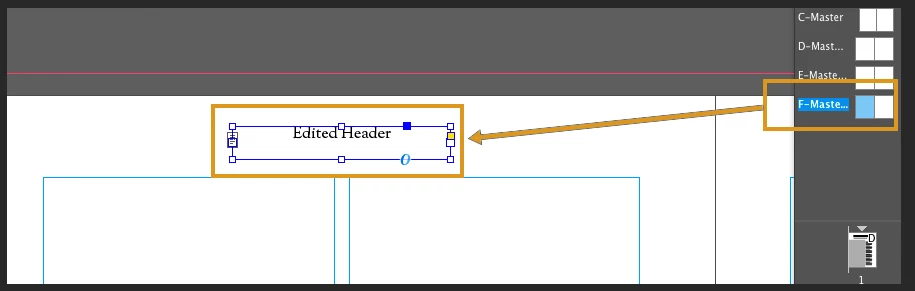
Correct answer Damien Berest

Hi

The headers are located on the A, B, E and F Master pages. Open these spreads by double-clicking on them, then use the Type tool to edit the header on the master pages you wish to use.

Hope this helps

Damien

3 replies

Participant
June 12, 2019

You are a saint! I have been trying to figure that out FOREVER! Thanks <3

Damien Berest
Adobe Employee
Damien BerestCorrect answer
Adobe Employee
June 28, 2017

Hi

The headers are located on the A, B, E and F Master pages. Open these spreads by double-clicking on them, then use the Type tool to edit the header on the master pages you wish to use.

Hope this helps

Damien

Participant
August 14, 2017

THANK YOU! This solved my exact problem too.

Known Participant
June 28, 2017

Hi Jacob,

Have a look if the text is not locked on master page or on a spread.

Go to Object>Unlock All on Spread.

See if that helps.

Kamila

jacobmouritsen
Participating Frequently
June 28, 2017

Unfortunately that isn't possible. It doesn't seem to be a possibility to unlock any objects. As a matter of a fact, it isn't even possible to mark the text. I really don't know what to do.

But thank you for trying

Known Participant
June 28, 2017

Have a look if you can find it on any layer and try to switch it off in layers panel.