curtiskkleier
Participant
November 30, 2016
Answered

Change text in multiple locations at once?

  • November 30, 2016
  • 5 replies
  • 2981 views

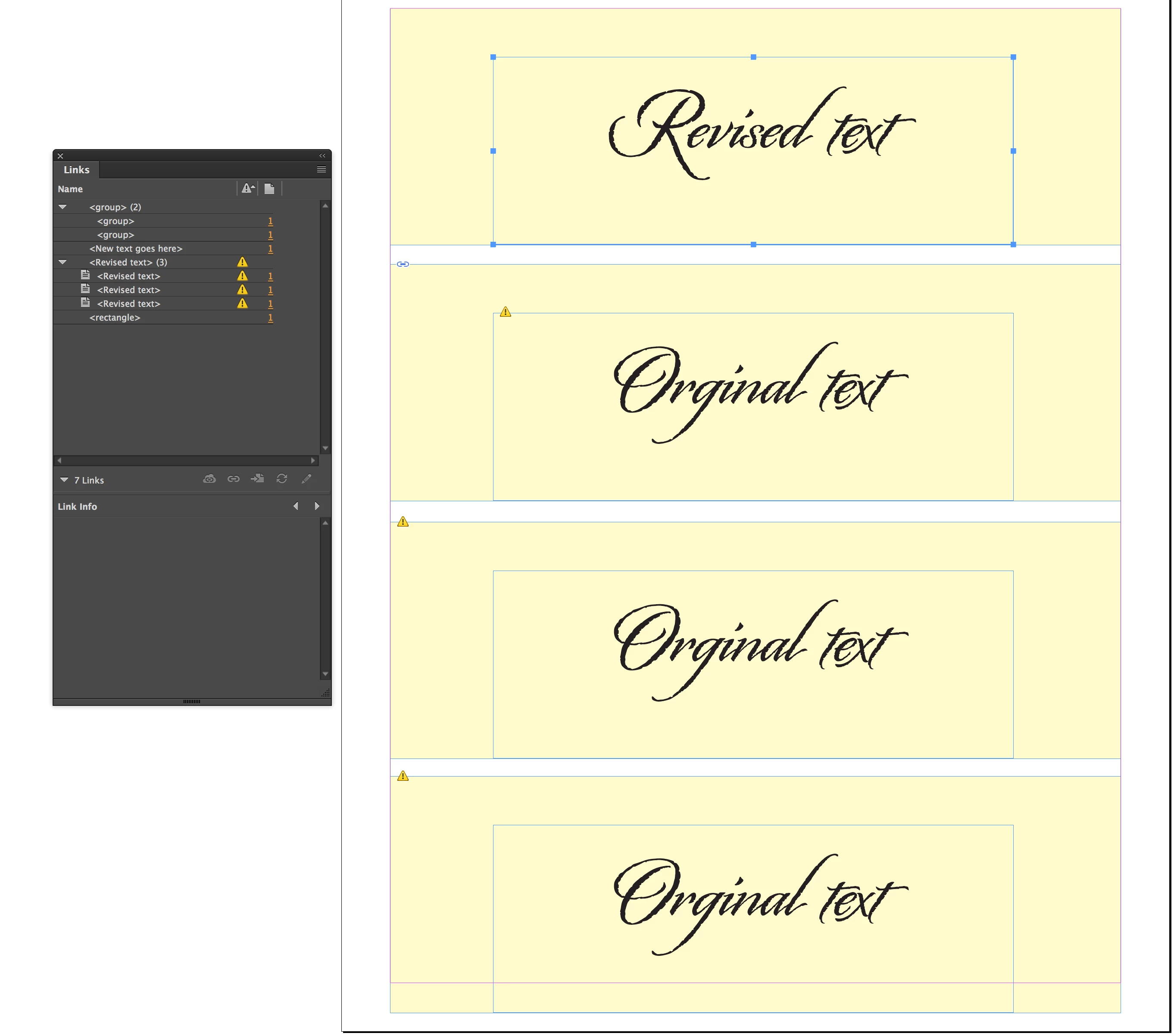
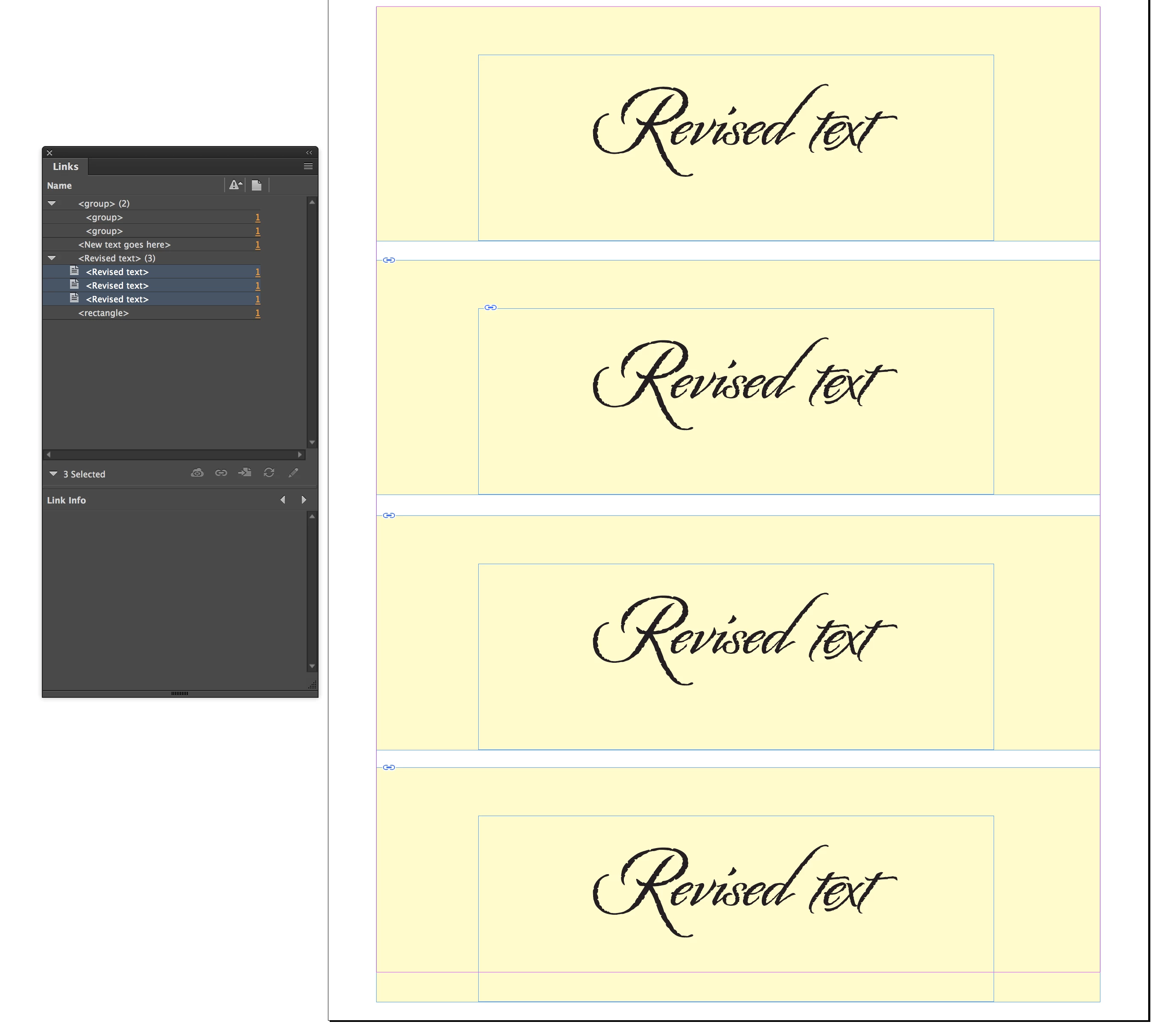
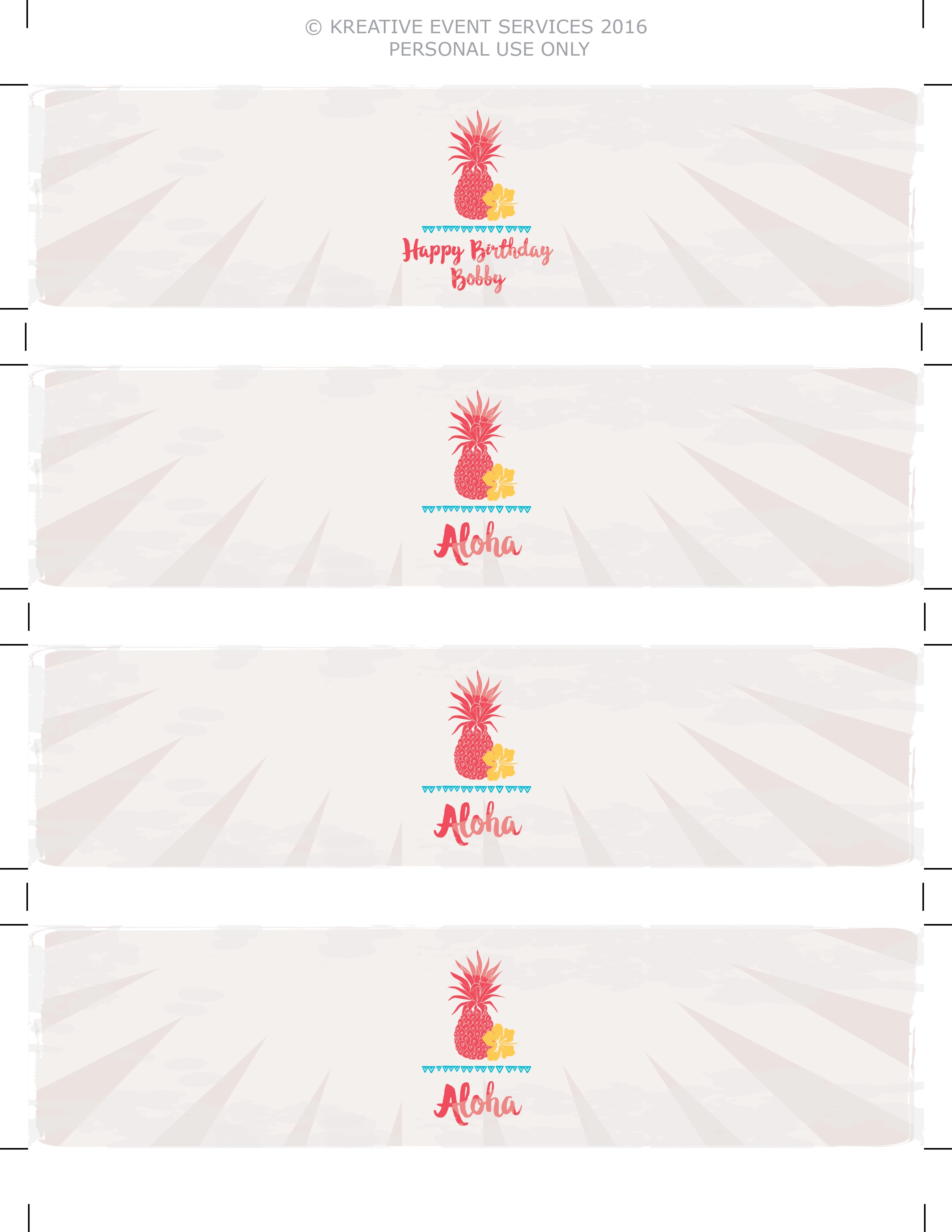
Hi!  I'm setting up a template to print multiple stickers with the same design on one sheet of paper. If I want to change the wording on the sticker I currently adjust one of the stickers and then delete the others and then copy and paste the new one and realign everything. I feel like there has got to be an easier way, but haven't figured it out. Anyone have any suggestions?  I'd like to link all of the text boxes to a single "master" sticker so they'll all update when I update the master one.  Image to show what I'm doing! Any suggestions?
    This topic has been closed for replies.
    Correct answer SJRiegel

    The content collector, with its Link feature will do what you want. Any changes to the source text will show in the Links panel, and can be updated with a single click there.

    5 replies

    Known Participant
    November 30, 2016

    Just use Fine/Replace. On a Mac you hit command-f (windows, control-f?) and use that window. It's simple. Not sure what all the other hassle is in the rest of this thread.

    Barb Binder
    Community Expert
    Community Expert
    November 30, 2016

    Or what about using text variables? It would be simpler to set up than data merge but they are limited to a single line.

    In your example you have two lines on the first sticker and one on the second. Is that typical? If so, you'd have to figure out how to handle the variations. Maybe three variables: 1st line, 2nd line, Single line. And use styles to control the formatting for both sizes.

    From Create and edit text variables in InDesign:

    Custom Text

    This variable is commonly used for inserting placeholder text, or a text string that may need to be changed quickly. For example, if you’re working on a project that uses a code name for a company, you can create a custom text variable for the code name. When you are able to use the real company name, you can simply change the variable to update all the occurrences. To insert special characters in a text variable, click the triangle to the right of the text box.

    Note: Adding too much text to a variable may cause overset or compressed text. Variable text does not break across lines.

    ~Barb at Rocky Mountain Training
    SJRiegelCorrect answer
    Legend
    November 30, 2016

    The content collector, with its Link feature will do what you want. Any changes to the source text will show in the Links panel, and can be updated with a single click there.

    curtiskkleier
    Participant
    November 30, 2016

    Thank you!  This looks promising!  I need to find a little time to play with it, but I think it is exactly what I was looking for!

    Sheena Kaul
    Legend
    November 30, 2016

    Moving to InDesign

    John Waller
    Community Expert
    Community Expert
    November 30, 2016

    Using which Adobe software? InDesign?

    curtiskkleier
    Participant
    November 30, 2016

    Yes, InDesign.

    November 30, 2016

    Use the Data merge feature.

    1. Create a *.txt file with a field name ("text") and your sticker text. Copy/paste for as many stickers as you need for 1 page (here for example: 7)

    2. Create a InDesign file, 1 single page. Create a paragraph style for your text.

    Draw your sticker and 1 text frame and place it on the upper edge. Do not write your sticker text.

    3. Open the Data merge panel. In the panel's menu click "choose data source" and browse to your *.txt file. Check the spaces option if there are spaces in your text (example: between happy and birthday)

    4. Data merge panel: Drag the  Data source label in your text frame. Apply the paragraph style

    5. Data merge Panel: Click on the tiny data merge button. In the following window choose above "All records" and below "Multiple records". Click Preview.

    6. For the exact layout use the other tabs "Layout with multiple records" and "Options"

    7. Since the preview function is buggy, click Cancel, reopen the window and click ok without using the preview.

    8. For another sticker only change the text in your *.txt file. Then go to the Data merge panel's menu and choose "Update data source".

    Read Details in the help file: https://helpx.adobe.com/indesign/using/data-merge.html

    There are Tutorials on youtube too.

    Fenja