

Check out what you can do with Flex layout in InDesign 21.0
Hey everyone, happy MAX!
We are thrilled to introduce the new Flex Layout feature in InDesign. Flex Layout lets you create frames that automatically adjust as content changes. Objects are arranged using properties such as direction, spacing, padding, and alignment. As content is added, removed, or resized, the layout adapts seamlessly, eliminating the need for manual adjustments.

To update InDesign 21.0, click "Update" in the Creative Cloud desktop app next to InDesign. More detailed instructions for updating.
Check out how you can leverage Flex Layout in Adobe InDesign
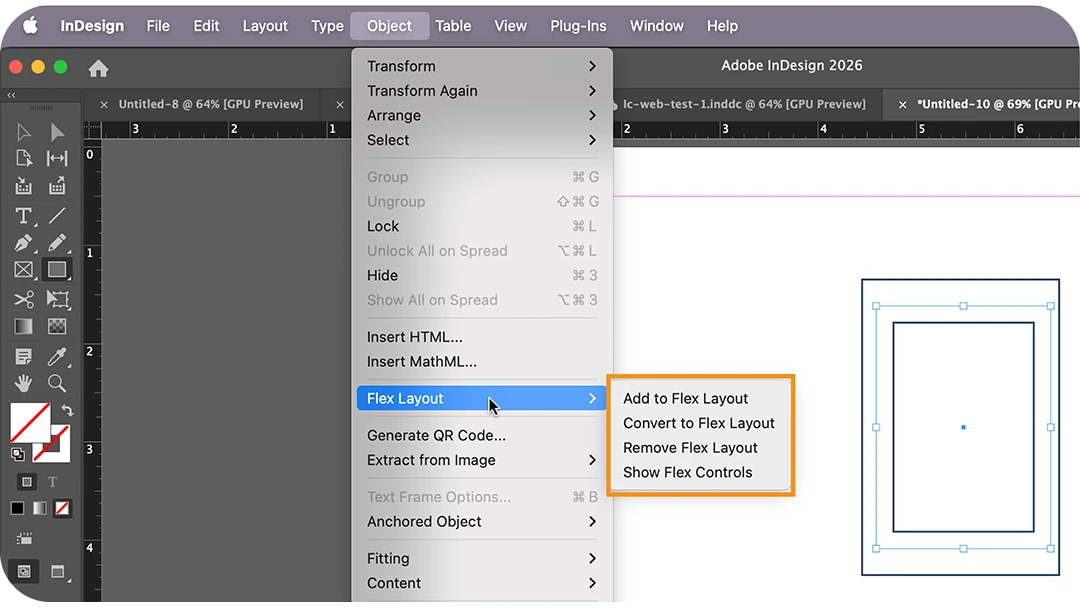
Access Flex Layout options
Select an object/group/multiple objects in your document and do one of the following to access Flex Layout options:
- Go to Object > Flex Layout
- Go to Window > Flex Layout
- Right-click the Object to access the Flex Layout
Want to dive deeper into Flex Layouts? Just check out the link here.
Create a Flex layout
1. Select an object/group/multiple objects in your document.
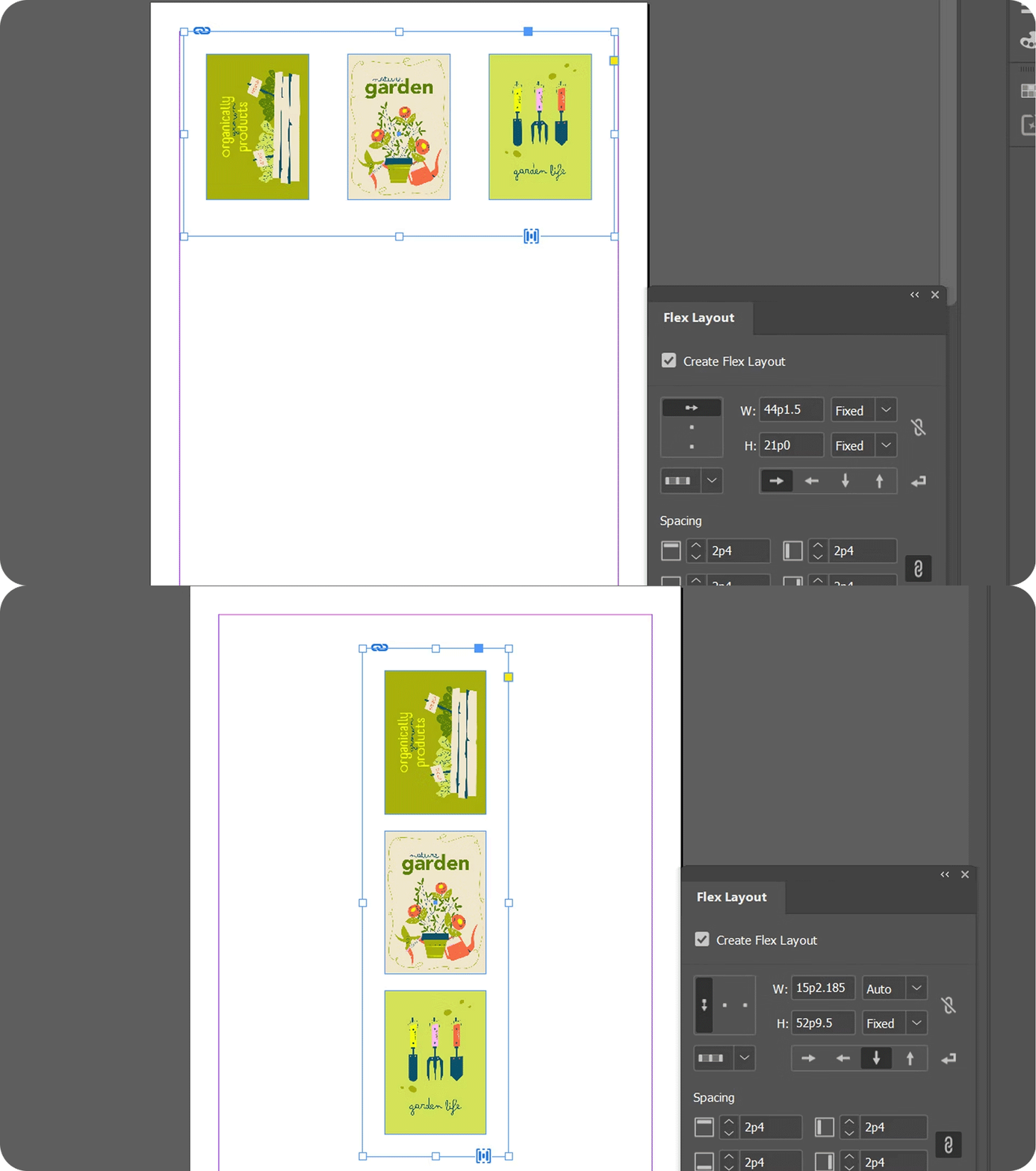
2. Select the Flex layout icon from the Properties panel. The Object is converted into a Flex layout container.
3. Drag objects into the container. They adjust automatically based on the container's row or column direction.
Want to learn more about Creating Flex Layouts? Just check out the link here.
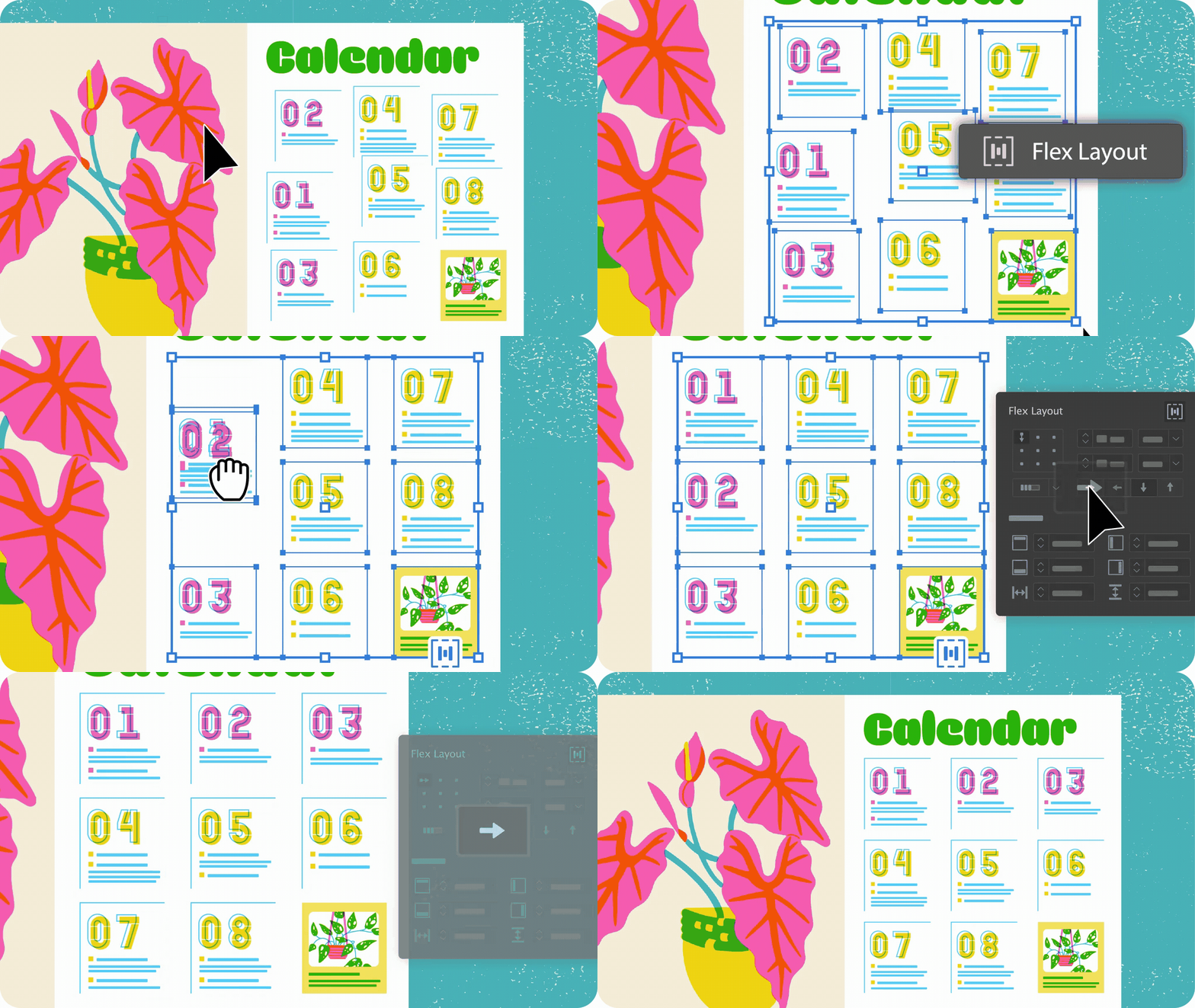
Redesign an existing file using Flex Layout
1. Group related elements (like cards, buttons, or lists).
2. Convert groups to Flex Layout (right-click → Convert to Flex Layout).
3. Refine Flex properties—direction, spacing, alignment, and container size.
4. Move up the hierarchy by converting parent groups for more structure.
5. Test by adding/removing items and tweak until it adapts seamlessly.
Want to learn more about applying Flex Layouts to existing documents? Just check out the link here.
Curious about what more you can do with Flex Layouts? Click here to find out more.
Wish to learn more about the new features in InDesign 21.0? Click here.
To ensure your system can support the latest version of InDesign, click here.
We'd love to hear from you!
Try out Flex Layout in InDesign 21.0, and let us know your thoughts. Feel free to reach out if you have any questions or suggestions!
We'd love to see what you've created and hear about your experience or feedback! Click 'Reply' below.
Click 'Follow' below to bookmark this post for easy reference.
For other questions, feel free to start a new post in the community.


 AdChoices