JonathanArias
Legend
June 12, 2018
Answered

cleaning up word documents in indesign

  • June 12, 2018
  • 3 replies
  • 651 views

Hi,

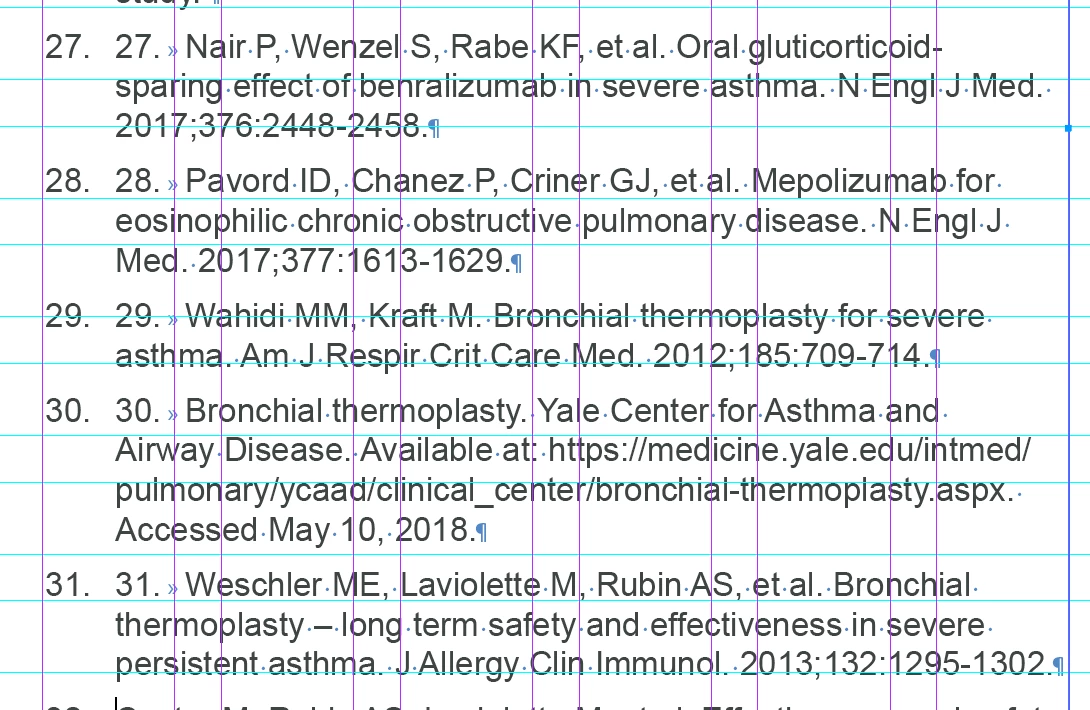
looking for some tips or trick to this. I am typesetting and i am copying and pasting references. I have a style going that auto numbers them, however, i get the below when i paste from word. how can i speed up the removal of the number and the tab space?

Thanks

Jonathan

    This topic has been closed for replies.
    Correct answer AnneMarie Concepcion

    Are the numbers manually entered in Word? Or is it a numbered list. Click in the list in Word and hit Enter/Return and start typing, see if the paragraph gets the next number.

    I'm guessing it's a numbered list in Word (most Word users know how to click the Number or Bullet button at the top to make an auto-numbered or bulleted list)  and when you're pasting it in, you're losing the autonumbering, they're being converted to manual numbers followed by a tab.

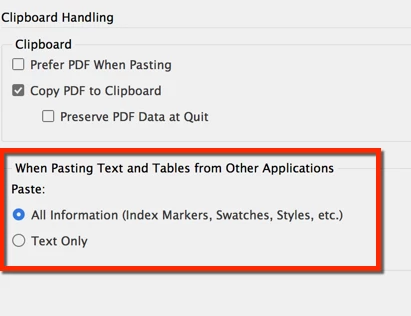
    To confirm and fix this: go to InDesign Preferences, and in the Clipboard  Handling section at the bottom, see if you  have "Text Only" selected under the "When Pasting Text and Tables." If so, that's what is causing the double-hit of numbers. It's converting Word's auto-numbered to text numbers.
    Solution is to either:

    • Switch the Preference  to "All information" when Pasting, which will bring in the list as an autonumbered Word style, and when you apply your own paragraph style, will simply switch  to your/InDesign's autonumbering, OR
    • In Word, select the paragraphs and turn off the Autonumber attribute for them before you copy the text.

    If the Word user actually did  enter manual numbers, then the best solution is to use the GREP cleanup after  pasting into ID, as described above.

    AM

    3 replies

    AnneMarie Concepcion
    Community Expert
    AnneMarie ConcepcionCommunity ExpertCorrect answer
    Community Expert
    June 12, 2018

    Are the numbers manually entered in Word? Or is it a numbered list. Click in the list in Word and hit Enter/Return and start typing, see if the paragraph gets the next number.

    I'm guessing it's a numbered list in Word (most Word users know how to click the Number or Bullet button at the top to make an auto-numbered or bulleted list)  and when you're pasting it in, you're losing the autonumbering, they're being converted to manual numbers followed by a tab.

    To confirm and fix this: go to InDesign Preferences, and in the Clipboard  Handling section at the bottom, see if you  have "Text Only" selected under the "When Pasting Text and Tables." If so, that's what is causing the double-hit of numbers. It's converting Word's auto-numbered to text numbers.

    Solution is to either:

    • Switch the Preference  to "All information" when Pasting, which will bring in the list as an autonumbered Word style, and when you apply your own paragraph style, will simply switch  to your/InDesign's autonumbering, OR
    • In Word, select the paragraphs and turn off the Autonumber attribute for them before you copy the text.

    If the Word user actually did  enter manual numbers, then the best solution is to use the GREP cleanup after  pasting into ID, as described above.

    AM

    BobLevine
    Community Expert
    Community Expert
    June 12, 2018

    I missed that these were being PASTED. If you place the Word files, the auto numbering comes in correctly.

    BobLevine
    Community Expert
    Community Expert
    June 12, 2018

    Honestly, I'd clean it up in Word. Who ever did this did a lousy job of using automated features.

    vladan saveljic
    Inspiring
    June 12, 2018

    grep could be a solution

    find:

    ^\d+\.\t

    format > paragraph style that you use for this

    change:

    leave blank