
Inspiring
November 4, 2019
Answered

Color and blending modes between placed AI file and InDesign document not displaying correctly

  • November 4, 2019
  • 5 replies
  • 6362 views

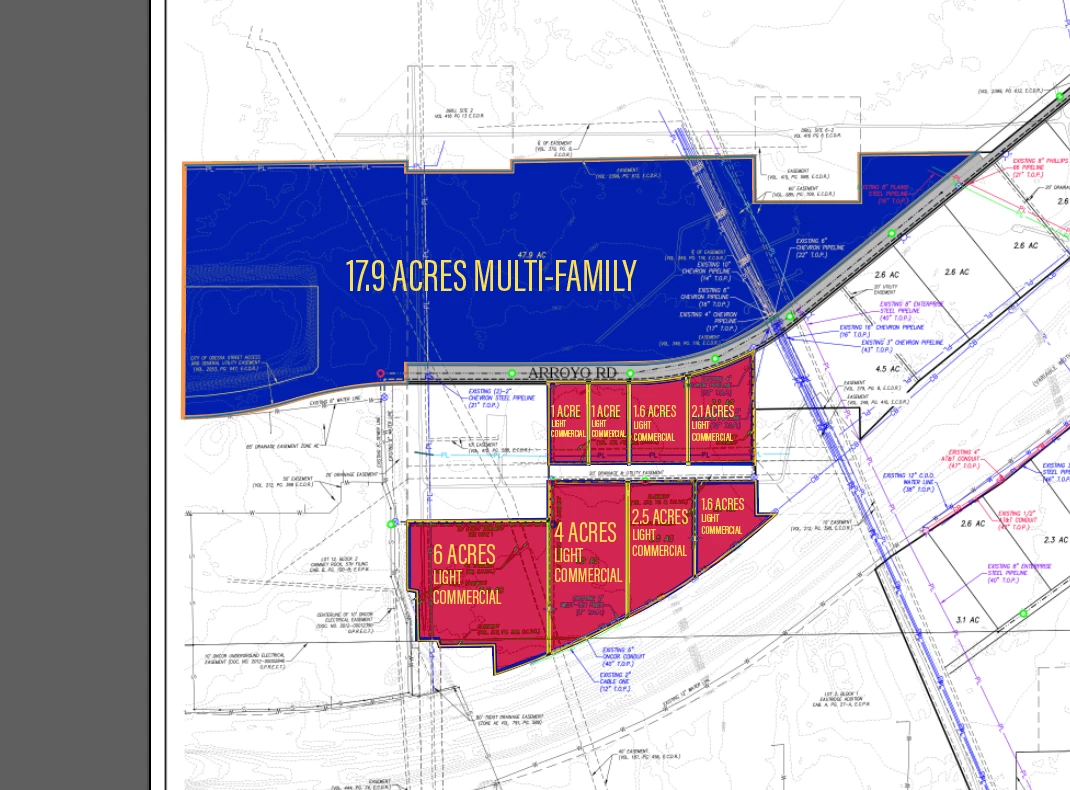
I am making a map with color-coded blocks. I was already having trouble with blending in this document, because it started as a PSD file and was someone else's work. I eventually removed all labels and layers except the base map, which is an image, then exported it as a JPEG. I placed that image in Illustrator and began creating new colored layers and text layers, and the colored layers have the exclusion blending mode activated. It looks like this in Illustrator:


I have placed the entire AI file into InDesign where it looks like this for some reason:
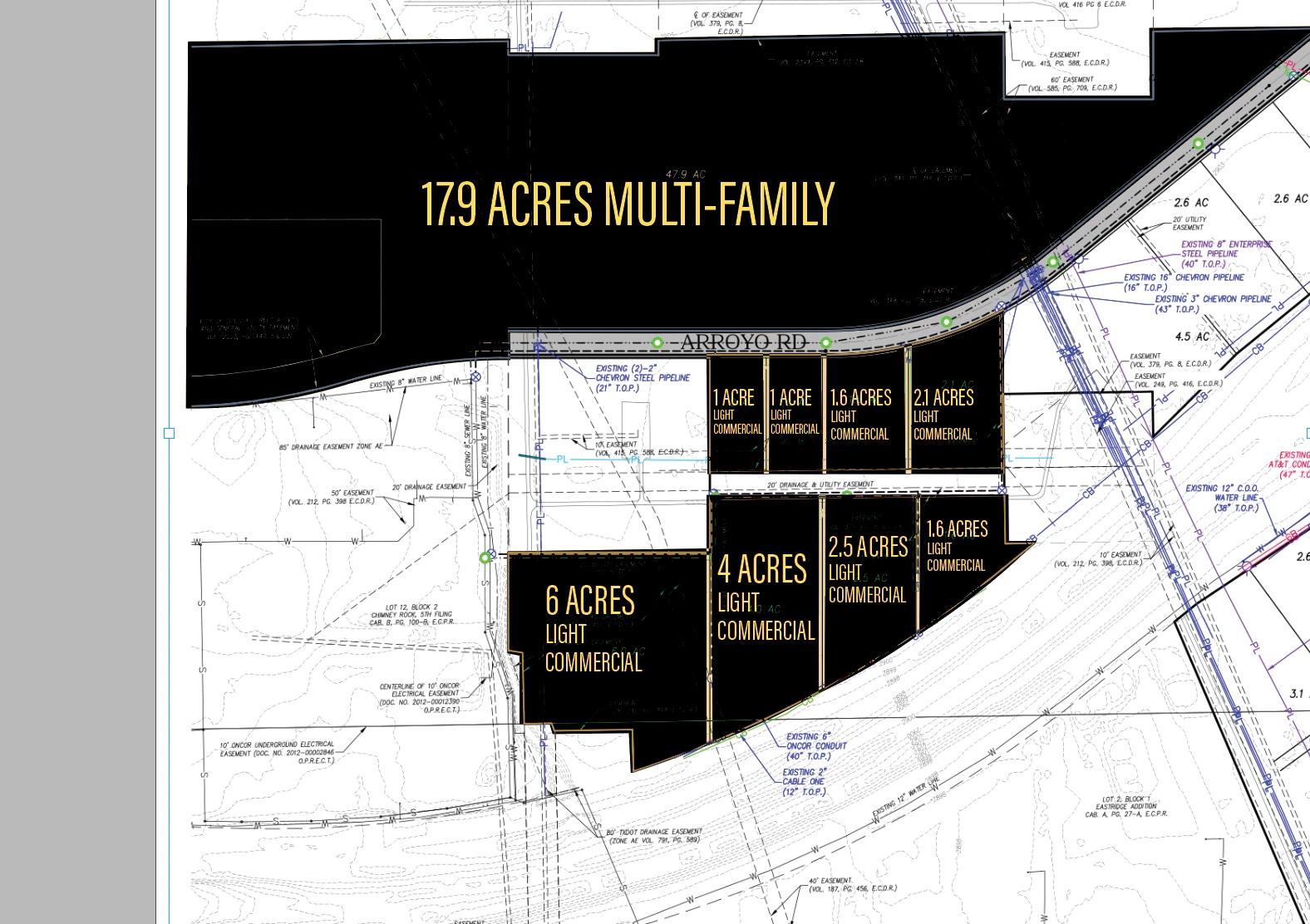
 

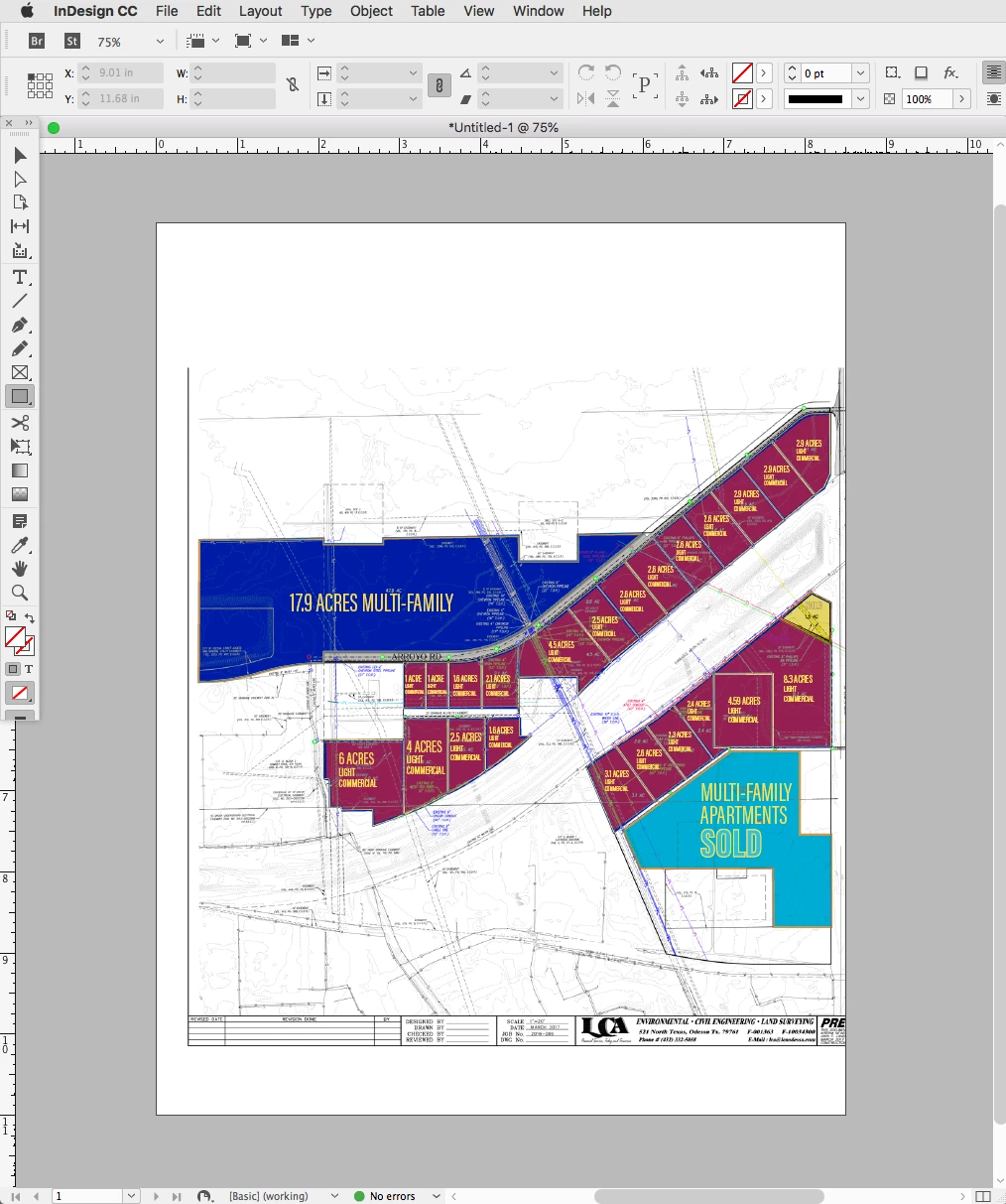
I tried to export it as a PDF and place the PDF instead, but that didn't solve the problem. I made sure that both Illustrator and InDesign were set to CMYK. I have never encountered this before and the reason I was making the map in Illustrator was specifically to take advantage of the blending modes and the pen tool which isn't as easy to work with in InDesign. I also kept getting an error message that said that one of my files had moved, even though I know that my files have not budged since I began working on this project. Once I noticed the problem in InDesign, I windowed back into Illustrator, where I got the error meessage in that program as well, then the appearance changed when I clicked ok in Illustrator to look more like the placed file with all black backgrounds. I CTRL+Z until it went back the way it should look, and windowed back to ID, where the low res preview looked correct, but then once I double clicked the file in the links window to update the link, it went back to the black verison. Please HALP
This topic has been closed for replies.
Correct answer rob day

The .ai’s Document Color Mode is RGB, so if I set the InDesign document’s Transparency Blend Space to RGB it works:


5 replies

Community Expert
November 5, 2019

Hi Rob,

if I unembed the embedded TIFF image it would be saved as PSD file with RGB colors.

( Adobe Illustrator 2020 on Windows 10 )


The placed and embedded TIFF is named "Blank map2.tif".


Regards,
Uwe Laubender

( ACP )

rob day
Community Expert
Community Expert
November 5, 2019

A save as to PDF/X-1a could force the black lines to convert to black only CMYK. Here I’ve set the destination to a maximum black generation profile. It doesn‘t seem like the color is that fussy, so it could work.


Community Expert
November 5, 2019

Hi terraa48174024,

if you want to print this in CMYK on a press, yes, you are in trouble.

Then the AI file has to be redone.


Just looked inside the AI file where a TIFF image is embedded.

Hm. The original color space is not detectable, but I think it would be in RGB.


To get this right we need a bitmap 1-Bit representation of the placed image for all parts that should be print with ink [Black].

Also a CMYK one for the map's legend. And all that with an Adobe Illustrator file in CMYK mode.


Or, perhaps better, all that redone in InDesign.


Regards,
Uwe Laubender

( ACP )

rob day
Community Expert
Community Expert
November 5, 2019

Not sure if this relates to your problem, but blending modes from AI and PS don't get applied to Indesign objects. If you draw a rectangle in AI, set it to multiply, place it in InDesign, the AI object would not multiply over native ID objects below.

Also, have you tried saving as Illustrator format .ai, rather than exporting a PDF?

Willi Adelberger
Community Expert
Community Expert
November 5, 2019

No, that is not rue. InDesign respects the blending mode of PDF/X-4 files drom Illustrator, but not from Photoshop.

Willi Adelberger
Community Expert
Community Expert
November 4, 2019

You wrote you exported to PDF? Did you use save as PDF or did you use any kind of export? What type of PDF did you use? Recommended in InDesign is only PDF/X-4.

Inspiring
November 4, 2019

First I exported as PDF Press Quality preset, then I read on this forum to try PDF/X-4, which I also tried. When I used that version I got an error message and the issue didn't resolve. When I re-save the PDF, before I click the yellow caution sign in the links panel in InDesign, I can see the low res preview of the placed PDF and it looks right, but then once I update the linked file, it looks wrong again

Willi Adelberger
Community Expert
Community Expert
November 5, 2019

Nope, use PDF/X-4 only. Never another type. Yellow triangle is not a problem, only a 8 corner red polygon would be. If it looks low res, switch to high quality preview with the right mouse click. 

Willi Adelberger
Community Expert
Community Expert
November 4, 2019

What type of colors did you use in Illustrator? Spot Colors or Process Colors?

Inspiring
November 4, 2019

Process color, 

Willi Adelberger
Community Expert
Community Expert
November 4, 2019

Did you use any blending mode other than normal in Illustrator?

Check on every level, object, layer, group, etc.