Participant
October 27, 2018
Answered

Colorpicker, Swatchespanel how to make these more AI or PS

  • October 27, 2018
  • 2 replies
  • 305 views

Morning y'all,

I've some problems when picking colors in InDesign.

When watching tutorials, I notice a difference in the Swatches panel.

This shot is from an Adobe tutorial (Essentials workspace)
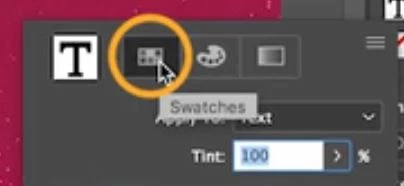
As you can see, next to the Swatches button there's a (RGB?) colorpicker and gradient picker.

In my workspace (Classic in this shot...but Essentials looks the same), I only have the Swatches panel:
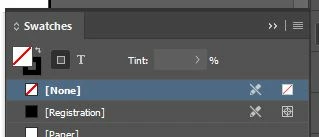
How can I add the 2 extra pickers?

Also, when I have an object selected and double-click it's color, the colorpicker below opens up:
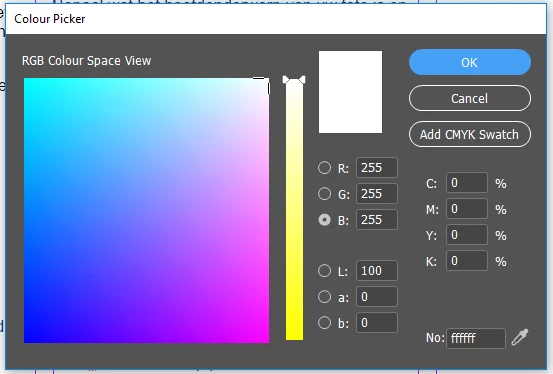
Picking a grey variant is quite impossible to me unless the grey variant is 'somewhere' on my screen and I can use the eyedropper tool.

Is there a way to get a picker as seen in AI?
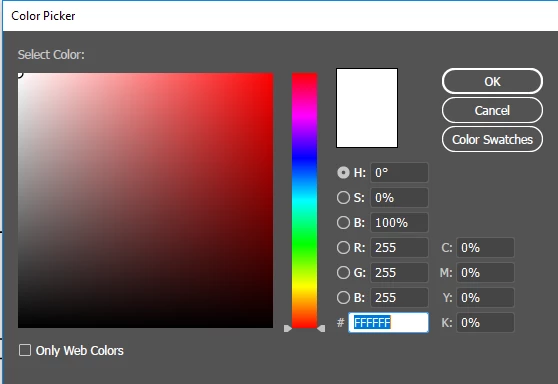
Clicking every panel and changing workspaces didn't solve the above so far.

Help is much appreciated.

Thx

This topic has been closed for replies.
Correct answer Mike Witherell

Set your workspace up by clicking Window > Color > and you can access Swatches, Color, and Gradient.

Therefore, position them in your dock and save a custom workspace.

InDesign tends to plan the use of ink colors, because this concept is important on printing presses in the real physical printing world. Gray shades, like most colors in InDesign, are generally planned and built in the Swatches panel. Or first the Color panel; then promoted into the Swatches panel. Traditionally, even tho there is a Color Picker, InDesign users avoid using it, preferring the Swatches panel the most, followed by the Color Panel next.

2 replies

rob day
Community Expert
Community Expert
October 27, 2018

The intuitive Hue, Saturation, Brightness view for the Color Picker is an often requested feature.

The Lab L view is conceptually similar, where brightness is controlled by the slider and hue, saturation are controlled via the color field:

The center of the color field is perfectly neutral and moving toward the edge increases saturation. If you put your cursor in the center of the field (a, b at 0), you can use the slider to pick perfectly neutral values.

See this thread:

Re: HSB color picker

Mike Witherell
Community Expert
Mike WitherellCommunity ExpertCorrect answer
Community Expert
October 27, 2018

Set your workspace up by clicking Window > Color > and you can access Swatches, Color, and Gradient.

Therefore, position them in your dock and save a custom workspace.

InDesign tends to plan the use of ink colors, because this concept is important on printing presses in the real physical printing world. Gray shades, like most colors in InDesign, are generally planned and built in the Swatches panel. Or first the Color panel; then promoted into the Swatches panel. Traditionally, even tho there is a Color Picker, InDesign users avoid using it, preferring the Swatches panel the most, followed by the Color Panel next.

Mike Witherell
Participant
October 27, 2018

Thank you,

Silly me not to think of these pansels and thank you for the ink clarification!