Will Price
Inspiring
February 20, 2025
Answered

Colour palette duplication from Illustrator > Indesign

  • February 20, 2025
  • 1 reply
  • 438 views

Hello,


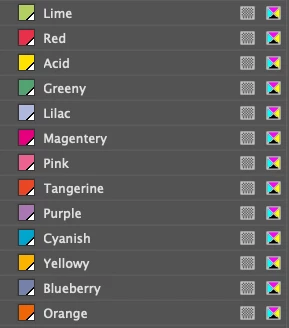
I have a specified CMYK process colour palette in an Illustrator file that I'd like to match with an Indesign file. I saved the palette as a .ase file and imported it into InDesign.


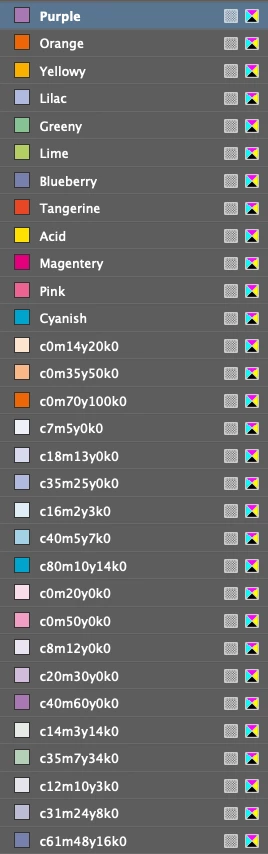
When I copy artwork from Illy and paste into InDesign, it automatically adds a duplicate swatch of the exact same colour (plus the tints) instead of adhering to the specified swatch. I'd like to keep this neat, and be ale to adjust colours from the palette globally.


My colour spaces are the same, and synchionrised using Design Bridge.


Does anybody know what might be causing InDesign to duplicate them?


Thanks


P.S. Export and place is the normal process, but on this occassion Id like to be able to edit the layout and content in InDesign. It's a raft of pie charts that cannot be made in InDesign.

Correct answer Eugene Tyson
quote


P.S. Export and place is the normal process, but on this occassion Id like to be able to edit the layout and content in InDesign. It's a raft of pie charts that cannot be made in InDesign.


By @Will Price


Hi Will


Honestly, I would advise you to save the artwork as AI files and use File > Place instead of copying and pasting.


Let me try simplify my reply a bit here:

When you copy artwork from Illustrator, the swatch information is embedded with the object rather than linked to the document. InDesign then treats this as a separate instance and creates a duplicate swatch even though the colour values are the same.


This issue is compounded by the fact that the two applications handle spot colours, tints and process colours in different ways. The pasted object may use a locally defined swatch that does not match the global swatch already present in your InDesign file. Consequently, any changes you make to the master swatch will not be reflected in the pasted artwork.


In addition, incorporating a lot of editable vector data directly into InDesign can slow down the programme and cause lag when working with complex items like pie charts. By placing the AI file, you ensure that the source file remains linked and any edits made in Illustrator are automatically updated in InDesign. If you need to make changes to the vector file, you can still do so easily by holding the Alt key and double-clicking the placed image, which will open the file in Illustrator for editing.


Using File > Place helps keep your colour workflow tidy and ensures that your source files remain consistent with your InDesign document. This approach not only prevents duplicate swatches from cluttering your palette but also makes global colour adjustments more manageable.


By keeping the source file in AI it also means you can use that asset in other projects, or share them with others who might need to use them as other assets. And you all have the 1 source file that is up to date.


----------------------

Is there a way to do what you want?


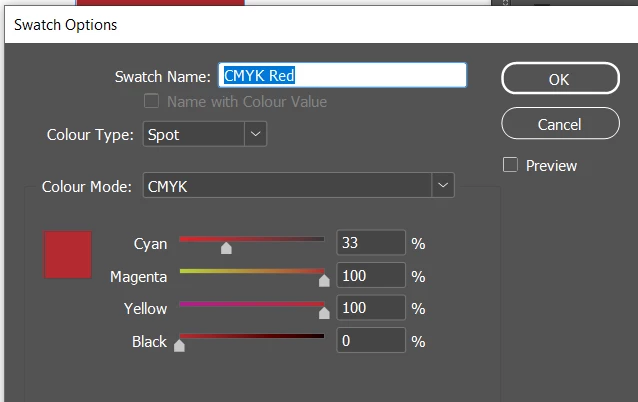
In illustrator you could make those Swatches Spot Colours
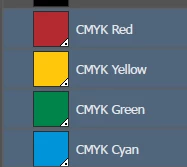
 

I don't think you need ASE

Then when you paste into InDesign the Swatch is created - so you won't need ASE 

Pastes directly into InDesign with the Spot Colour and name
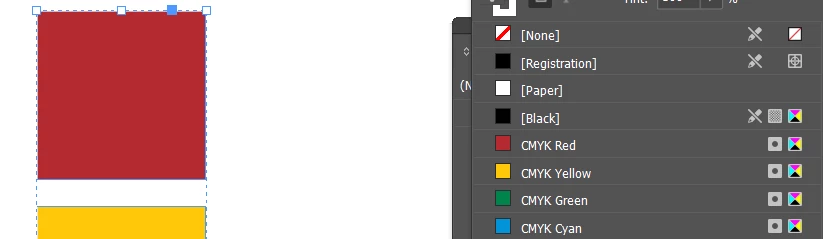


Indesign swatch vs Illustrator Swatch
 

InDesing go to Ink Manager


I've ticked both options at the bottom


And export to PDF - you also have option for Ink Manager here - changing the ink manager doesn't modify the PDFX4a setting maintaining it's integrity


Result in PDF separations


1 reply

Eugene TysonCommunity ExpertCorrect answer
Community Expert
February 21, 2025
quote


P.S. Export and place is the normal process, but on this occassion Id like to be able to edit the layout and content in InDesign. It's a raft of pie charts that cannot be made in InDesign.


By @Will Price


Hi Will


Honestly, I would advise you to save the artwork as AI files and use File > Place instead of copying and pasting.


Let me try simplify my reply a bit here:

When you copy artwork from Illustrator, the swatch information is embedded with the object rather than linked to the document. InDesign then treats this as a separate instance and creates a duplicate swatch even though the colour values are the same.


This issue is compounded by the fact that the two applications handle spot colours, tints and process colours in different ways. The pasted object may use a locally defined swatch that does not match the global swatch already present in your InDesign file. Consequently, any changes you make to the master swatch will not be reflected in the pasted artwork.


In addition, incorporating a lot of editable vector data directly into InDesign can slow down the programme and cause lag when working with complex items like pie charts. By placing the AI file, you ensure that the source file remains linked and any edits made in Illustrator are automatically updated in InDesign. If you need to make changes to the vector file, you can still do so easily by holding the Alt key and double-clicking the placed image, which will open the file in Illustrator for editing.


Using File > Place helps keep your colour workflow tidy and ensures that your source files remain consistent with your InDesign document. This approach not only prevents duplicate swatches from cluttering your palette but also makes global colour adjustments more manageable.


By keeping the source file in AI it also means you can use that asset in other projects, or share them with others who might need to use them as other assets. And you all have the 1 source file that is up to date.


----------------------

Is there a way to do what you want?


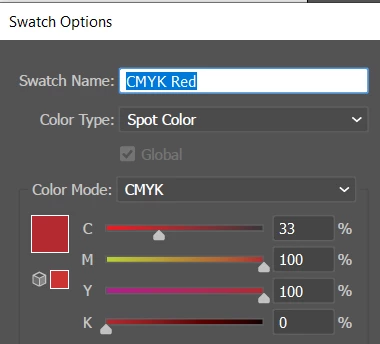
In illustrator you could make those Swatches Spot Colours


I don't think you need ASE

Then when you paste into InDesign the Swatch is created - so you won't need ASE 

Pastes directly into InDesign with the Spot Colour and name


Indesign swatch vs Illustrator Swatch
 

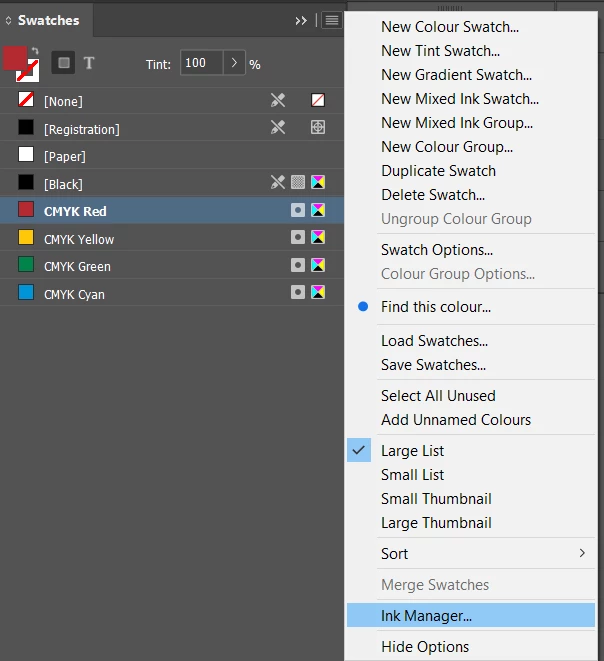
InDesing go to Ink Manager
 

I've ticked both options at the bottom
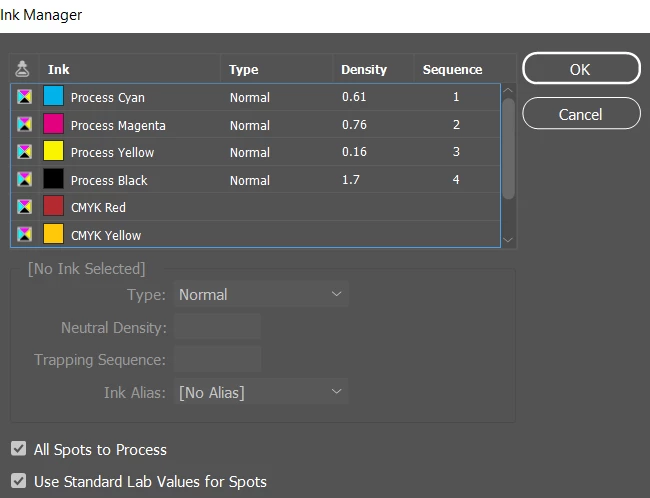


And export to PDF - you also have option for Ink Manager here - changing the ink manager doesn't modify the PDFX4a setting maintaining it's integrity
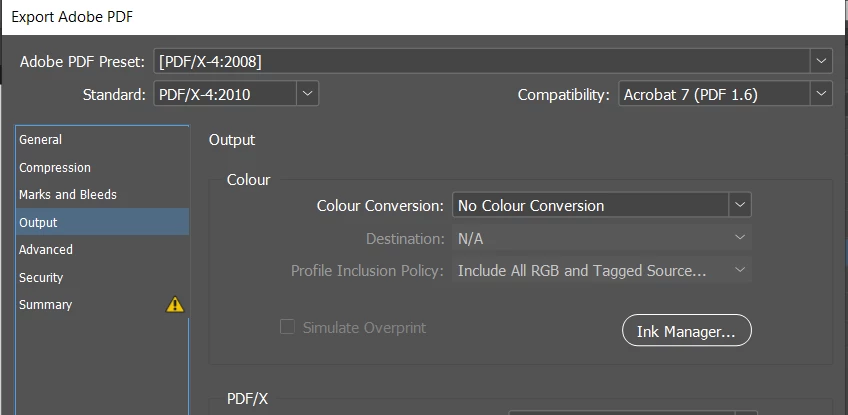
 

Result in PDF separations



Community Expert
February 21, 2025

Oh yeh - if duplicate Spot Colours do crop up (and I suspect they will) you delete the duplicate swatch and select the original colour you had - this could become tedious. 


I still recommend placing them as .ai files - and then changing them in Illustrator ad  hoc as you need them, as said already, you maintain a single source file - as editing it in InDesign means the illustrator file is obsolete. 


Will Price
Inspiring
February 21, 2025

Thanks for the comprehensive reply Eugene. I'll switch the infographics to Illustrator imports as suggested.


My thinking was to try and make this as client friendly as possible by keeping annotations and layout in Indesign. Using paragraph/character styles in Illustrator will at least give me a chance of keeping the integrity of the design after handover. 😊


Thanks again,

Will