
Participant
February 19, 2019
Answered

Colour values are inconsistent between Illustrator and InDesign CC 2019

  • February 19, 2019
  • 1 reply
  • 15901 views

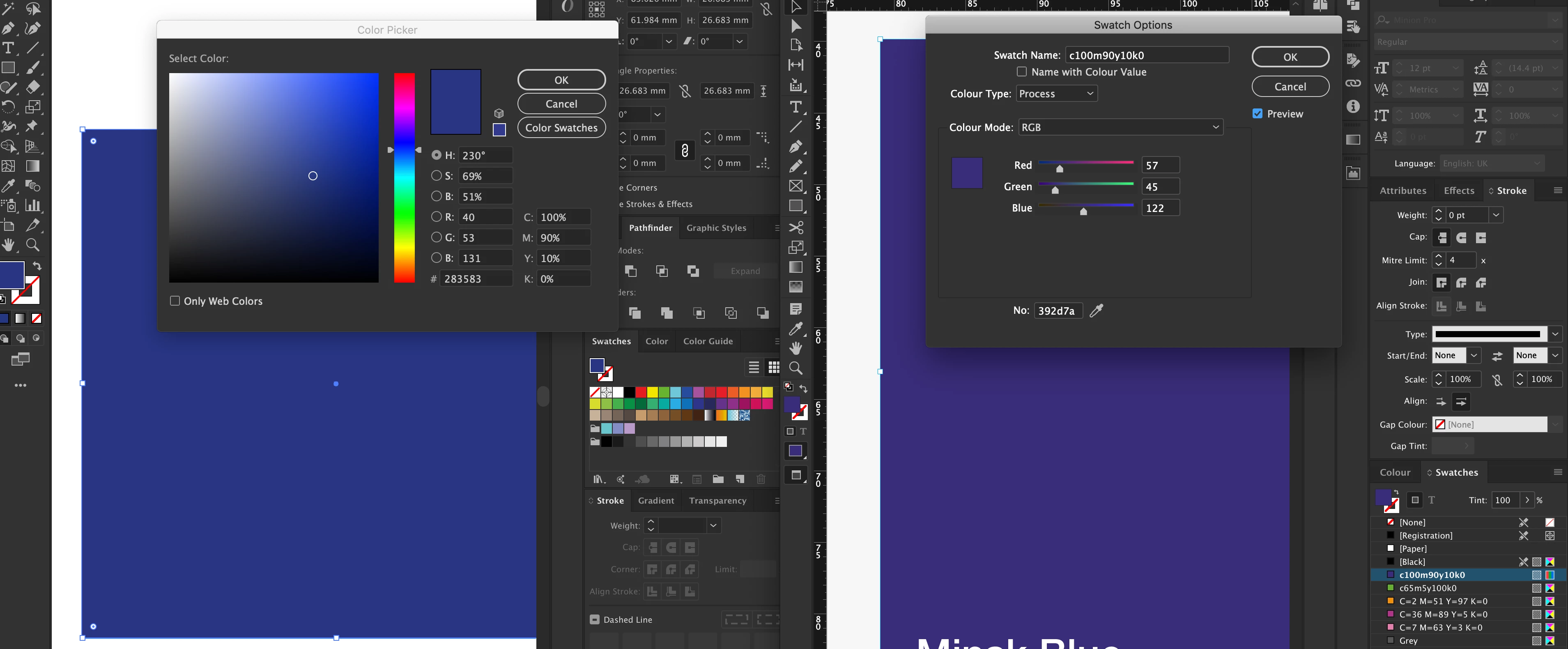
Hello, I have a question regarding the inconsistent colour values between RGB across Illustrator and InDesign.

Both colour profiles under Edit > Colour Settings are exactly the same:

Settings: Europa General Purpose 3

Working Spaces

RGB: sRGB IEC61966-2.1

CMYK: Coated FROGA30 (ISO 12647-2:2004)

Colour Management Policies:

RGB: Preserve Embedded Profiles
CMYK: Preserve Numbers (ignore linked profiles)

Even though I have the same CMYK values (process, NOT SPOT) the RBG are so far off from the original values.

Any help is more than welcome.

Thank you
This topic has been closed for replies.
Correct answer rob day

The colors you are showing in your capture don‘t match. The InDesign Swatch is RGB 57|45|122  (even though you’ve named it with CMYK values, and the Illustrator color picker has CMYK 100|90|10|0 chosen.

Couple of things to note: InDesign lets you mix RGB and CMYK colors on a page, while Illustrator has a single document color mode, which has to be either RGB or CMYK. Also the application’s Color Settings don‘t necessarily color manage existing documents—a document can have assigned profiles that are different than the Color Settings Working Spaces.

To get matching RGB color, make sure your Illustrator Document Color is set to RGB, and both your AI and ID documents have matching RGB assignments (Edit>Assign Profiles...) then make sure the colors use the same RGB values

1 reply

rob day
Community Expert
rob dayCommunity ExpertCorrect answer
Community Expert
February 19, 2019

The colors you are showing in your capture don‘t match. The InDesign Swatch is RGB 57|45|122  (even though you’ve named it with CMYK values, and the Illustrator color picker has CMYK 100|90|10|0 chosen.

Couple of things to note: InDesign lets you mix RGB and CMYK colors on a page, while Illustrator has a single document color mode, which has to be either RGB or CMYK. Also the application’s Color Settings don‘t necessarily color manage existing documents—a document can have assigned profiles that are different than the Color Settings Working Spaces.

To get matching RGB color, make sure your Illustrator Document Color is set to RGB, and both your AI and ID documents have matching RGB assignments (Edit>Assign Profiles...) then make sure the colors use the same RGB values

alanpiresAuthor
Participant
February 19, 2019

Hey Rob,

Thank you very much for your help. I had to get Bridge involved in syncing all colour settings across all CC Apps, and that did the trick in having the colours values the same.

Participant
November 23, 2020

Hey @alanpires,

I am having the same issue and can't seem to get all the colour values the same in all applications. How did you do this exactly in Bridge? Thanks for helping me out in advance!