
Participant
July 24, 2019
Question

Column editing

  • July 24, 2019
  • 5 replies
  • 334 views

Hello !

I'm in a bit of a mystery (if it's even possible).

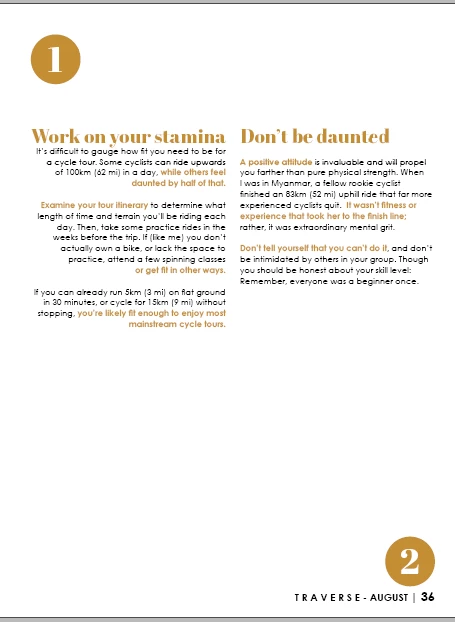
I need the second column to start significantly lower than the first one (it's obviously in 1 text frame) but I cant really find a way to do it.

I can't use forced or discretionary line breaks nor may I use 2 frames (school rules) to force it down.

Is there any way I can do this without the above options ?
This topic has been closed for replies.

5 replies

Community Expert
July 24, 2019

Hi kaatjehermans ,

could you show a screenshot of the situation on the page where hidden characters are showing?
Also frame edges as well. That would make it easier for all to decide what's best.

Menu commands:

Type > Show Hidden Characters

View > Screen Mode > Normal

View > Extras > Show Frame Edges

Regards,
Uwe

Barb Binder
Community Expert
Community Expert
July 24, 2019

Hi kaatjehermans:

Here's a visual of the Rule Above approach. Note that you will need to enable Keep in Frame. I used yellow so that you can see how it works before changing the rule color to none.

~Barb

~Barb at Rocky Mountain Training
MW Design
Inspiring
July 24, 2019

Those two headings appear to be the same style.

If so, you can make a second style based upon the main heading style and add a Rule Above and adjust the offset to accomplish this task. Make the Rule to be the swatch, Paper color.

If the are different styles, just do the above for the second style.

Community Expert
July 24, 2019

You could add a rectangle to the page with Text Wrap applied.

Move that to the top of the right column. And then down until you are satisfied with text position.

Or: Align your text to the bottom of the text frame.

See into text frame options.

Regards,
Uwe

BobLevine
Community Expert
Community Expert
July 24, 2019

Is the number 1 in a paragraph? If so, set it to span all the columns and that will force everything below it down.