I just caught your question and I have a couple more:
Is your InDesign page size really set for 11.25" x 8.75 landscape? Are you laying out reader spreads (e.g. - pgs 2-3, 4-5, 6-7 etc.) in a single, two-column page?
If so, I'd very strongly recommend that you double-check your page requirements for IngramSpark closely, because I believe you're built to lose, and lose big, if you submit this job as it is.
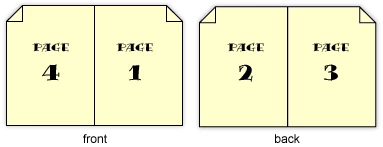
Printers need to crack your page sequencing into printer spreads, which let them manufacture your books in such a way that when they're produced, they appear as reader spreads. They produce printer's forms like these:
To produce a "book" that looks like this:
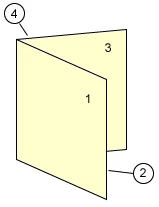
If you've built your two-page reader spreads into single sheets, you've made it incredibly difficult for the printer to convert your pages into the layouts they need to manufacture your book like a more elaborate version of the example above. The more complex and/or larger the book is, the more difficult fixing the job will be.
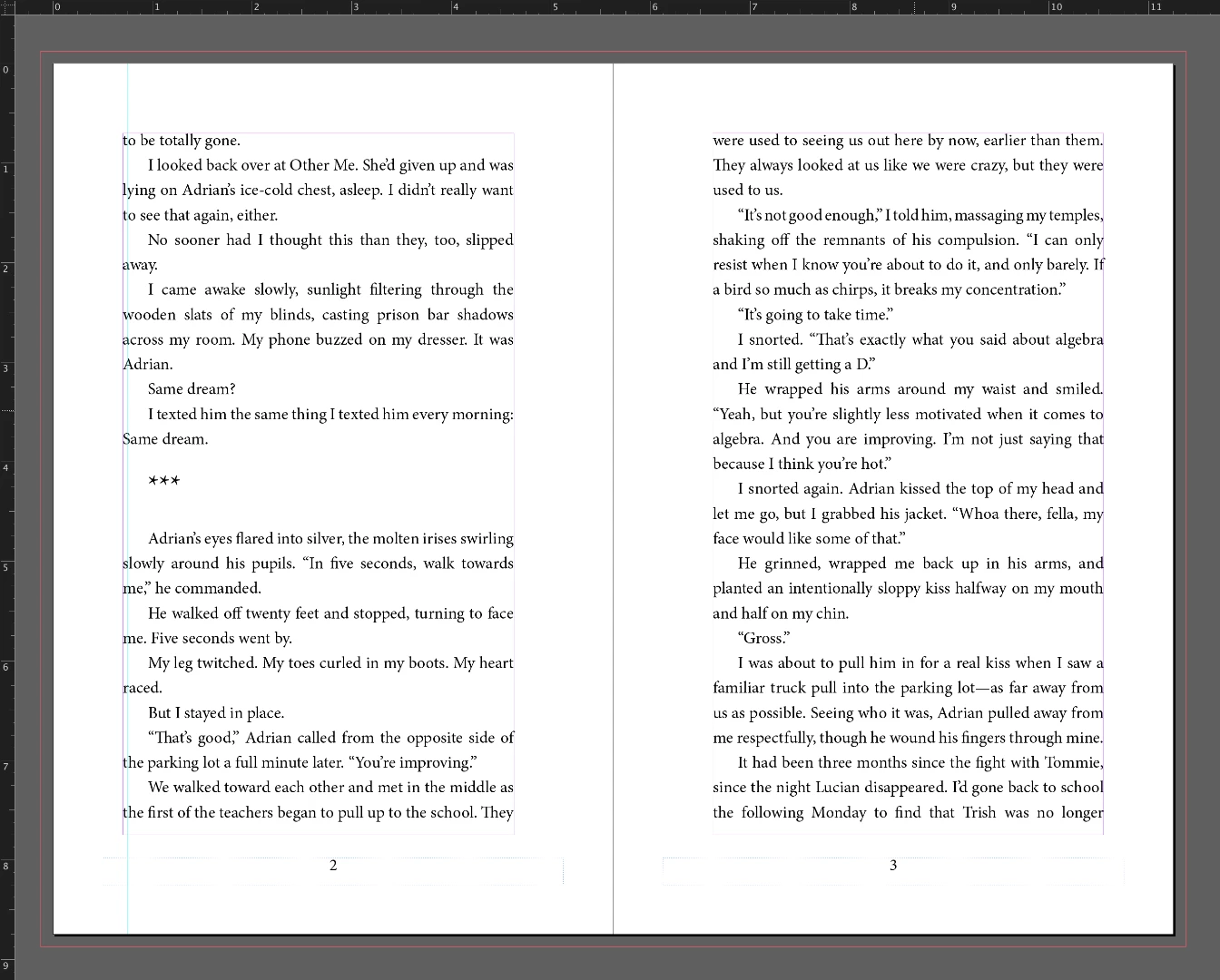
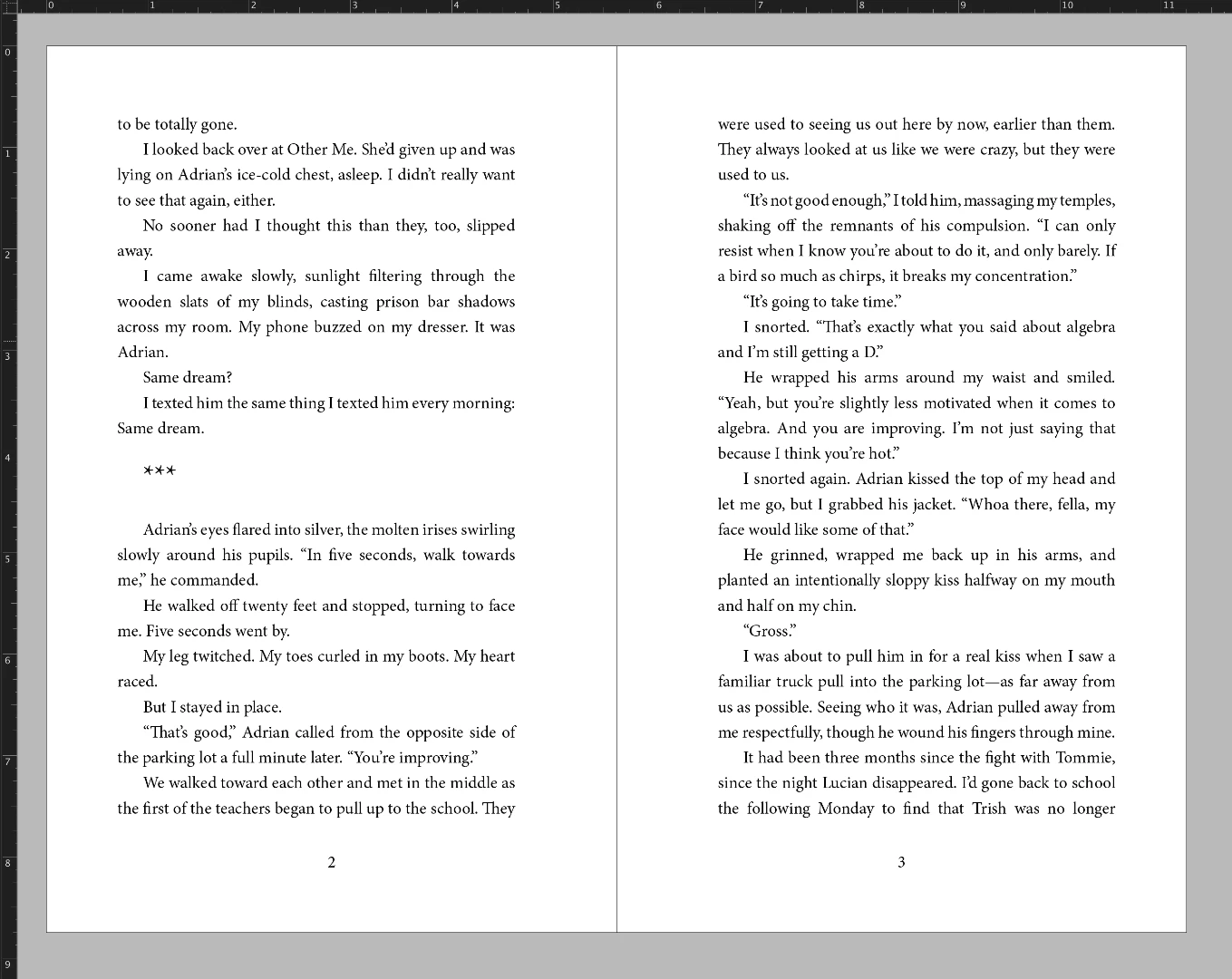
I can't imagine your printer won't charge you a baby fortune to make this job right on their end, so I'd suggest you take it on yourself to make it right on your end before submitting the job. Read your submission specs for IngramSaprk closely. Even when dealing with graphic designers experienced with book production, book publishers generally prefer you give them single page InDesign layouts like this:
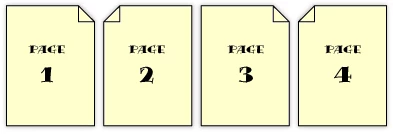
So they can produce your book.
Changing your current layout into what I suspect will be the correct one will be tedious, but it won't be overly complex ...
1) Create a new InDesign document. Name it (your book title) single page.indd, and set it up like the example illustrated below to mirror your intended page settings:
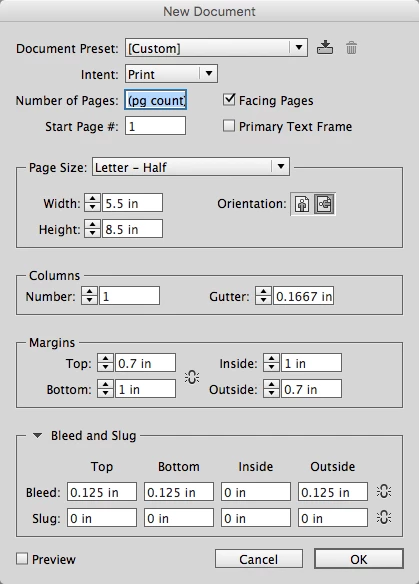
This has your 5.5 by 8.5 trim size (you want to make the page your trim size, not your bleed size), your desired page margins (which are good, by the way) and an eighth-inch bleed area set outside the page trim size. It also has the Facing Pages option checked, so you can see your reader spreads as you lay your book out again in the (your book title) single page.indd file.
Sorry, this is the fastest and safest way. When you click the OK button, your two-page spreads should look like this:
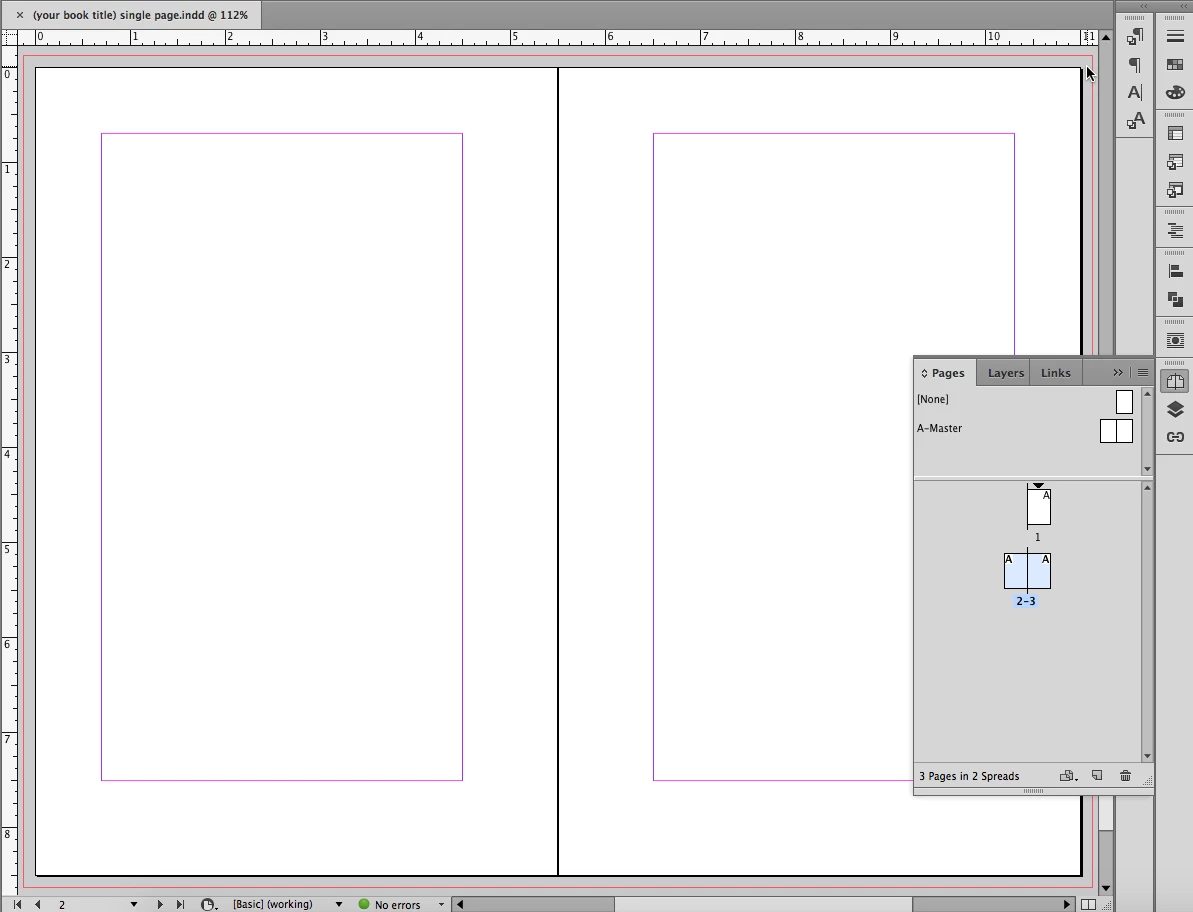
The red line outside the page trim is your bleed area. Unless your vendor specifically tells you otherwise, it should always be defined outside the page trim size. And while this looks much like your example above, you'll see in the Pages panel that it's clearly two separate pages.
2) Go to your Master Pages and set your page numbering. I won't explain that here, but I'll refer you to the following link to learn how:
Add page numbering to your pages in Adobe InDesign
Trust me on this: the time you spend learning how to do this will be rewarded handsomely by the time you save creating your page numbers automatically instead of manually as you had to do with your previous version of the book.
3) Lay out your book again. There are two ways to do this:
a) If you have a word processing file (or files) you used to build the first version of the book, take it from the top and rebuild the book from scratch. It stinks, but it's the safest way to do it. Take cold comfort in the fact that it always goes faster the second time you do the same job. This option is better than the other, which is to ...
b) Setting up the two InDesign files side-by-side, getting the Selection tool and click-hold-dragging the copy, page by page, from one file to the other. Not only will there be potential for mis-pagination of the job if you make mistakes, the text threading of your copy will be broken page-by-page and will make it much tougher to fix final proofs and/or extract the final, edited/proofed copy from the final book layout.
4) When you're done, find someone experienced at book layout to check your work before submitting it for printing.
I cannot emphasize this enough. This answer gets you past your most basic problem, but it's a strong indicator that there might be other potentially fatal flaws in your job. I teach an eight-hour class in producing long documents with InDesign, and I still recommend to my students that they have someone experienced review their work to prevent expensive mistakes.
If you're a novice at this, you need an experienced book designer to review your job. You can do the initial work. You can even do the corrections if you want after they've submitted instructions on what you need to fix. Even if you have to pay for the review, I can guarantee you that it'll be less than you'll spend for a book printer to fix the files -- or even worse, to run bad files because nobody fixed them.
Don't feel bad about this. Lots of folks discovered this answer through the School of Hard Knocks and Expensive Makeup Costs. That's because they weren't sharp enough to ask the question before they shipped their work. Hopefully this answer will save you the most painful parts of climbing the learning curve.
If this works for you, and I suspect it will, please mark your question as answered. This lets the board moderators move this into the archives where it will help others who have similar questions about book production. It's a common issue for first-time book producers. I tried to find an answer on the board to link to, but I couldn't find one with the full explanation needed to illustrate the problem and fix it.


 AdChoices