Known Participant
June 7, 2025
Answered

Cover - spine won't snap to front cover

  • June 7, 2025
  • 3 replies
  • 509 views

Hi, I have spent two days trying to set up a cover and spine for Amazon KDP and have to admit defeat, so I’m hoping you can help. I have watched 10 videos, read all the online content I can find and am working to Amazon KDP’s cover calculator.


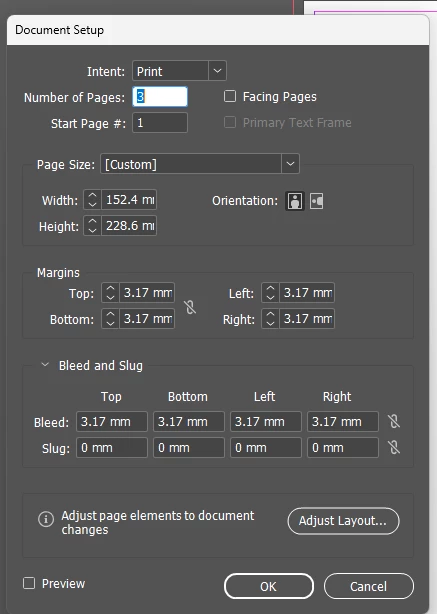
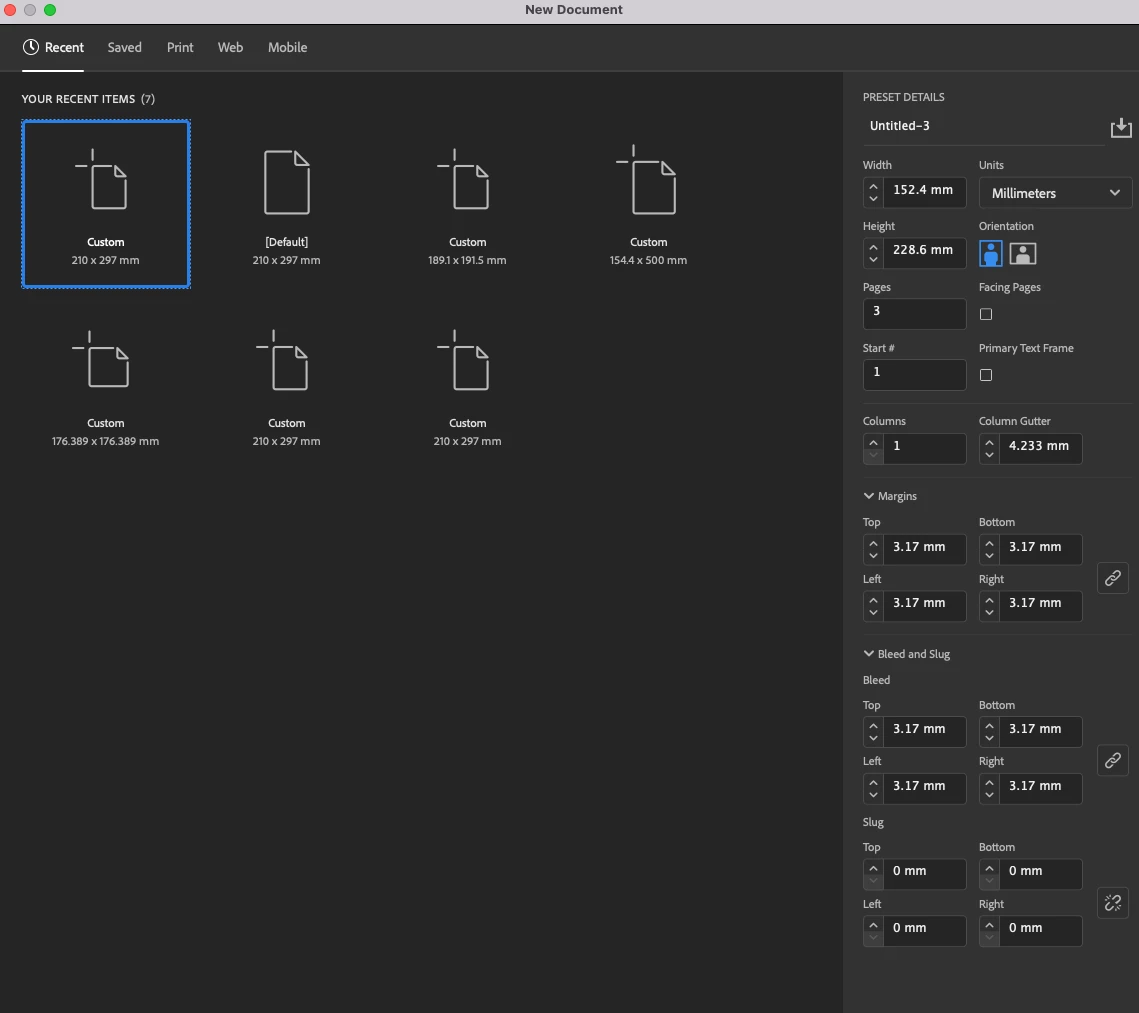
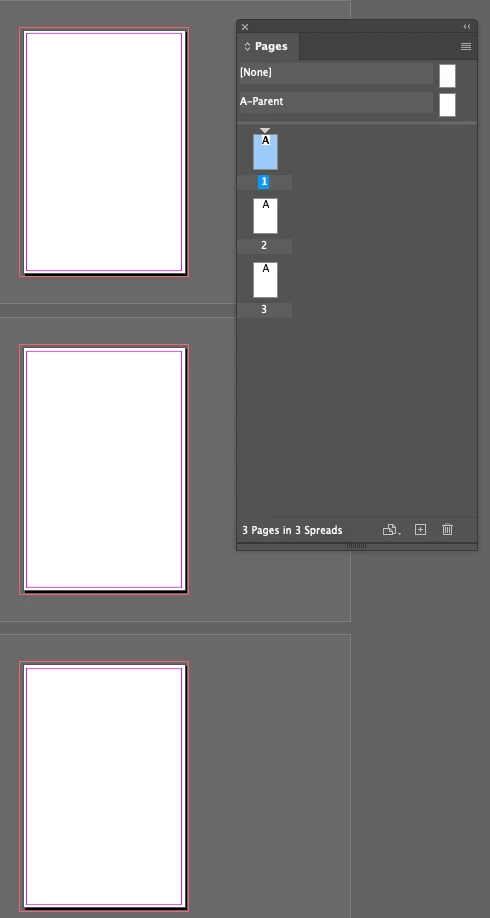
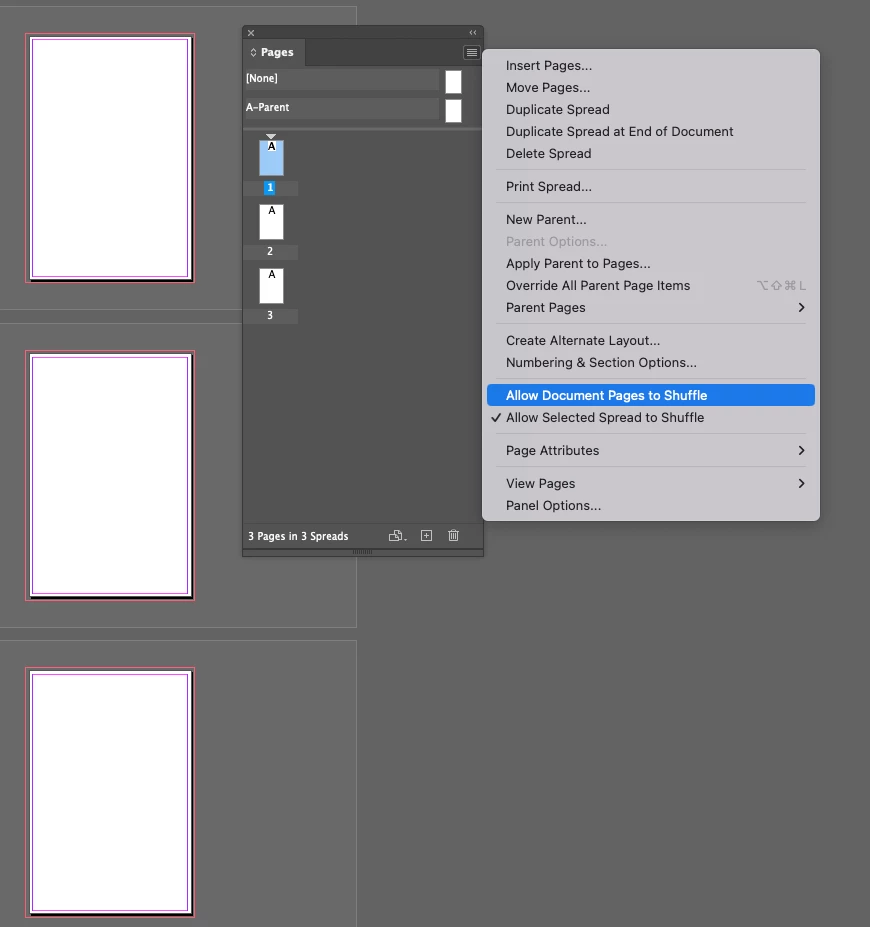
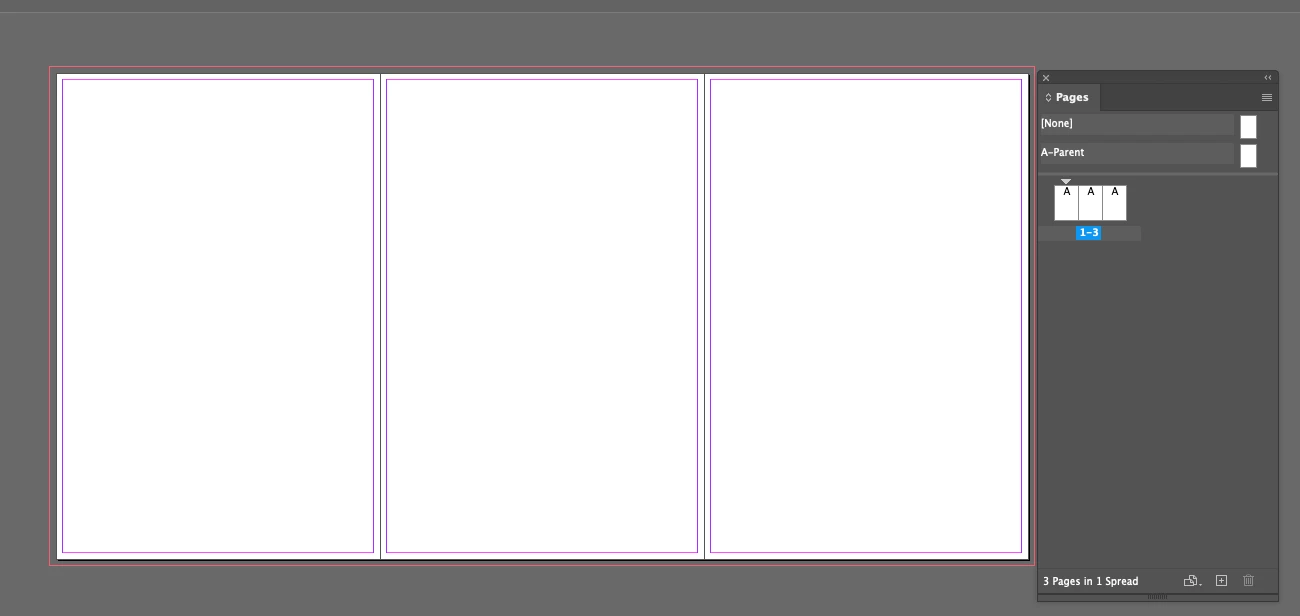
My book is 152.4 x 228.6 mm (6 x 9 inch) with 150 pages. I created a new print document with three pages. Document setup (screenshot at end of this message): facing pages unticked, margins: 3.17 and bleed 3.17 (top, bottom, left and right). Then I selected all three pages in the pages panel and unticked allow document pages to shuffle, and unticked allow selected spread to shuffle.  


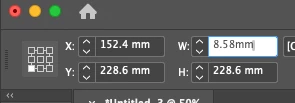
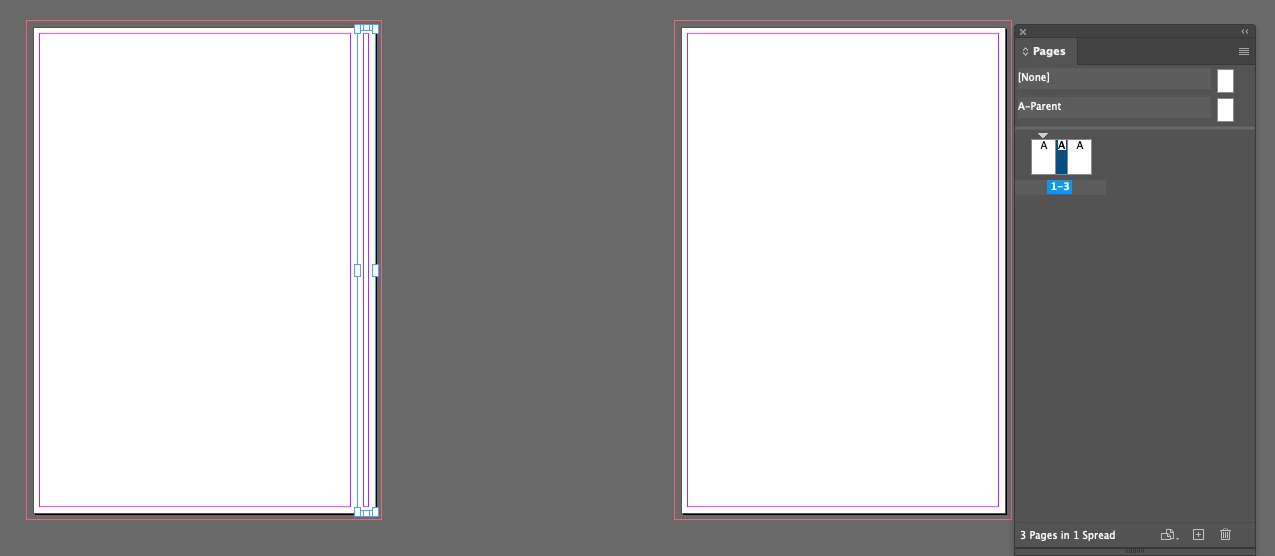
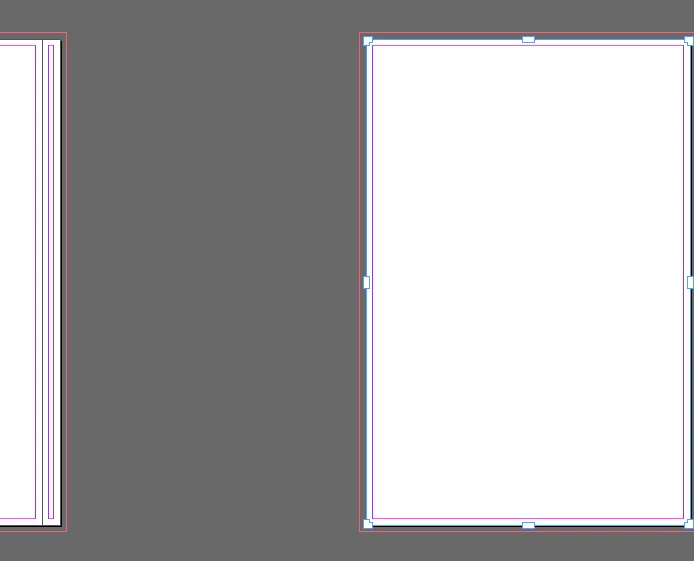
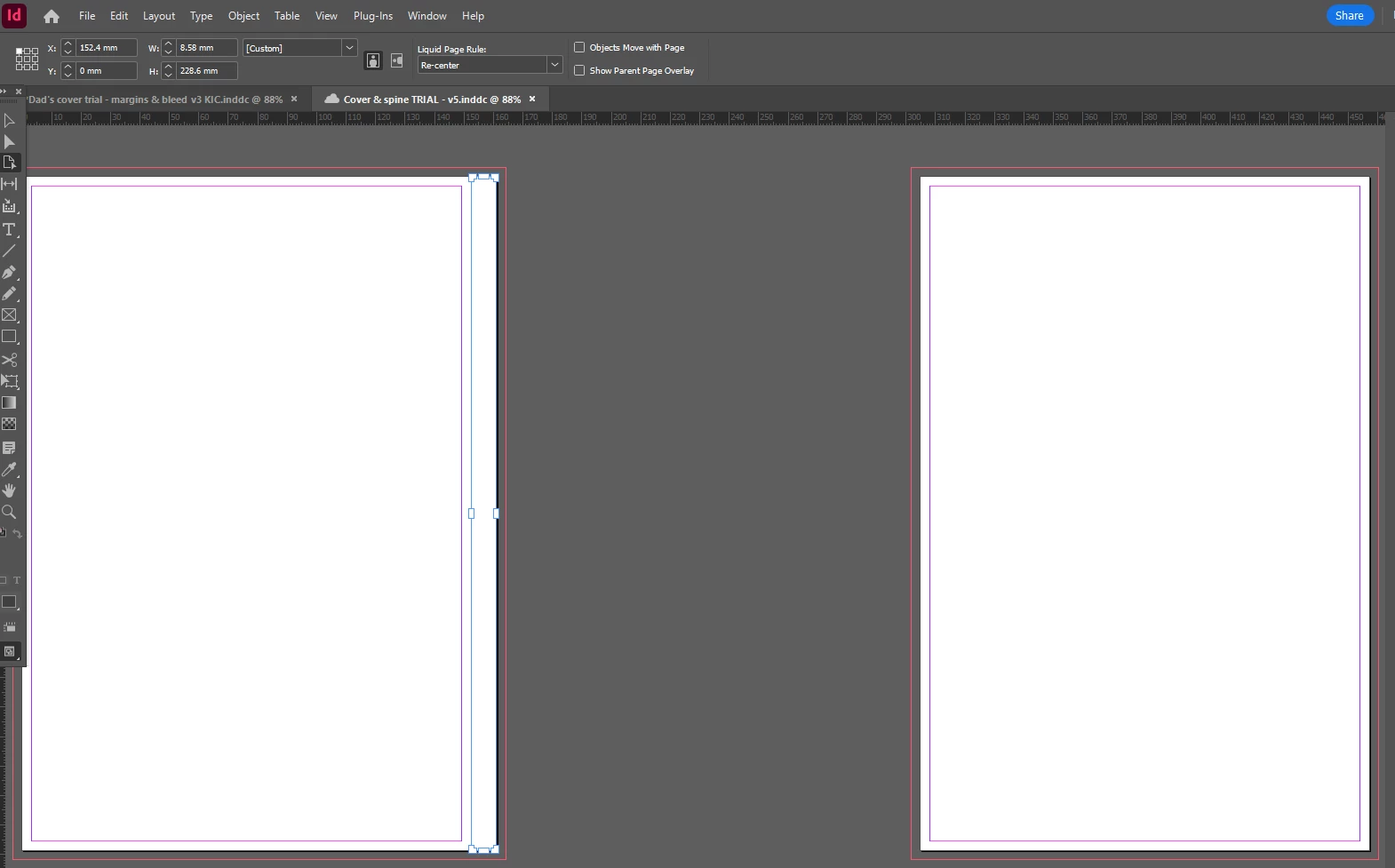
Under liquid page rule, I selected scale, then used the page selection tool to select the spine. I then went to Layout/Margins and Columns and set all to 0. Then I went to the control panel and changed the width of the spine to 8.58mm (as per KDP calculator for my books size and page number). This created a space between the spine and the front cover (see screenshot below).


Following instructions, to remove the space, I selected the right  handle of the spine, with the spine page selected, held down alt and dragged the spine to the right. (Alt is the windows command). Per instructions, this is supposed to snap the spine to the front cover without resizing the spine. Instead, and this is my problem – it drags the spine out to its original size. This shouldn’t happen. Any clue as to where I’m going wrong? I went right back to the start and selected re-centre in liquid page rule but that didn’t work either.   


Correct answer Eugene Tyson


Turn off 


In the pages panel drag 2 bottom pages to the right of page 1 


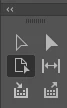
Select Page Tool (middle left)


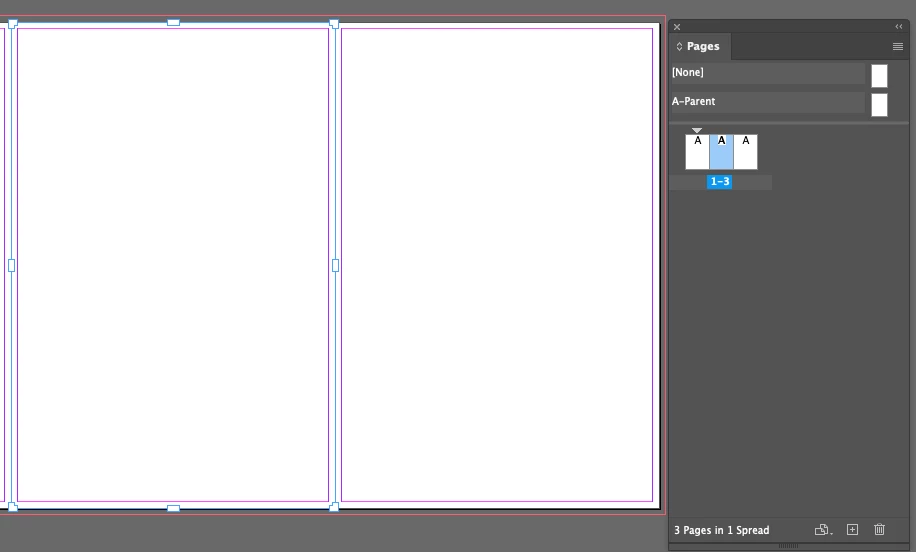
Click the middle page in the layout (not in Pages Panel not sure if you can, I don't)


 change the width


result


With the page tool click the far right page 


 shift+click and hold all - then slide the page over


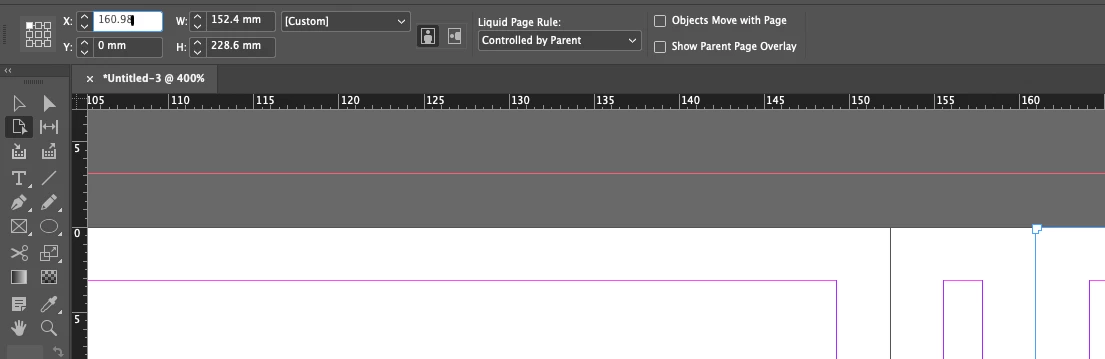
Alternatively - you can insert the X cordinate

You know page 1 is 

152.4 mm

and spine is 

8.58 mm


add them together and it's 160.98

and you can precisely place the page exactly where it's needed 


Sample file attached

3 replies

Community Expert
June 7, 2025

Hi @ali_4619 ,

to snap pages automatically to the spine you need a facing-pages document.

Your screenshot of the Document Setup dialog is showing option Facing Pages disabled.


Regards,
Uwe Laubender
( Adobe Community Expert )

ali_4619Author
Known Participant
June 7, 2025

Thanks for helping!


Eugene TysonCommunity ExpertCorrect answer
Community Expert
June 7, 2025


Turn off 


In the pages panel drag 2 bottom pages to the right of page 1 


Select Page Tool (middle left)


Click the middle page in the layout (not in Pages Panel not sure if you can, I don't)


 change the width


result


With the page tool click the far right page 


 shift+click and hold all - then slide the page over


Alternatively - you can insert the X cordinate

You know page 1 is 

152.4 mm

and spine is 

8.58 mm


add them together and it's 160.98

and you can precisely place the page exactly where it's needed 


Sample file attached

ali_4619Author
Known Participant
June 8, 2025

Hi again Eugene, just so I know for future, what do you mean by 'hold all' when you say the following: shift+click and hold all - then slide the page over.?[I didn't have to do it in this case as your first suggestion of using page select tool then dragging worked fine].

Community Expert
June 8, 2025

Shift + Click and drag

You have to keep all held it's not a press of the key but hold them to invoke the action. 

(shift will constrain your action to horizontal - otherwise it could move up or down either - that's why I'm more inclined to adjust the X coordinates to move the page).


Community Expert
June 7, 2025

Use the Page Tool from your toolbar on the left. 

Grab any page and move it left or right.

ali_4619Author
Known Participant
June 7, 2025

Thanks Eugene! You have saved me yet again. You give so much to this community. 

Community Expert
June 8, 2025

You are so welcome. I'm glad you found it helpful, and your positive note to me is absolutely delightful, thank you so much!