
Participant
July 31, 2020
Answered

Create a frame from a picture

  • July 31, 2020
  • 5 replies
  • 682 views

Hello, I am new to indesign and I took a simple course on udemy to understand the basics and I think I'm ready to work on Indesign now. I am trying to create and Architecture Portfolio. I did the cover page on photoshop before learning indesign but now I need to have the same language from the cover page on some other pages.


I want to create a frame out of the shape you see below, I tried doing it with the pen tool by clicking on the edge of each shape you see but It is going to take time and it is not a 100% accurate. Is there a way to create a frame out of these shapes? I have the picture as png where instead of the white parts it's actually transparent.
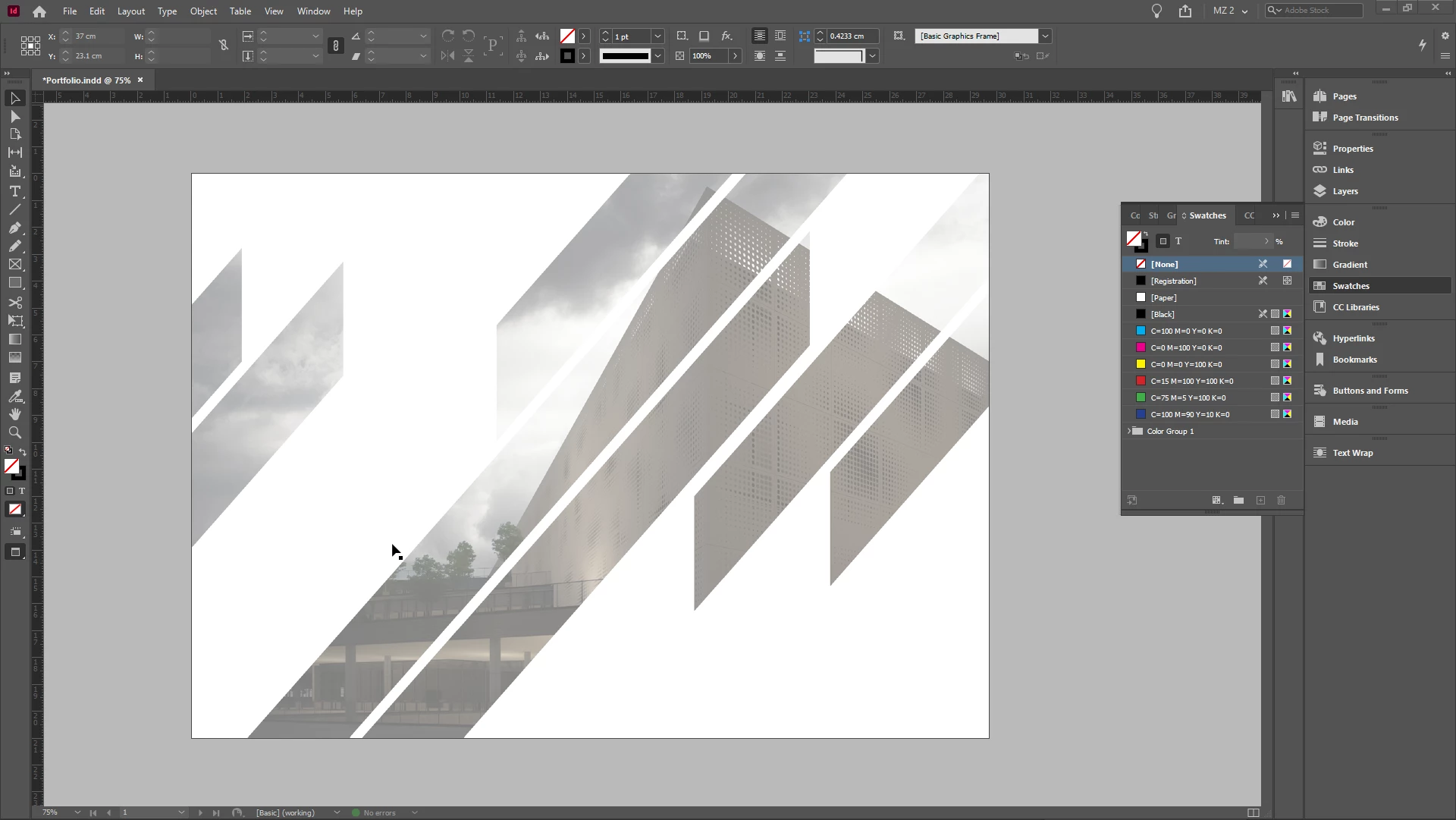
This topic has been closed for replies.
Correct answer Laubender

In effect you see a couple of rectangles that are rotated and cut.

You can do this easily in InDesign.


After you rotated the rectangles draw a rectangle for every "cut" you want to do, position it on top of a rotated rectangle, select both and use the pathfinder tools to subtract the shape on top from the one in the back.


All tools and techniques you need explained here:

Step and repeat

https://helpx.adobe.com/indesign/using/grouping-locking-duplicating-objects.html

Compound shapes and pathfinder options:

https://helpx.adobe.com/indesign/using/compound-paths-shapes.html


Regards,
Uwe Laubender

( ACP )


5 replies

Dave Creamer of IDEAS
Community Expert
Community Expert
July 31, 2020

Depending on how you created your Photoshop file, another option is to place the photos in Photoshop. Place the one PSD file in InDesign and use layer control to show the layer your want.

David Creamer: Community Expert (ACI and ACE 1995-2023)
LaubenderCommunity ExpertCorrect answer
Community Expert
July 31, 2020

In effect you see a couple of rectangles that are rotated and cut.

You can do this easily in InDesign.


After you rotated the rectangles draw a rectangle for every "cut" you want to do, position it on top of a rotated rectangle, select both and use the pathfinder tools to subtract the shape on top from the one in the back.


All tools and techniques you need explained here:

Step and repeat

https://helpx.adobe.com/indesign/using/grouping-locking-duplicating-objects.html

Compound shapes and pathfinder options:

https://helpx.adobe.com/indesign/using/compound-paths-shapes.html


Regards,
Uwe Laubender

( ACP )


Derek Cross
Community Expert
Community Expert
July 31, 2020

Keep you images in RGB colour mode.

Will the final output of your portfolio from InDesign be digital or printed?

rob day
Community Expert
Community Expert
July 31, 2020

Draw your boxes and then make them into a compound path—Select All, Object>Paths>Make Compound Path. With the compund path selected place your image. In general .PSD is a better image format than .PNG.


Derek Cross
Community Expert
Community Expert
July 31, 2020

Not entirely sure what you are trying to achieve, but re format, don't save as PNG, save as a native PSD file (in Photoshop) and Place that in InDesign and add the text there.


mzreik98Author
Participant
July 31, 2020

What I am trying to do is that I need the same boundaries or shape, and just replace the picture, I want to do it multiple times. I did something right now is that I managed to trace the shape on illustrator and have the shape, now I just want to import that shape into indesign and place the picture on the shape. Is there a way to do that?