
Participant
November 9, 2024
Answered

Creating Two Different Text Flows in Master Page for Translation Layout

  • November 9, 2024
  • 3 replies
  • 1122 views

Hello!


Apologies if this has been solved, I couldn't find it. 

I have a 6*9 document, with facing pages. I want to have two columns (easy right?) but I need to have two different text flows, since it's supposed to have one language on the left, and the translation on the right. The column in the right should have its own text, and I want to be able to manipulate freely the column on the left, with different text. 

I thought I would create two text frames in Master Pages, and link the frames from the even page, to those on the odd page.
This will work, but only in that direction. I find no way to make the text flow from the odd page, back to the next even page automatically. Please help! Basically autoflow, of two different text frames.


<Title renamed by MOD>
Correct answer Barb Binder

Of course! I worked on a variation of this with someone else today, and was able to simplify the layout. This is slightly different from my original answer.


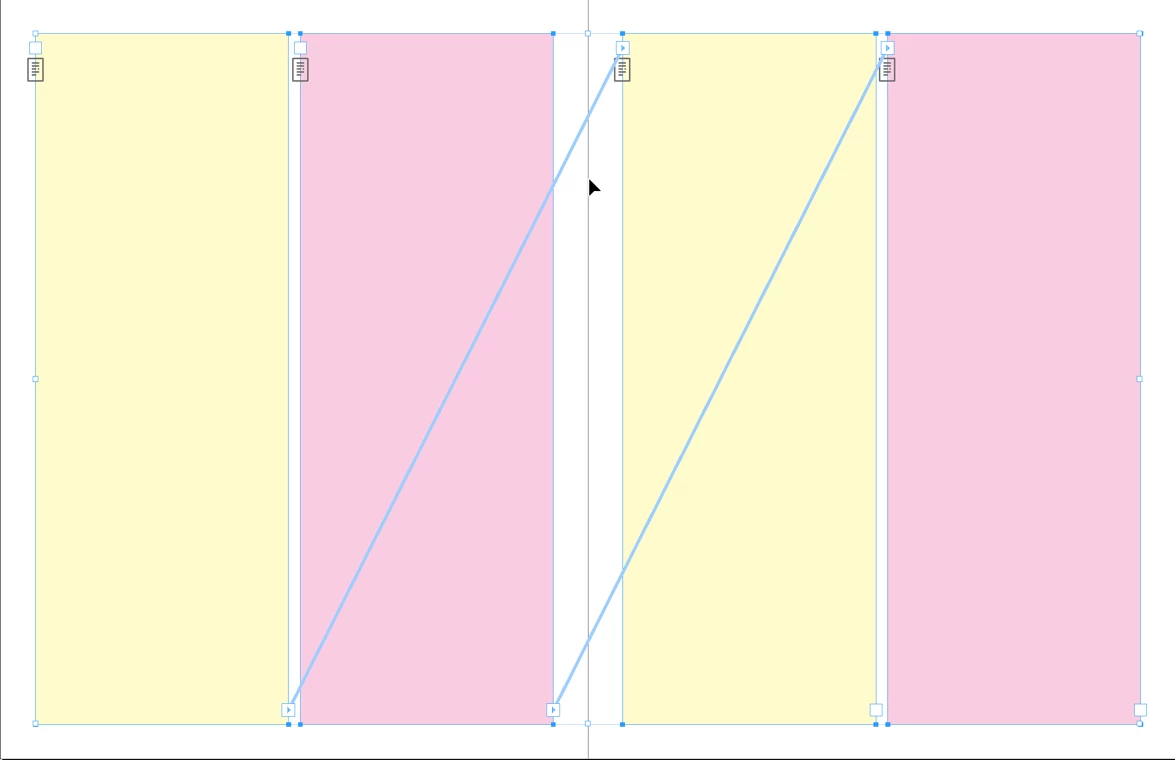
Start by studying my A-Parent. I have a 2-column layout and have drawn four text frames. The color is to help you differentiate between the threads and won't be needed in your layout, of course. Yellow frames will hold one language, magenta frames will hold the second language.


Still on the A-Parent, I threaded column 1 to column 3, and column 2 to column 4, and used View > Extras > Show Text Threads so that you can see the threading. I am not using any primary frames. 


Return to body page  1 and use File > Place to load the first story. Shift+click over the first yellow frame to auto-flow the story. It will fill every yellow frame in succession, until InDesign runs out of text. Return to body page  1 and use File > Place to load the second story. Shift+click over the first magenta frame to auto-flow the story. It will fill every magenta frame in succession, until InDesign runs out of text. 


~Barb


3 replies

Willi Adelberger
Community Expert
Community Expert
November 11, 2024

Create 2 different master, onle with the margins for the left column, the other with the margin for the right column.

Apply the first master, let the first language flow in. Now apply the other master WITTHOUT layout adjustment and let the  other language flow in.

Participant
November 29, 2024

Thank you... I guess I don't know how to apply another master without layout adjustment.

Participant
March 25, 2025

Layout --> Margins & Columns --> "Adjust layout" not checked

Barb Binder
Community Expert
Community Expert
November 10, 2024

Hi @Michelle26541100t72g:


This is a somewhat common request in FrameMaker (Adobe's other page layout application) and we do it with two text flows: A and B. We set up each flow on the master/parent pages and then can run the content automatically for each language. 


InDesign has a limitation of one primary frame per document—if we could have two, it would be easy, and we would set it up the same way. Instead, I have a solution that will work. Take a look and if this is what you need, I'll be happy to share the details. I'm using colors instead of languages so that you can see this at work in the Pages panel.


~Barb


~Barb at Rocky Mountain Training
Participant
November 29, 2024

Thank you Barb! that seems like what I need. Can you share the details? Thanks again!

Barb Binder
Community Expert
Barb BinderCommunity ExpertCorrect answer
Community Expert
December 3, 2024

Of course! I worked on a variation of this with someone else today, and was able to simplify the layout. This is slightly different from my original answer.


Start by studying my A-Parent. I have a 2-column layout and have drawn four text frames. The color is to help you differentiate between the threads and won't be needed in your layout, of course. Yellow frames will hold one language, magenta frames will hold the second language.


Still on the A-Parent, I threaded column 1 to column 3, and column 2 to column 4, and used View > Extras > Show Text Threads so that you can see the threading. I am not using any primary frames. 


Return to body page  1 and use File > Place to load the first story. Shift+click over the first yellow frame to auto-flow the story. It will fill every yellow frame in succession, until InDesign runs out of text. Return to body page  1 and use File > Place to load the second story. Shift+click over the first magenta frame to auto-flow the story. It will fill every magenta frame in succession, until InDesign runs out of text. 


~Barb


~Barb at Rocky Mountain Training
Community Expert
November 10, 2024

Yeh it can be done - but before I commit to an answer can you show a simple example of what you're trying to achieve.


It should work - but once I see what you're trying to actually do I can either say it will or not work - or maybe there's a clever way to do it that we haven't thought of yet 😛