Participant
September 29, 2020
Answered

creative cloud icon missing in indesign 2020

  • September 29, 2020
  • 2 replies
  • 746 views

To use this fabulous typekit all tutorials show an cloud icon on the top bar of indesign. I am using windows 10, own a creative cloud license, and would be happy to know why no cloud icon can be found in acc. programms.

This topic has been closed for replies.
Correct answer Bill Silbert

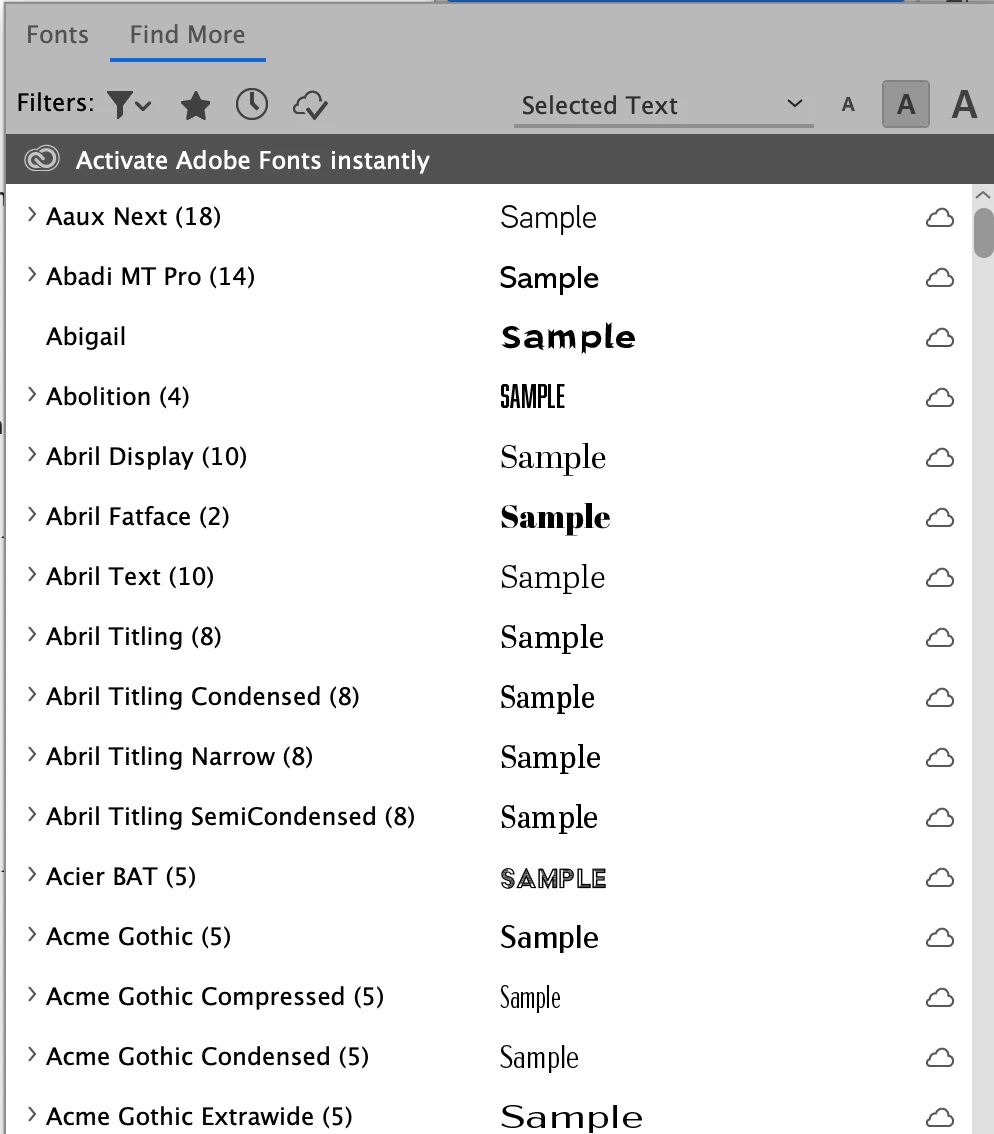
In the latest version of InDesign (CC 2020) you will not see a cloud icon. Typekit is also no longer called Typekit but rather Adobe Fonts. In order to access Adobe Fonts via the Cloud go into InDesign's character Panel, click on the "V" next to the font that is currently showing and the font list will appear. Now click on "Find More". After you do that the font list will change to the Adobe Fonts which are ready for downloading by clicking on the cloud icon at the right of the font name. After downloading close the Character Panel. When you next open it any Adobe Fonts that have been downloaded will appear in the font list with a check-marked cloud icon next to it. You will be able to now use them freely in any layouts or design you wish professionally or otherwise. You won't, however be able to collect those fonts for output to send to a printer or other vendor. They will have to have their own Creative Cloud subscription which will enable them to also download the fonts and use them for producing your work. 
You will be able to manage your downloaded fonts in the Manage Fonts section of the Creative Cloud Desktop App.

2 replies

Ashutosh_Mishra
Inspiring
September 29, 2020

Hi there,


Thanks for reaching out. In addition to Bill's great response, I'd request checking out this help article to know how you can manage fonts using Creative Cloud app itself. Hope it helps.


Regards,

Ashutosh

Bill Silbert
Community Expert
Bill SilbertCommunity ExpertCorrect answer
Community Expert
September 29, 2020

In the latest version of InDesign (CC 2020) you will not see a cloud icon. Typekit is also no longer called Typekit but rather Adobe Fonts. In order to access Adobe Fonts via the Cloud go into InDesign's character Panel, click on the "V" next to the font that is currently showing and the font list will appear. Now click on "Find More". After you do that the font list will change to the Adobe Fonts which are ready for downloading by clicking on the cloud icon at the right of the font name. After downloading close the Character Panel. When you next open it any Adobe Fonts that have been downloaded will appear in the font list with a check-marked cloud icon next to it. You will be able to now use them freely in any layouts or design you wish professionally or otherwise. You won't, however be able to collect those fonts for output to send to a printer or other vendor. They will have to have their own Creative Cloud subscription which will enable them to also download the fonts and use them for producing your work. 

You will be able to manage your downloaded fonts in the Manage Fonts section of the Creative Cloud Desktop App.

Participant
September 29, 2020

Thank you for this helpful and detailled explanation! Saved lot of headaches...

Bill Silbert
Community Expert
Community Expert
September 29, 2020

Happy to help.