Known Participant
June 3, 2020
Answered

Custom baseline on a table

  • June 3, 2020
  • 3 replies
  • 1890 views

Hello there, i'm facing a few issues with tables.
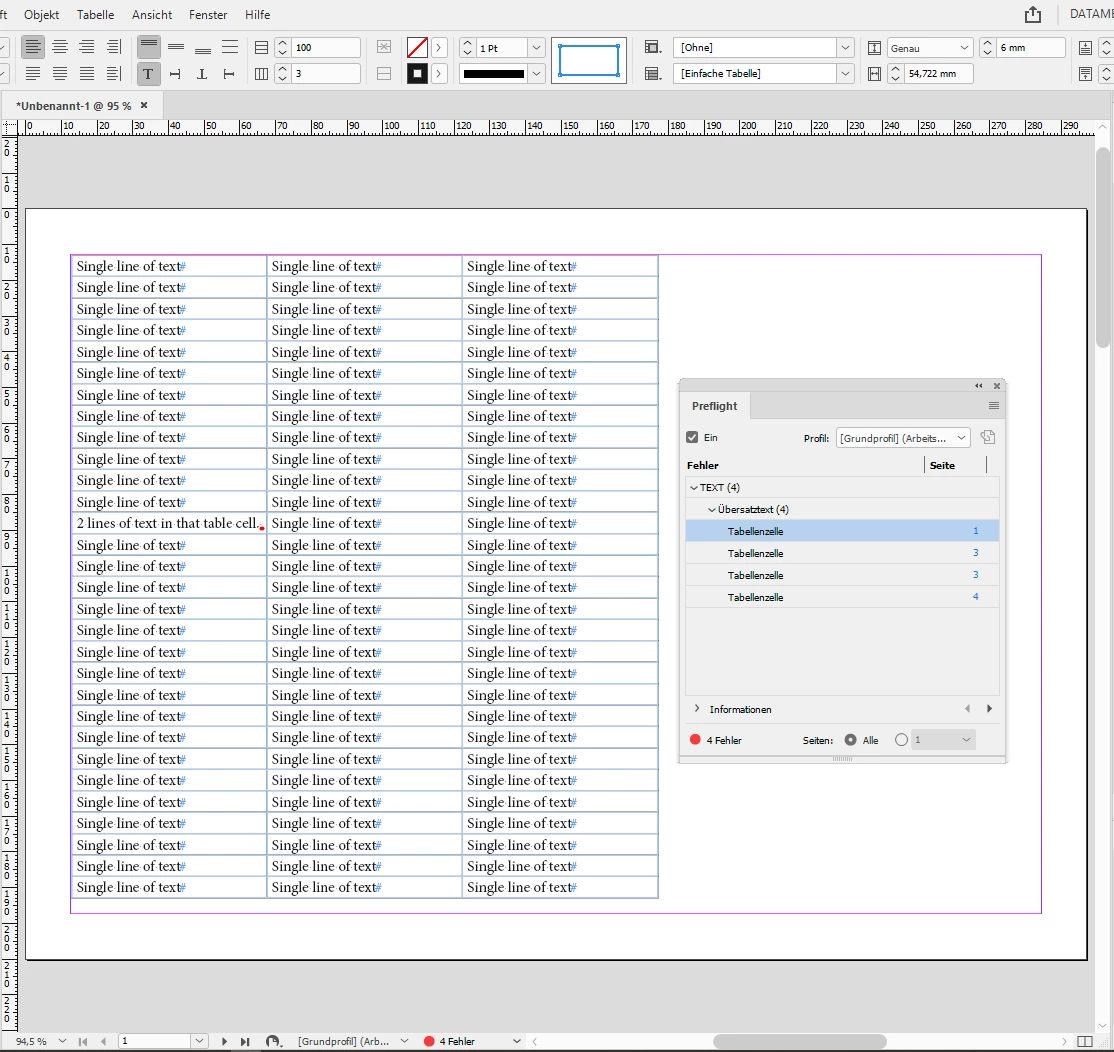
I have a really long table linked to excel, that needs to be continued 3 times on the same page as well as on multiple pages, as you can see on the screenshot i attach. To do so, i created a first big text frame made of three columns and activated auto-resize and custom baseline.


The first thing is that I cannot seem to be able to set a custom baseline grid just for that specific table. Changing it on a text-frame level doesn't seem to affect the table at all, and I need the columns to be balanced on bottom (in the screenshot you can see how wacky they are), without using the baseline i did set at a document level. What do you think is the best way to balance the table columns?

The second thing is that i can't manage the text frame to autoresize according to the table itself. Also, when i try to continue the tex frame with the plus sign, the table doesn't continue on the three columns, but just a single column text frame is created.

thank you in advance
This topic has been closed for replies.
Correct answer Laubender

Hi gassadamante,

just a suggestion to ease your work with table cells of two or more lines of text:

If a table cell will go into overset, because you do all your table rows with a fixed height for one single line of text:
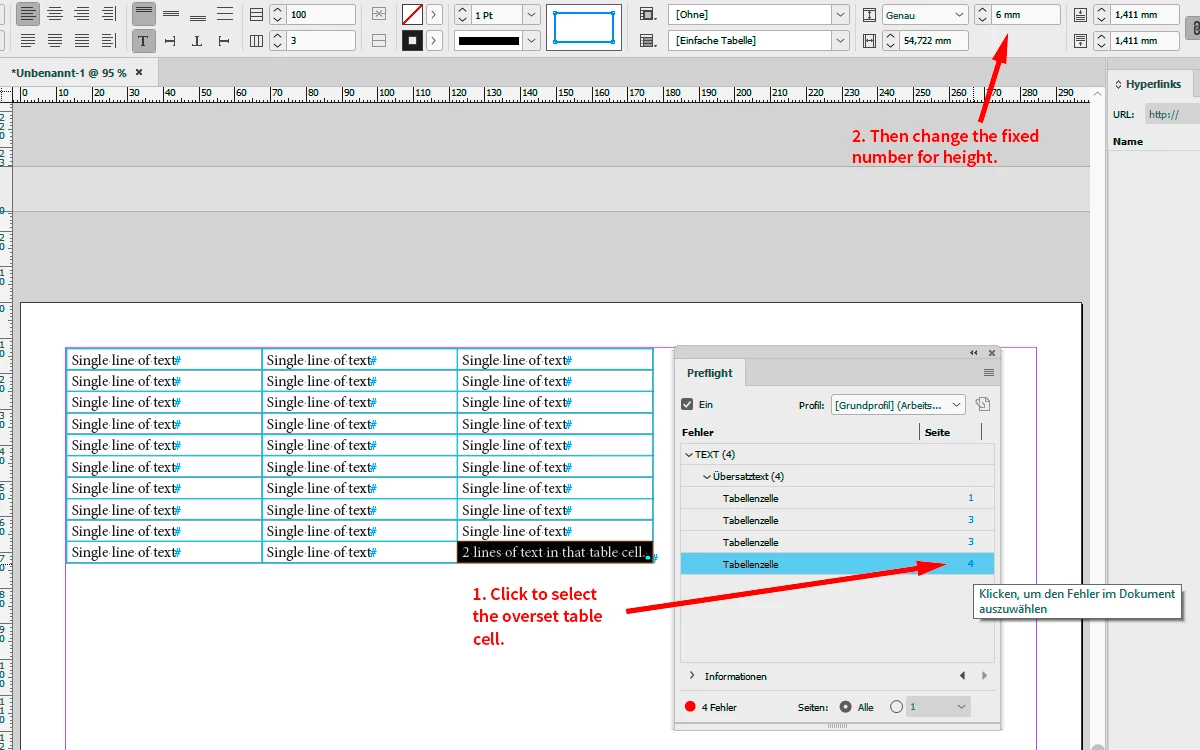
InDesign's Preflight function should give you all the overset cells and also the ability to navigate to an overset cell.


From my German InDesign:


1. Click to select the overset table cell in the list of preflight errors.

2. Then change the fixed number for height.


Regards,
Uwe Laubender

( ACP )

3 replies

LaubenderCommunity ExpertCorrect answer
Community Expert
June 8, 2020

Hi gassadamante,

just a suggestion to ease your work with table cells of two or more lines of text:

If a table cell will go into overset, because you do all your table rows with a fixed height for one single line of text:
InDesign's Preflight function should give you all the overset cells and also the ability to navigate to an overset cell.


From my German InDesign:


1. Click to select the overset table cell in the list of preflight errors.

2. Then change the fixed number for height.


Regards,
Uwe Laubender

( ACP )

John Mensinger
Community Expert
Community Expert
June 4, 2020

As you see, baseline and column-balance controls don't work on tables/table contents.


With a table, you'll have to control column balance with cell height. If all the cells were the same height, an equal number of rows would take up each column, and you'd have balance. But the odd rows where the length of a cell entry forces a line-break are throwing it off.


I would achieve balance manually by selecting the entire table and setting an exact row height for all rows. Then select just the rows where there is a line break and set the cell height to exactly 2X the initial row height previously set. This won't automatically balance the columns and keep them that way, but you'll at least be able to adjust the column length (number of rows) so that they do balance optically.

Known Participant
June 4, 2020

Yes, that's kinda what I did, but instead of manually adjusting each cell (i have 4500+ rows, that would be really hard), i tried to use baseline to auto-resize each cell. I set 7pt for line height and 7pt for custom baseline, so each time I have a line break it counts exactly as a 2x cell (screen01).


The only thing here is that i don't have a possibility to add some top and bottom margin to the cells, because if I add it they all get messed up again.


So i came up with the "solution" of selecting a higher line height and baseline, in order to have taller cells. Everything looks ok now, but the fact that I can't manage to vertically center the text on the cell (screen02). It only lies on the baseline bottom. I'm almost there as a result... but I can't fix this last thing.

Thank you in advance


John Mensinger
Community Expert
Community Expert
June 4, 2020


"but instead of manually adjusting each cell (i have 4500+ rows, that would be really hard), i tried to use baseline to auto-resize each cell. I set 7pt for line height and 7pt for custom baseline, so each time I have a line break it counts exactly as a 2x cell"


Well, I wan't suggesting you set the row height by manually dragging each row boundary.

By using the baseline and leading settings to control row height, you've lost control over the text placement within the cells.

You can set the row height in the Cell Options dialog:

Mike Witherell
Community Expert
Community Expert
June 3, 2020

Baseline grids affect text, and should be built into a paragraph style that is used in your table. The table should be controlled with cell styles and table styles. Textframes can auto-resize in response to text; but not tables. Cmd/Ctrl+B Textframe Options can turn on a balance columns feature.

Mike Witherell
Known Participant
June 4, 2020

Unfortunately, "balance columns" doesn't work at all