Participating Frequently
November 14, 2025
Answered

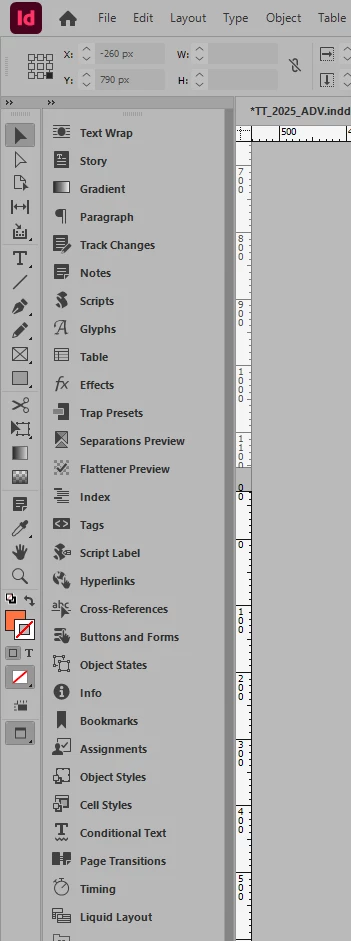
Custom toolbars disappear, but looong all-tools toolbar appears instead of.

  • November 14, 2025
  • 3 replies
  • 126 views

v.21.0, Windows 11 x64

After restarting Indesign, all custom toolbars disappear, and instead a long toolbar with all tools/windows appears. I tried to create a new workspace preset, but it's not helped.

Correct answer Barb Binder

Hi @volnoriz:


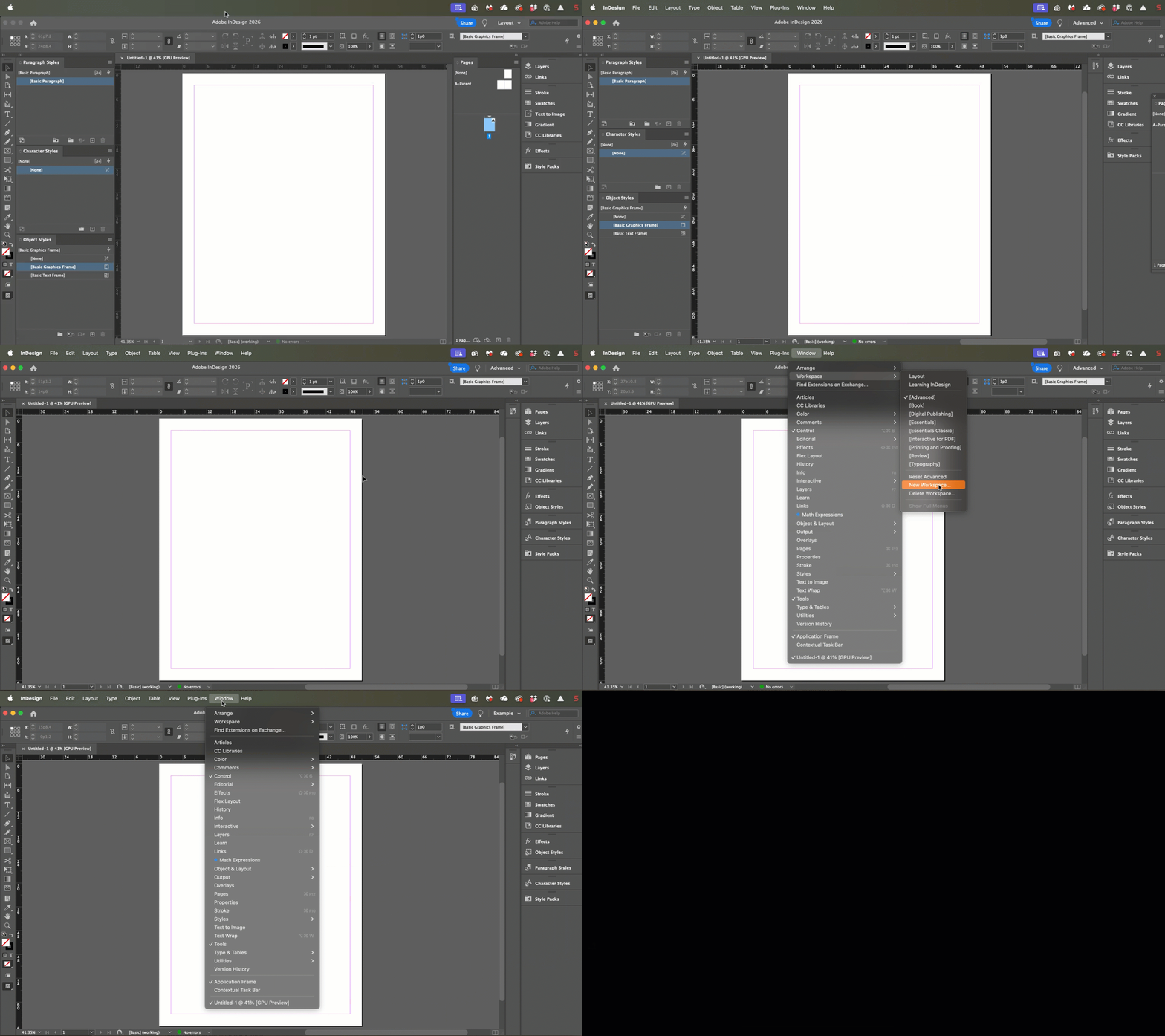
The Tools panel (Window > Tools) is on the far left of all your screenshots. It doesn't change in InDesign, but you can hide/show it using Window > Tools.


To the immediate left of the Tools panel in all of three your screenshots is a list of individual panels—the display of the panels varies in each of the three you have posted so far. 


A workspace controls the visibility and position of each of the panels.


What happens if you choose Window > Workspace > [Advanced], followed immediately by Window > Workspace > Reset Advanced


If it looks like mine does after those two commands, I'd recommend Window > Workspace > New Workspace to save a custom workspace. Then reopen the Window menu again, this time to find all of the available panels listed alphabetically from Articles to Version History. You can thoughtfully open whichever panels you like to use and dock them whereever it makes sense to you, and then save the workspace one more time after you like the way it looks.


This is how InDesign is supposed to work and if you can confirm that you are doing all of this correctly and that long list of panels keeps returning, the next thing I would do is go deeper on resetting preferences. I know Bob mentioned this already and you said you did it, but you didn't tell us how or far down you went. This post goes over more options:  https://www.rockymountaintraining.com/adobe-indesign-rebuilding-preferences-cache/


Alternatively, you can download the Adobe CC Cleaner tool to fully remove InDesign, and then reinstall it. 


~Barb

3 replies

Barb Binder
Community Expert
Barb BinderCommunity ExpertCorrect answer
Community Expert
November 14, 2025

Hi @volnoriz:


The Tools panel (Window > Tools) is on the far left of all your screenshots. It doesn't change in InDesign, but you can hide/show it using Window > Tools.


To the immediate left of the Tools panel in all of three your screenshots is a list of individual panels—the display of the panels varies in each of the three you have posted so far. 


A workspace controls the visibility and position of each of the panels.


What happens if you choose Window > Workspace > [Advanced], followed immediately by Window > Workspace > Reset Advanced


If it looks like mine does after those two commands, I'd recommend Window > Workspace > New Workspace to save a custom workspace. Then reopen the Window menu again, this time to find all of the available panels listed alphabetically from Articles to Version History. You can thoughtfully open whichever panels you like to use and dock them whereever it makes sense to you, and then save the workspace one more time after you like the way it looks.


This is how InDesign is supposed to work and if you can confirm that you are doing all of this correctly and that long list of panels keeps returning, the next thing I would do is go deeper on resetting preferences. I know Bob mentioned this already and you said you did it, but you didn't tell us how or far down you went. This post goes over more options:  https://www.rockymountaintraining.com/adobe-indesign-rebuilding-preferences-cache/


Alternatively, you can download the Adobe CC Cleaner tool to fully remove InDesign, and then reinstall it. 


~Barb
~Barb at Rocky Mountain Training
BobLevine
Community Expert
Community Expert
November 14, 2025

Try resetting your preferences.

volnorizAuthor
Participating Frequently
November 14, 2025

Unfortunately, it doesn't help

BobLevine
Community Expert
Community Expert
November 14, 2025

What happens when you change workspaces?

Community Manager
November 14, 2025

Hello @Arxibol,

Thanks for reaching out. Could you share more details about the custom toolbars you're using along with screenshots, if possible, so we can better assist you?

Looking forward to hearing from you.

Anubhav

volnorizAuthor
Participating Frequently
November 14, 2025

Hello. Under "custom toolbars" I mean a few additional tabs whuch I use frequently.