
Participant
November 6, 2016
Question

Cutting a circle

  • November 6, 2016
  • 3 replies
  • 10049 views

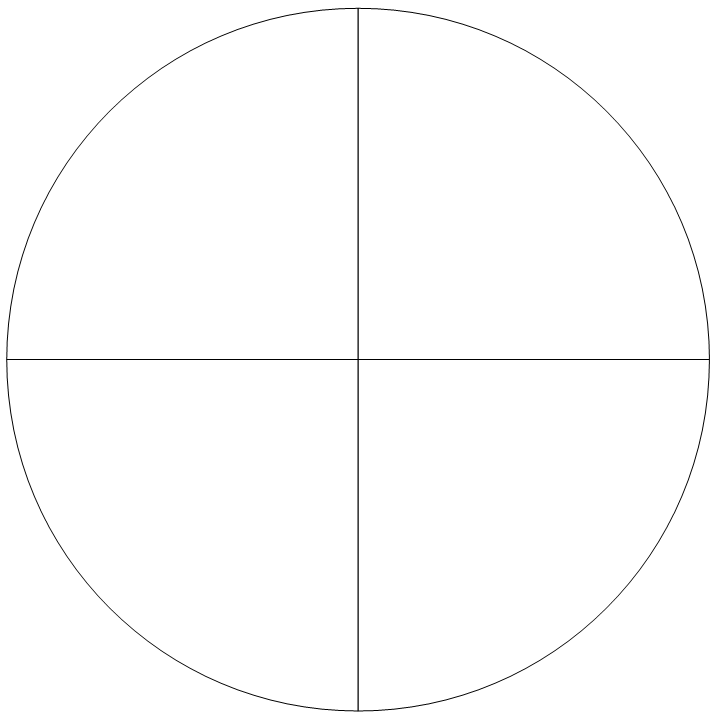
I am working on a client book for my advertising class. The issue that I keep running into is that I need to make 4 separate, fillable, pieces that when together make a complete circle. I have tried using the scissors and can't get the straight measurements down and have tried merging pieces but I always have 2 of the 4 pieces being the exact same color. I really want to get this down to complete my ideal design for the project since it will look very professional. I have included a picture to help visualize what I am trying to achieve because so far the ways I have been doing it always cancel out 1 of the 4 pieces. Any help is highly appreciated, thank you!
This topic has been closed for replies.

3 replies

Community Expert
November 7, 2016

Hi Eugene,

at first I thought that could be done in InDesign as well. With a series of Pathfinder operations and two rectangles.
But after completing my first segment, I can see that the precision of the tools is not perfect or at least not good enough.

So yes, Illustrator is the way to go.

Hm. I'm not sure where to find the "divide" option there. Can you show a screenshot?
I'm on a German Illustrator and sometimes it's hard to follow English terms in the UI, because the translation could be a bit strange.


I'd use the Transform panel to get the segments and do 4 different quadrants of 4 circles stacked on each other.
The result can be copied to InDesign. The 4 quadrants will align perfectly even when viewed with a 4,000 % zoom.

However you can see very small differences in the circle segments when you compare the path of a circle done with InDesign to the circular part of the path of the four quadrants from Illustrator. But that's at at 4,000 % zoom.

Regards,
Uwe

Steve Werner
Community Expert
Community Expert
November 7, 2016

Here is the location of the Divide button in Illustrator CC 2017:

Community Expert
November 7, 2016

Thank you, Steve.
This feature is also with InDesign, yes. But maybe it's less precise.

But back to InDesign:
In principle to segment a circle to four quadrants would mean:

1. Create a circle

2. Duplicate the circle

3. Convert the duplicate to a rectangle.

4. Resize the rectangle to half dimension.

5. Align the corner of the rectangle to the corner of the bounding box of the circle.

6. Pathfinder: Exclude overlap path

The square on top would be converted to a path object that is a quadrant.

Then duplicate/mirror the quadrant with InDesign's mirror horizontal command by holding the alt-key (Mac OSX).

Duplicate/mirror the resulting two quadrants by holding the alt-key with the mirror vertical command.

Both commands can be found in the Transform panel.

Regards,
Uwe

Community Expert
November 6, 2016

Do it in Illustrator.

Illustrator has a 'divide' option in the pathfinder tools. That's what to use.

Mike Witherell
Community Expert
Community Expert
November 6, 2016

Draw a circular frame with the Ellipse Frame Tool.

Draw 4 rectangular frames with the Rectangle Frame Tool. All 4 square and touching each other. Centered over the circle frame.

Place 4 pictures into the 4 square frames.

Select all; cut; then select the circular frame and Paste Into.

The appearance of 4 quadrants of pictures will result by making use of this nested frame trick.

Mike Witherell