
Participating Frequently
December 31, 2024
Question

Double color management issue when printing in InDesign

  • December 31, 2024
  • 4 replies
  • 1683 views

Hello Community, 


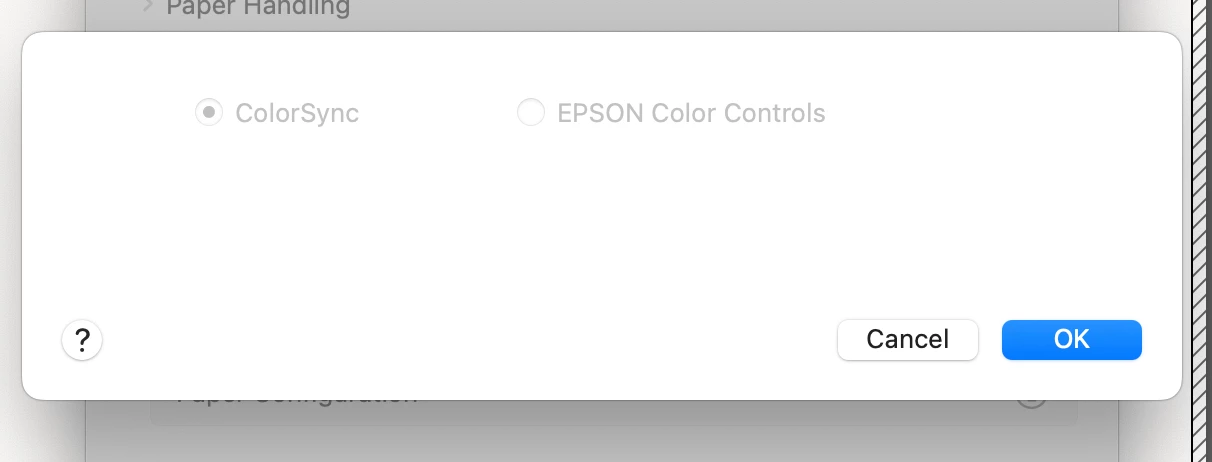
I'm using indesign to print a small book of color photography. Typically when I print with Photoshop, I first select "Photoshop manages colors" then I select the .icc profile of the paper I'm using, in this case Canson Rag Duo.  I open my print dialogue to select my media type, The color matching section is usually grayed out, like this screenshot: 
However, in Indesign, when I go to the same dialogue box in InDesign, I'm able to select the .icc profile inside here as well.
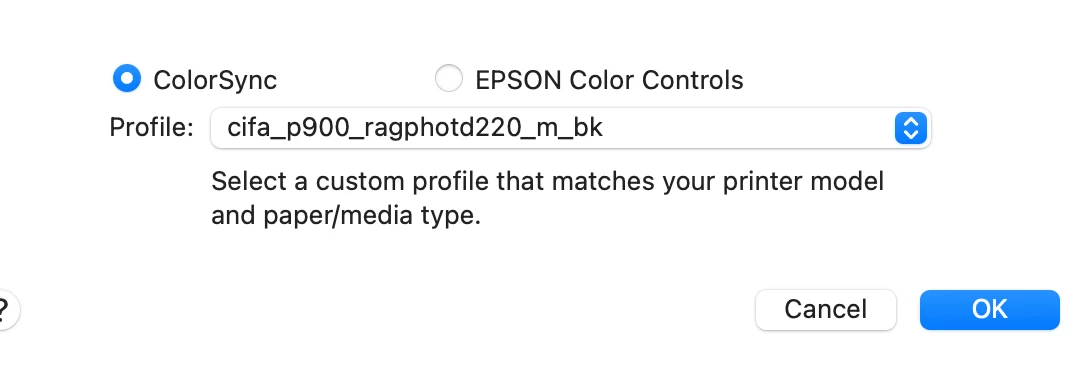
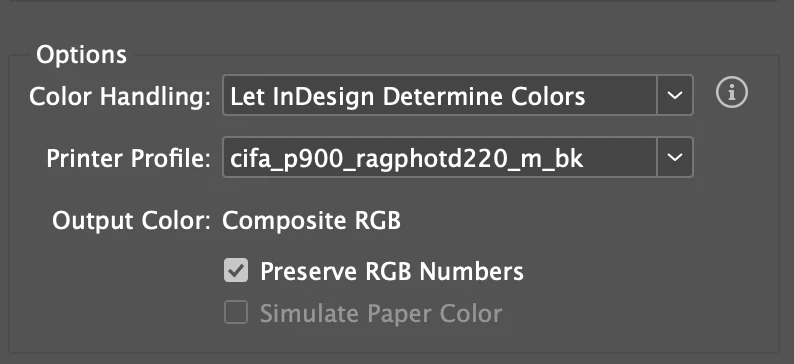
That wouldn't seem to be a problem, except when go to Print > Print Settings >  Color Management, I'm prompted to choose the .icc profile again  So i think what is happening is that the profile might be getting applied twice? Maybe I'm wrong and it's a redundancy that does nothing to the color, but my color is off. Can anyone advise if I can (or should) turn off one of the two .icc profiles? Thank you for your help
4 replies

Brad @ Roaring Mouse
Community Expert
Community Expert
December 31, 2024

The one thing you haven't shown us is your Print Driver settings:

In Option 1, if you select Colorsync and select the matching Paper Profile. under Print Settings, the option to set Color Management in the driver should be greyed out. (I'm not on the same OS as you, so my screen grabs are from a Monterey).

Alternatively, In Option 2, you COULD select EPSON Color Controls, but make sure he now active Color Management setting is set to Off.

Try option 2 and see if that works better for you.


Participating Frequently
January 1, 2025

Hey Brad - thanks for your response. I actually shared a portion above. The problem is it's *not* grayed out, and I am prompted to choose an icc profile. See here:  Whereas in photoshop, I'm unable to select a profile, because I've already done it:.  but your solution is very interesting and I tried it - Selecting Epson Color and then selecting. "off". It got me closer! It's not quite what I want, but it's an intriguing development to say the least. 


So at this point it's clear there are 2 color profiles being applied, so I will just continue to poke around until i figure this out or epson gets their act together and updates their drivers. ha. Thanks for taking the time! Happy new year! 

Brad @ Roaring Mouse
Community Expert
Community Expert
January 1, 2025

"The problem is it's *not* grayed out"

Not there. I mean in the Epson's Printer Settings (i.e the right-most panel in my screen grab). This is separate from the ColorSync settings, and is often where the double management is occuring. When you slect a ColorSync profile, the two setting in the PRINTER settings there should be greyed out.

However, if you think setting both ID Color management and ColorSync is applying the double, then remove the first one. I think you've already tried this, but set ID to sRGB so nothing is converted there. Still make sure the option in the Print Settings are greyed out.

 All this being said, I also agree with the others that the PDF route is the best. It's less hassle overall, especially with the newer OSs.

Randy Hagan
Community Expert
Community Expert
December 31, 2024

Hi Wyatt.


You shouldn't be applying the profile twice, so much as you're updating the settings with a new, but (hopefully) exact same, choice.


As long as you're taking the information from the very same ICC profile, we should be talking about nothing more than a redundant, rather than accumulative, process. But if your color is off — for whatever reason — it's good to have a proper reference to work with as you sleuth this problem.


That means test pages, and ideally color checking/calibration tools. If you don't have a good objective test page to print — meaning color calibration swatches/bars and targets, not just sample pictures — I recommend the file you can get through this link. Click the Color Test Page button at the top of the copy block, and output it to Adoibe PDF to save a file you can use for your color reproduction baselines. Print the just-opened PDF test page first from Photoshop, then save a copy of it in whatever format you prefer for placing Photoshop images in InDesign.


Create two InDesign documents. Place the saved PDF test page in one InDesign document, then go to the second document and place the saved Photoshop file with your preferred format and color settings. Print them both and see if you have any reproduction differences between the Photoshop output and output from the two InDesign documents.


  • If they all print the same, and you're unhappy with them, we're talking about hardware calibration and your ICC profile. Between the two of them, something's out of whack.
  • If the Photoshop image and the placed Photoshop document within InDesign print the same and the placed PDF test page prints different, we're talking about issues applying the ICC profile/color settings from Photoshop.
  • If both InDesign documents print the same and the Photoshop output is different, we're talking about issues applying ICC profiles/color settings from InDesign.


As suggested elsewhere, if you use a PDF-based workflow you should output a PDF file, then also print those from Adobe Acrobat. Again we're talking about printing three files: The original PDF test file output directly from Acrobat, then PDF file output from both of the InDesign documents. Compare those too.


Let us know what you find from your proofing/printing tests and hopefully we can help you find a course of action. It's hard tellin' not knowin', and running the test pages will help us all isolate the source(s) of your color reproduction issues.


Hope you find this helpful,


Randy

Participating Frequently
December 31, 2024

Hi Randy, thanks for these helpful suggestions. I will try now. I should note that my monitor is calibrated and I am able to print successfully from photoshop using any number of .icc profiles, it's just this weird Indesign issue. However, I will go through the steps you suggest and see if I can isolate the problem! Thank you 

Randy Hagan
Community Expert
Community Expert
December 31, 2024

Hi Randy - I use multiple profiles because I print with my different types of paper, so in a way, yes multiple output devices. Each one requires its own little recipe and they're all avail for download on the manufacturers websites.  It's a bit of a hassle but it does typically work without a hitch in Photoshop. I'm new to InDesign and one would think that with the fairly robust print module they have, it would be similar but I'm having no such luck. 


So I've followed your suggestion. I printed 5 documents. 

1. The Color Check PDF straight from my desktop using Preview (I don't have Acrobat) 

2. The Color Check PDF from photoshop, with the .icc profile I hope to use

3. The Color Check PDF imported directly into Indesign, (again with the profile applied in both places)

4. The Color Check PDF from InDesign as a .JPEG exported from Photoshop with the .icc profile applied ("redundantly" as it were) 

5. The color check PDF from InDesign as a .JPEG exported from photoshop BUT with the correct .ICC profile applied in the print dialog box only, and 'Document RGB', the default setting, left in the InDesign print window 


Here is what I've learned - printing from Photoshop and selecting the profile once is the only way that it works. The JPEG and the PDF brought into Indesign behave the same way when printing if the profile is applied in both places  - the print is far too yellow, and to the same degree in both. HOWEVER, when I tried again and kept one of them 'document RGB' and used the correct profile in the print dialogue, I was much closer to the correct color - leading me to believe that it is cumulative after all. I don't really understand how I can choose a 'neutral' or turn off one of the two - again, in Photoshop, my print dialogue gives me no such option. By selecting 'Photoshop manages colors,' in the photoshop print window, I'm precluded from making a selection further down the line. As far as printing the document straight from my desktop, it also is not quite correct because I'm unable to select a profile form my Preview print dialog. Thanks in advance. and p.s. yes this has been happening with any profile I try! 


OK. We've got some things to look at here:


1. As far as I understand, MacOS Preview has no color management output capabilities, short of what is defined in a given print driver. Which you saw because you can't change color settings as Preview prints the original PDF Test Page. And how does it compare to your output using Document RGB for your printer profile? Are they the same? Or is the yellow washed out in the Preview version?


2. You're printing from Photoshop from an RGB color space, using your ICC profile and liking the results. But you're not happy with anything you're getting from InDesign. Are you creating InDesign documents with an RGB color intent or a CMYK color intent? When creating new documents for "Print" document files, the default setting is CMYK output. Let's change the rules. Open both InDesign test documents and select the Edit>Transparency Blend Space menu command. Change the option from the default Document CMYK to Document RGB, as shown in the illustration at left, save the files, then print the two files again. Is the color more acceptable now?


3. Are the various ICC profiles you're using created by Epson, or did you build them in-house for your output?


4. Are you using a colorimeter to determine arbitrarily/empirically that you have problem with your Yellow color build, or are you interpreting this from the impression you get from an image with your own eyes? Without empirical testing, we're talking about what you consider "pleasing color" rather than what calibration would call "accurate color." Those can be two wildly different things. Jus' sayin' ...


5. It would be correct when you select the "Photoshop manages colors" in the Color Handling: options box that you have no option to pick any ICC profile. You're telling InDesign whatever Photoshop color settings specify, rules.


Further testing will determine what's "right" for you, but I suspect that you're half-right that InDesign is "double-applying" color profiles. The half-wrong part is that it's happening when you use the Document CMYK transparency space, rather than double-applying your ICC profile. ICC profiles and your Document RGB printer profile let your output device do the translation from the RGB images you placed in your InDesign files to CMYK output. Document CMYK transparency space and choosing Let InDesign determine colors in the Color Handling: options box does the translation right up front in the InDesign document. It also tells InDesign to use whatever settings your CMYK: working space specify.


So it's not applying your ICC profile accumulatively, it's applying a different color profile before your Epson SureColor gets a shot. I'm hopeful that when you either let Photoshop set the rules or you set the RGB transparency space that you'll get better results. And that you won't see much difference between them.


Please try printing those two InDesign document test files with the Document RGB transparency space and let me know if that works out for you. I'm hopeful this will make things better for you. And if not, the answers to the questions above will help us get the results you're looking for.


Sorry to be killing your paper stock, but running tests is the only way to be sure.


Randy


Robert at ID-Tasker
Legend
December 31, 2024

It's always best to export PDF from InDesign and print from Acrobat. 


Participating Frequently
December 31, 2024

I had never considered it! Thanks for the tip, I'll try that.

Participating Frequently
December 31, 2024

One thing that I'll add - I'm using the latest versions of both Photoshop and Indesign (20.0.1), and i'm running Sequoia (15.2) with an epson SureColor p900 (13.96), if that's helpful. Thanks!