

BEGINNER_X
Legend
October 1, 2014
Answered

Edit & Read MathType Equation

  • October 1, 2014
  • 1 reply
  • 1158 views

Hi Genius,

Entirely new to this concept. Below is the process doing by manually.

1. Select the Math type equation that is already imported in Indesign
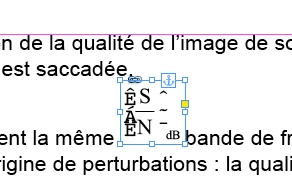
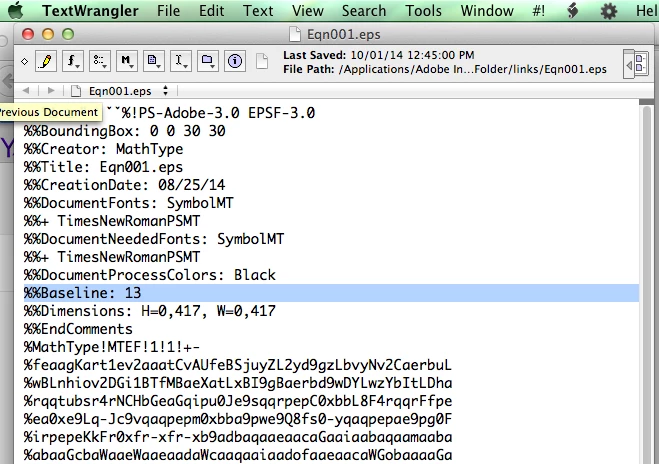
2. Open the equation by "Edit with" & "Text Wrangler"

find the below screenshot "Baseline: 13"
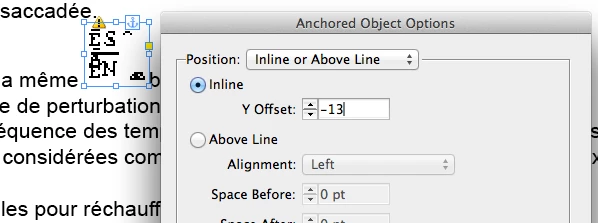
3. Apply that value negatively in the anchor object.
How can this should be automate. Any help appreciated.

Regards

Siraj

This topic has been closed for replies.
Correct answer Harbs.

Something like this:

var fp = app.selection[0].graphics[0].itemLink.filePath;

var f = File(fp);

f.open('r');

var fs = f.read();

f.close();

var baseline = fs.match(/%%Baseline\s+(\S+)/)[1];

app.selection[0].anchoredObjectSettings.anchorYoffset = -Number(baseline);

1 reply

Harbs.
Harbs.Correct answer
Legend
October 1, 2014

Something like this:

var fp = app.selection[0].graphics[0].itemLink.filePath;

var f = File(fp);

f.open('r');

var fs = f.read();

f.close();

var baseline = fs.match(/%%Baseline\s+(\S+)/)[1];

app.selection[0].anchoredObjectSettings.anchorYoffset = -Number(baseline);

BEGINNER_X
Legend
October 1, 2014

Hi Mr.Harbs,

Thank You for your valuable coding....

Image that I selected below:

But I struck in the 6th line. Could you please check and help me.

Thanks

Siraj

Legend
October 1, 2014

Hi Siraj,

Harbs solution working perfect, just replace the below line,

var baseline = fs.match(/%%Baseline:\s+(\S+)/)[1];//colon missing

Vandy