Participant
June 21, 2019
Answered

Editing a document with locked column width

  • June 21, 2019
  • 2 replies
  • 1086 views

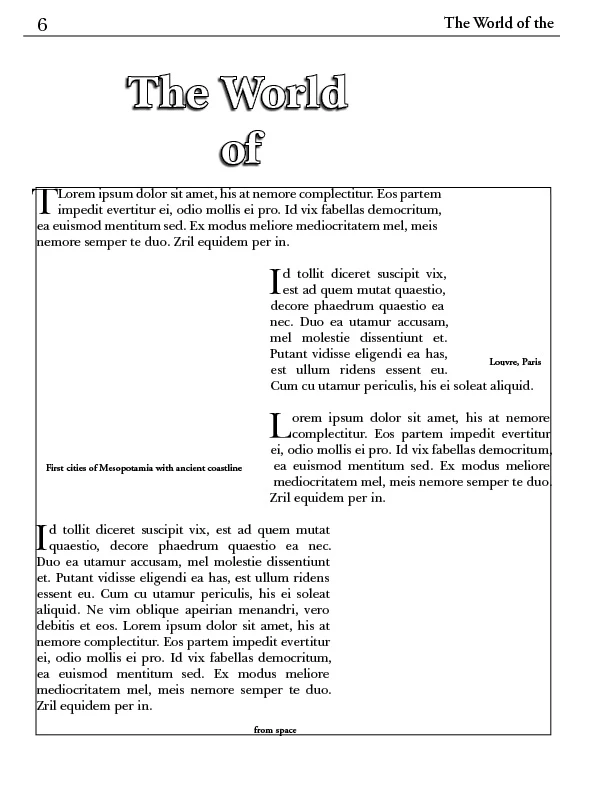
Trying to adjust paragrph widths in a pre-formatted document. It seems the paragraph width is locked at specific places within the page. Is there a way to adjust this?
    This topic has been closed for replies.
    Correct answer tonym77684857

    Hi Tony:

    To adjust the text wrap, you will need to select a graphic frame and do one the following:

    1. Delete it (tap Delete)
    2. Resize it (tug on one of the eight sizing handles)
    3. Reduce or remove text wrap (Window > Text Wrap)

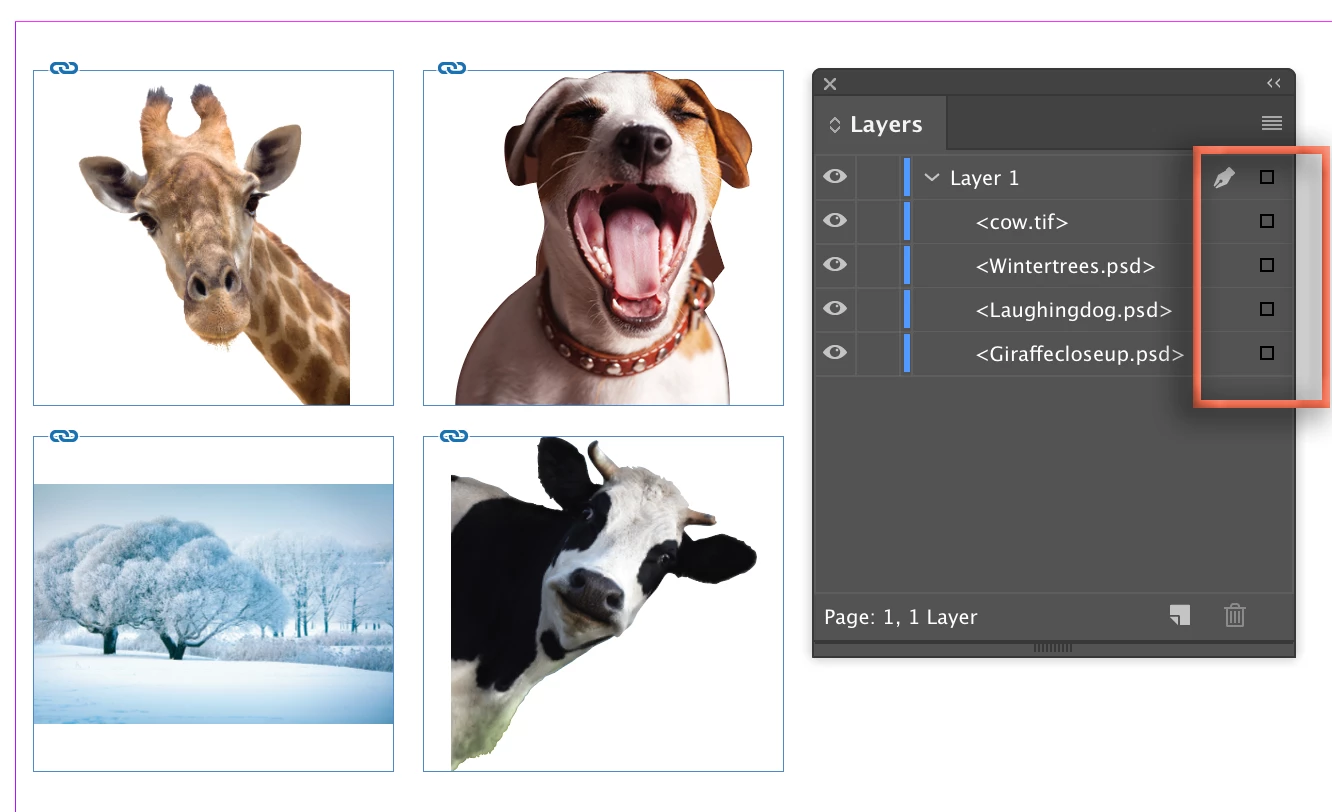
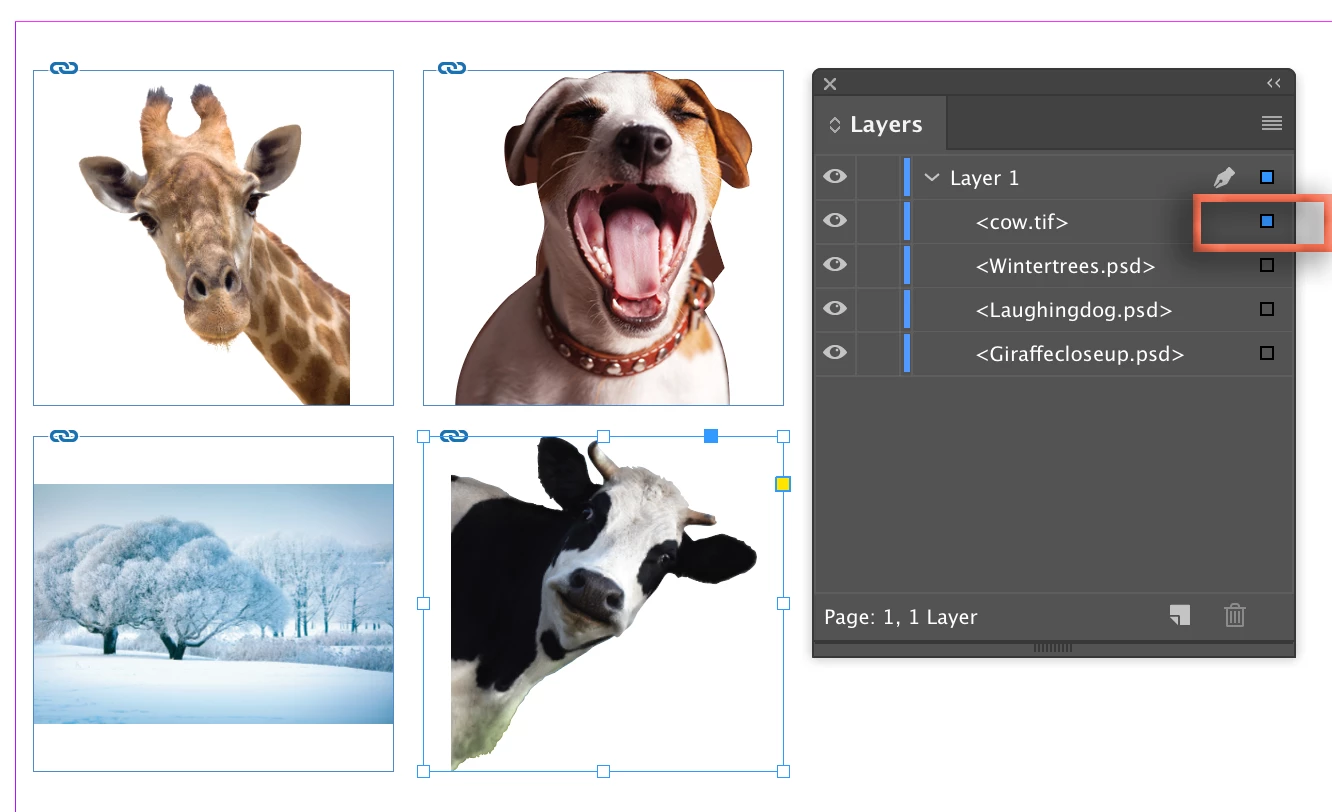
    If you can't select any of the graphic frames, they are likely underneath the large text frame.  Hold the Cmd key and keep clicking on an image until it is selected, or click on the tiny square to the far right of the graphic sub-layer.
    ~Barb


    Thank you so much for all of your help. I ultimately isolated the problem to the images within the image layer. I had copied the earlier image, and then put a new smaller image into the copy. Even though the original image was turned off in the layer, space was still being provided for the earlier images dimestions. When I removed the original image, the text flowed around the new smaller image.

    Again, thanks so much for your help and assistance.

    2 replies

    Steve Werner
    Community Expert
    Community Expert
    June 21, 2019

    Also, make sure you're not in Preview view. You want to be in Normal View (View > Screen Mode > Normal).

    winterm
    Legend
    June 21, 2019

    Paragraph width? You mean - Text Frame width? There’s no way to specifically lock this. You can only constrain proportions, or lock the whole object.

    Most likely you have placeholders for graphic here, or just additional frames (text or unassigned), with text wrap enabled (and these may be locked, like any other object).

    Go to View > Extras > Show Frame Edges to see.

    Here you can see similar layout with Graphic Frame on the left locked (notice blue Lock icon on the frame):

    If you believe all above is not the case, go to Object > Text Frame Options, Auto-Size tab, and check if Auto-Size feature is OFF.

    Participant
    June 21, 2019

    It appears to be a placeholder with text wrap enabled. When I turn all of the image links off, the space is still there. However, even with

    Go to View > Extras > Show Frame Edges to see.

    I still can not see how to adjust the frame..

    The blue Lock icon is not on, but it can be turned on.

    In Text Frame Options, Auto-size is Off.

    Any suggestions on how to adjust the placeholder frame?

    In Normal view.

    winterm
    Legend
    June 21, 2019

    When I turn all of the image links off

    That’s unclear, there’s no such a function in InDesign. Please be more specific on what you’re doing actually.

    I still can not see how to adjust the frame.

    What did you try? Can you select that frame? If no, it may be on a master page or locked layer. Maybe you see a tiny dotted line around it?

    It must be something pretty basic. Without any screenshot I’m just shooting in the dark.

    Would you mind to show an actual page, with all frames and hidden characters showing, with Pages, Layers panels visible?