
Participant
November 1, 2022
Question

Epub Export - Numbered List Misalignment

  • November 1, 2022
  • 2 replies
  • 954 views

Hi,


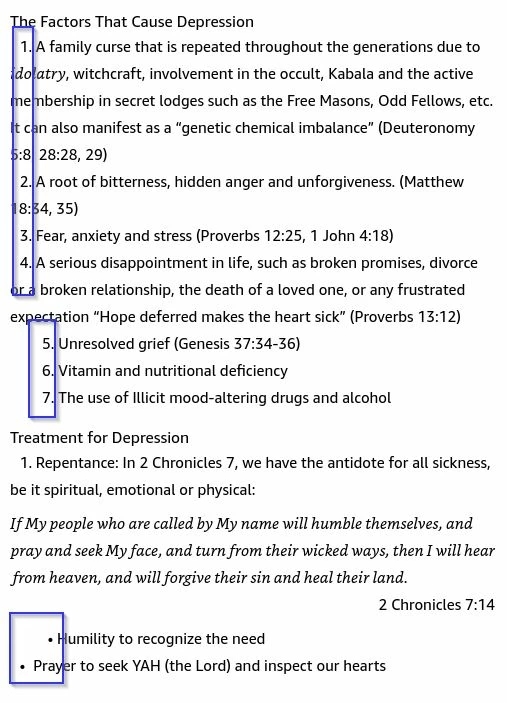
I am exporting to Epub (Reflowable). Found out the numbered and bulleted lists are not working as arranged. Some would misalign with more indent. 


Anyone knowing how to fix this? 


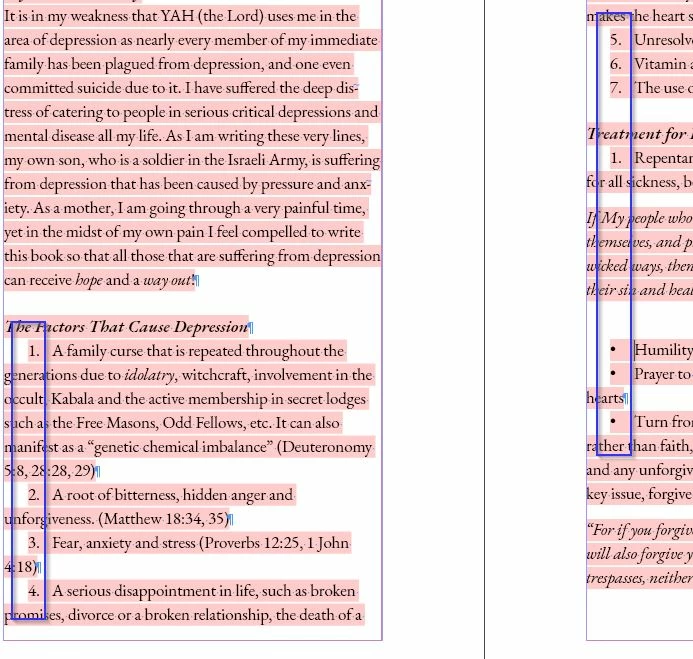
This is how it looks in Indesign.
This is how it looks in Epub reader.
 

Thank you.

This topic has been closed for replies.

2 replies

James Gifford—NitroPress
Legend
November 1, 2022

Bullet lists from ID into EPUB are a PITA.


This is because InDesign doesn't export (CSS) padding values, at all; (almost all) proper bullet list spacing in HTML/CSS relies on padding. Furthermore, ID formatting often relies on tabs, which don't export to EPUB (or HTML) either. There is no simple answer short of creating CSS style definitions for your bullet list items.


You can fix some of it with careful juggling of the style spacing and use in ID, but writing some CSS definitions that overwrite the incomplete ID defaults is better.


Here's the basics:


CSS Spacing for Lists

  • The spacing keywords margin and padding interact as a duo with
    HTML lists.
  • Generally, margin and padding act on the ul and ol containers
    much as they do on a regular paragraph, but variations and quirks in
    the interpretation (web browser, EPUB, export HTML and Kindle) can
    make one or the other do slightly different things. You may need to
    experiment.
  • For li items, margin controls the space around the item, including
    any bullet, while padding-left controls the space between the
    bullet and the start of the first line.
  • To control the overall spacing of a list, such as a little further
    from the prior and following items and the margins, use
    margin adjustments to ul or ol.
  • To control the spacing of each list item, use margin to set the
    “box” around it (usually just a few px) and padding-left
    to set the distance of the bullet from the text… or more
    accurately, how all the text is indented from where the bullet
    sits on the left margin.


There is also an alternate export option that turns lists from simple ol and ul entities to completely formatted HTML stacks, and you can apply CSS formatting to each element of that to get more control as well as fancy overrides like differently-colored bullets.


If you can't sort that out, ask further questions, or, there is considerable material on this in the Guide (see sig). It's a headache to get simple bullets and numbers to work right, and more so if you have any multiple-level lists.


Participant
November 1, 2022

Thank you for the reply. 


The numbered list and bullets are created through paragraph style.


Is the style spacing mentioned same to what I was doing as above? Frankly, I do not have any idea of CSS formating yet. Yes, it will be good to have some guidelines how to get the right start. 


Thank you.

James Gifford—NitroPress
Legend
November 1, 2022

Getting into CSS styling is a big, separate leap but it gives you great control over the details and allows you to do some things that nothing the ID export will. But all you have to do is write a CSS file and tell ID to use it on export... all of the difficulty is in writing that CSS code.


Here is a very basic start. Save this as BULLETS.CSS (or whatever) and put it in your book file folder.


In export, under HTML & CSS, add it to the list of additional CSS files. You only have to do this once. ID will read and apply it to the export file until you remove it, and you keep editing the values until you get the results you want.


BULLETS.CSS


ol, ul { margin: 0; padding: 0; }

li.BULLETSTYLENAMEHERE {
margin: 10px;
padding-left: 10px;
}

li.NUMBERSTYLENAMEHERE {
margin: 10px;
padding-left: 10px;
}


This will zero out spacing around the list "box," apply a 10px box around each list element, and space the left margin of the text in 10px from the bullet or number. Adjust these values as you like until you get something close to the result you're looking for.


The style names MUST match exactly, in spelling and capitalization, or they won't be applied. Use a hyphen for any spaces. (that is, My Bullet Style should be entered here as li.My-Bullet-Style .)


And yeah, this is the simple start. 😛


Community Expert
November 1, 2022

How have you created the numbered list and the bullets?


@James Gifford—NitroPress can you help on this one?