
Participant
May 15, 2018
Answered

Error on InDesign exported PDF document

  • May 15, 2018
  • 3 replies
  • 7777 views

Hi

I have been working for weeks on an InDesign (13.1 x64) document saving and exporting for checking regularly. Today when I exported as PDF and opened it in Adobe Acrobat Pro DC (18.011.20040) I got the error: "An error exists on this page. Acrobat may not display the page correctly..." Several elements and images are missing and several right pages are blank. Up until today I have had no problems at all. In InDesign everything looks good and there seem to be no errors. I have opened the exported PDF on several computers and the same errors are there regardless. I have also tried different export settings and repair function in Adobe Acrobat. Any help would be much appreciated.

Regards,

Ørjan
    This topic has been closed for replies.
    Correct answer Bevi Chagnon - PubCom.com

    Sorry you're having this problem,  Ørjan,

    Here are some common items that can cause problems like this. Check to see if any are in your InDesign document:

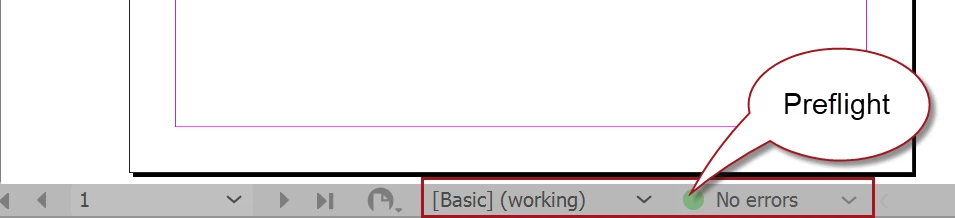
    1. Are there any missing fonts or graphics? Check with InDesign's Preflight utility.
    2. Are any items on a nonprinting layer?
    3. Are any items set to "hidden"?
    4. When you exported to PDF, did you get any pop-up warnings? If so, what did they say?

    You could also have a corrupted InDesign INDD file. Try saving as an IDML (InDesign Markup Language), and then reopen the IDML version in InDesign. (Close InDesign and relaunch it before opening the new IDML version.) This often corrects any encoding errors in your layout.

    Also, when exporting the PDF, choose one of the basic presets to test the conversion and make no changes to it, such as Export / PDF-Print / Smallest File Size (doesn't matter how you intend to use your PDF at this point, print or interactive, we just want to test a known export setting to isolate where the problem lies and "smallest file size" is the most benign preset).

    Let us know what you learn.

    3 replies

    Participating Frequently
    February 3, 2019

    My experience is that, when I drag and drop transparent images from other software like powerpoint, it will have problem printing.

    Eric Dumas
    Community Expert
    Community Expert
    May 16, 2018

    I experience similar issues when I was overwriting the same file over and over again.

    It stabilised when I saved the InDesign file under a new name and exported the pdf to a new file as well.

    Bevi Chagnon - PubCom.com
    Legend
    May 15, 2018

    Sorry you're having this problem,  Ørjan,

    Here are some common items that can cause problems like this. Check to see if any are in your InDesign document:

    1. Are there any missing fonts or graphics? Check with InDesign's Preflight utility.
    2. Are any items on a nonprinting layer?
    3. Are any items set to "hidden"?
    4. When you exported to PDF, did you get any pop-up warnings? If so, what did they say?

    You could also have a corrupted InDesign INDD file. Try saving as an IDML (InDesign Markup Language), and then reopen the IDML version in InDesign. (Close InDesign and relaunch it before opening the new IDML version.) This often corrects any encoding errors in your layout.

    Also, when exporting the PDF, choose one of the basic presets to test the conversion and make no changes to it, such as Export / PDF-Print / Smallest File Size (doesn't matter how you intend to use your PDF at this point, print or interactive, we just want to test a known export setting to isolate where the problem lies and "smallest file size" is the most benign preset).

    Let us know what you learn.

    |    Bevi Chagnon   |  Designer, Trainer, & Technologist for Accessible Documents ||    PubCom |    Classes & Books for Accessible InDesign, PDFs & MS Office |
    Participant
    May 16, 2018

    Hi, and thank you very much for your list.

    I have tested your suggestions and the results are as followed:

    1. No errors.

    2. No items on nonprinting layer

    3. No "hidden"

    4. If I just go to File - Export - PDF for print, then I get a warning saying: "The preset specifies source profiles that don’t match the current color settings file. Profiles specified by the current color setting will be used." That has been there before as well without it causing any problems. If I change Standard to PDF/x-4:2010 (for example) the warning goes away.

    The 4 points above made no difference and the error after exporting continued.

    Now when I saved the file as an IDML file and exported to PDF it showed correct again. I also saved the IDML file as an InDesign document and exported from this, and that showed correct also. I am truly grateful for the help, but it makes me wonder how a file just all of a sudden got this error, and why does this workaround seem to help? Got a bit worried as this is the master file for a large product catalog.

    Regards,

    Ørjan

    Bevi Chagnon - PubCom.com
    Legend
    May 20, 2018

    Hi Ørjan,

    Glad you were able to correct the problem.

    That's a great question: how to prevent it in the future.

    You gave 2 clues as to what is happening:

    1. You tried the file on different computers but the problem persisted. That shows that it was something in the file, not the software or workstation.
    2. And you mentioned that it's a large catalog layout.

    Catalogs are notoriously complex files--lots of frames, lots of different fonts, lots of graphics, and often with some special effects thrown in. Every element is another string of code. A 1,000 page novel with just text would be a much simpler file than a 128-page catalog!

    So consider your files to be "delicate:" any little glitch in the system can cause it to become corrupted. You'd be surprised at what we've had cause glitches over our 30 years in the business: cell phones near bluetooth devices, loose USB plugs, heavy traffic on the file server/network, super-mini power dip, thunderstorms, coffeepot turned on ...

    Here are some tips from our working studio that help us avoid such casualties during production:

    1. Equipment: has to be top-of-the-line for this type of work. 32GB or 64GB Ram, fast processor, latest processor, 8GB or 16GB VRAM for your display card, fast SSI hard drive.
    2. File storage: don't work off a file server. Copy your working files to your local hard drive, and then back them up nightly to the server. And don't work off a USB drive, either.
    3. File size: if possible break the project into smaller files and use InDesign's Book panel to manage them and export them to a single PDF.
    4. Save vs Save As: a plain "Save" just updates the file with your latest changes, adding the new code at the end of the file (regardless of where the item actually appears on your visual page). "Save As" rewrites the file from start to finish, reorganizes the code nicely, and removes any history of old content. It alone can prevent glitches from creeping into your file, so we recommend doing it at least once a day, usually at night before quitting for the day.
    5. Save as IDML: do this every so often. We don't find it as necessary as a "Save As", so maybe every other day. But really, it's just another data file so who cares how many you have!
    6. Save sequential versions: We save numbered, sequential versions of the file, at last one a day, as a CYA measure. Can't count how many times we've had to pull out a version from 2 or 3 days earlier to recover from a disaster. When the job is done (and your paycheck is secured), delete all but the last version.
    7. Run lean: That is, close all apps but those that are essential. If you're not using Photoshop at the minute, close it. And when you do hop into Photoshop, Illustrator, or your email program, save your INDD file before your do, just to make sure nothing is lost or glitched during the switch over. In other words, don't "stress out" your computer hardware and operating system.
    8. Condition your electricity: back in the early days of computers, they were very sensitive to interference and dips, and we rewired the studio with multiple separate power outlets just for computers (no lamps, coffeepots, or printers allowed on those circuits). Today, you don't have to be that extreme, but we still use high-quality Furman brand power conditioners on each computer workstation and printer. Expensive, but they are the most accurate brand on the market.

    Yes, we do all of these. And we rarely have corrupted files. It's been years since we had a file go bad.

    Best to you!

    |    Bevi Chagnon   |  Designer, Trainer, & Technologist for Accessible Documents ||    PubCom |    Classes & Books for Accessible InDesign, PDFs & MS Office |