CubisGraham
Participant
June 28, 2020
Answered

Exporting to print ready PDF

  • June 28, 2020
  • 3 replies
  • 2676 views

After a failed attempt at sending a print ready PDF file for a brochure I have started using InDesign . I understand how to show the bleeds and crops but how do I make sure my placed images come out as expected? The printing compnay will be CMYK , the images are downloaded stock files mostly . A couple of the images came out a bit greeny yellow with my previous attempt. Hopefull using Indesign has resolved this. Just not sure if I need to use a setting or tick a box .

This topic has been closed for replies.
Correct answer Luke Jennings3

I agree with Derek's suggestions.

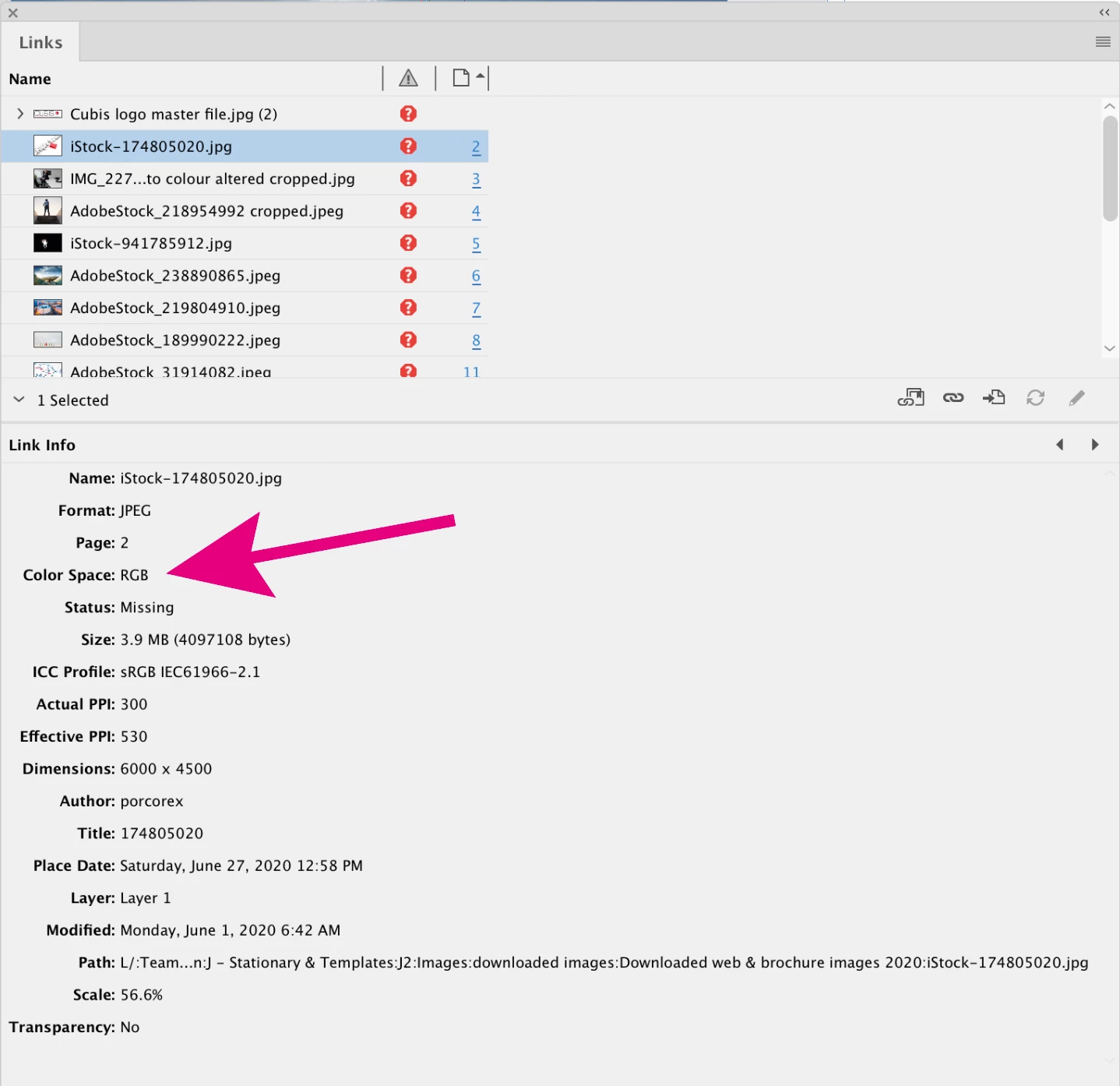
If you check your links panel, you will see all of your placed links are currently RGB (which is typical for stock images) and most are high res, as shown by the effective PPI.

In addition, I would like to point out a few other minor issues with your file that your printer might (and should) point out to you;

The Cubis logo on page 1 is 172 ppi and RGB, the type and rule really should be live type or vector, and the gray type should probably be a tint of black only. Since you have a 4C build of Cubis Red in your swatches panel, I assume this is the desired value. There is a chance your RGB jpg logo will not output to exactly the desired red, so I suggest you use a copy of the higher res version of the logo from page 15, convert it to CMYK in Photoshop and adjust the color to match Cubis Red. Same advice for all other color-critical reds.

The bleed needs to be fixed on the right side of pages 5, 7 & 9

The spine butt needs to be fixed on pages 5 & 13

The logo on the bottom right of page 15 is getting cut off.

Do you want to add an image to the blank white board on page 3?

Page 14, send the image to the back.

I'm not judging here, I've worked in prepress for so many years (until recently) it's hard not to see these things.

Here is a link to a vector version of your logo:

https://www.dropbox.com/s/9863e2flqolt5q7/Cubis_Logo%20Vector.pdf?dl=0
 

3 replies

rob day
Community Expert
Community Expert
June 29, 2020

The majority of your placed files are RGB with no embedded color profile (listed as Document RGB in the Links panel). Without a source color profile the output color would be somewhat random.


When you are color correcting your images in Photoshop you should first convert them to a large gamut RGB editing space like AdobeRGB via Edit>Convert to Profile, make your corrections, and be sure to include the profile when you save the file.

CubisGraham
Participant
June 29, 2020

Thanks Rob


Maybe getting a bit beyond my skill set but I'll have a look at this.


Cheers

G

rob day
Community Expert
Community Expert
June 30, 2020

A couple of the images came out a bit greeny yellow with my previous attempt


If your your PDF contains RGB images with no color profile it wouldn’t be surprising to see unexpected color shifts—the RGB would have to be converted to CMYK at output, and to make a managed conversion there would have to be a source RGB profile assigned to the image.


The PDF export preset you used would affect the color profiles—for example if you used the [High Quality Print] preset, the Document RGB images would export with no profile and the output at the printer would be random.


Embedding profiles is not difficult, open the image in Photoshop, choose Edit>Convert to Profile>set AdobeRGB as the Destination, Save As PSD with Embed Profile checked.

Luke Jennings3
Community Expert
Luke Jennings3Community ExpertCorrect answer
Community Expert
June 29, 2020

I agree with Derek's suggestions.

If you check your links panel, you will see all of your placed links are currently RGB (which is typical for stock images) and most are high res, as shown by the effective PPI.

In addition, I would like to point out a few other minor issues with your file that your printer might (and should) point out to you;

The Cubis logo on page 1 is 172 ppi and RGB, the type and rule really should be live type or vector, and the gray type should probably be a tint of black only. Since you have a 4C build of Cubis Red in your swatches panel, I assume this is the desired value. There is a chance your RGB jpg logo will not output to exactly the desired red, so I suggest you use a copy of the higher res version of the logo from page 15, convert it to CMYK in Photoshop and adjust the color to match Cubis Red. Same advice for all other color-critical reds.

The bleed needs to be fixed on the right side of pages 5, 7 & 9

The spine butt needs to be fixed on pages 5 & 13

The logo on the bottom right of page 15 is getting cut off.

Do you want to add an image to the blank white board on page 3?

Page 14, send the image to the back.

I'm not judging here, I've worked in prepress for so many years (until recently) it's hard not to see these things.

Here is a link to a vector version of your logo:

https://www.dropbox.com/s/9863e2flqolt5q7/Cubis_Logo%20Vector.pdf?dl=0

 

CubisGraham
Participant
June 29, 2020

Thanks

I’ll look at these later . Appreciate the tips / advice .

Graham 

Derek Cross
Community Expert
Community Expert
June 29, 2020

Graham -- do not include personal contact information on this public forum.

Regards, Derek

Derek Cross
Community Expert
Community Expert
June 28, 2020

You need to check the spec recommended by your printer. If you can't get that, then normally your images in InDesign should be in RGB Color Mode, maybe in a colour space of sRGB with an Effective PPP of around 300PPP (check this in your InDesign Links panel). Select PDF-X-4 from the InDesign Adobe PDF Presets, export your document as single pages (not spreads), tick Crop Marks and tick Use Document Bleed Settings.

(You can soft proof your docment InDesign to check your colour)