

_AWID_
Inspiring
December 12, 2023
Answered

External, comma-separated text file as search base

  • December 12, 2023
  • 3 replies
  • 638 views

Hello.


I think the title is clear enough. Well, a short explanation doesn't bother. 🙂

I'm looking for a way to take my first step in this project and create a "connection" between my InDesign document and a text file on my desktop. This text file is intended to serve as a source for extracting keywords from some book documents.

I didn´t found helpful threds in this forum. If one knows one, just send me the link please. 😉 Or a particular answer in this thread. Thanks!
This topic has been closed for replies.
Correct answer GNDGN

This script searches for the individual words and exports the findings in a separate text file:


var txtsrc=File("/path/to/your/words.txt");
txtSrc.open("r");
var words = txtSrc.read().split(",");
var result = [];

for(var i = 0; i<words.length; i++) {
	app.findGrepPreferences = app.changeGrepPreferences = null;
	app.findGrepPreferences.findWhat = words[i];
	try { result.push(app.activeDocument.findGrep()[0].contents) } catch(e) { };
}

var txtDest = new File("/path/to/your/result.txt");
txtDest.encoding = "UTF-8";
txtDest.open("w");
txtDest.write(result);
txtDest.close();

alert("Search result:\n" + result.length + "/" + words.length + " words found.\n\nSearch result exported to:\n" + txtDest);


Example:

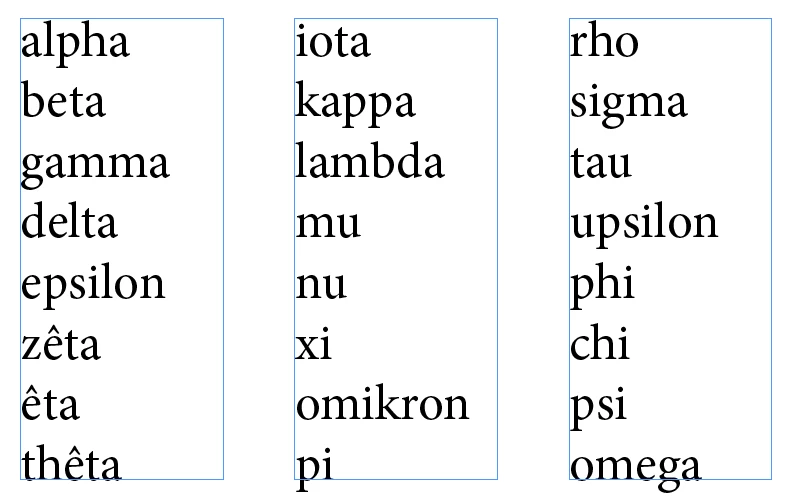
Searching a document with this content


via words.txt containing


delta,test,kappa,phi,alpha,hello,world


will result in a result.txt containing


delta,kappa,phi,alpha


I hope, this script is a good start for your needs.

3 replies

Marc Autret
Legend
December 13, 2023

Hi all,


For those wondering how to also retrieve page numbers, you can use IndexMatic and submit your word list as a Query List (just need to replace commas by new lines). Here is a quick overview.


Step 1 — Load your List.

Go into Finder > Search Mode:Query List and click the ⇧ button to load your list.


Note. — You could technically keep the comma-separated list by using a ~format directive but it's a little more complicated.


Step 2 (optional) — Decide whether you Keep Zero-Frequency Terms.

If desired, in Output > Frequency, set Min to 0 (so not found items will be reported in the index.)


Step 3 (optional) — Run a Hits Report.

To get a preview, click the [Hits] button. (The console then reports actually found entries.)


Step 4 — Build the Index in Text Mode.

Having selected Output > Destination > Format: Text File, just click the button Index (TXT).


Tip: As long as you have less than 50 terms to report, IndexMatic TRY will do the job for free 😉


Best,

Marc

Peter Kahrel
Community Expert
Community Expert
December 12, 2023

Nice one, @GNDGN. Just one comment: you need to reset the search options only once, so it's more efficient to take the line 

app.findGrepPreferences = app.changeGrepPreferences = null;

out of the for-loop. Also, since you're not changing anything there's no need to reset the changeTo preferences, but that's a minor point.


P.

GNDGN
GNDGNCorrect answer
Inspiring
December 12, 2023

This script searches for the individual words and exports the findings in a separate text file:


var txtsrc=File("/path/to/your/words.txt");
txtSrc.open("r");
var words = txtSrc.read().split(",");
var result = [];

for(var i = 0; i<words.length; i++) {
	app.findGrepPreferences = app.changeGrepPreferences = null;
	app.findGrepPreferences.findWhat = words[i];
	try { result.push(app.activeDocument.findGrep()[0].contents) } catch(e) { };
}

var txtDest = new File("/path/to/your/result.txt");
txtDest.encoding = "UTF-8";
txtDest.open("w");
txtDest.write(result);
txtDest.close();

alert("Search result:\n" + result.length + "/" + words.length + " words found.\n\nSearch result exported to:\n" + txtDest);


Example:

Searching a document with this content


via words.txt containing


delta,test,kappa,phi,alpha,hello,world


will result in a result.txt containing


delta,kappa,phi,alpha


I hope, this script is a good start for your needs.

____________________Robotic Process Automation in Desktop Publishing (Book): https://doi.org/10.1007/978-3-658-39375-5
_AWID_
_AWID_Author
Inspiring
December 12, 2023

After a quick look it seems pretty helpful, thanks! 🙂